

Your Android is slow, apps keep crashing, and storage is nearly full. Sound familiar?
Most of that comes down to accumulated app data sitting on your device across dozens of installed apps. The average smartphone user has between 60 and 90 apps installed, and every one of them writes data to your internal storage over time.
The tricky part: Android has no single button to wipe it all at once.
This guide covers every real method to clear all app data on Android at once, including manual settings paths, ADB commands, third-party tools, and factory reset, so you can pick the right approach for your situation without losing anything important.
What Is App Data on Android
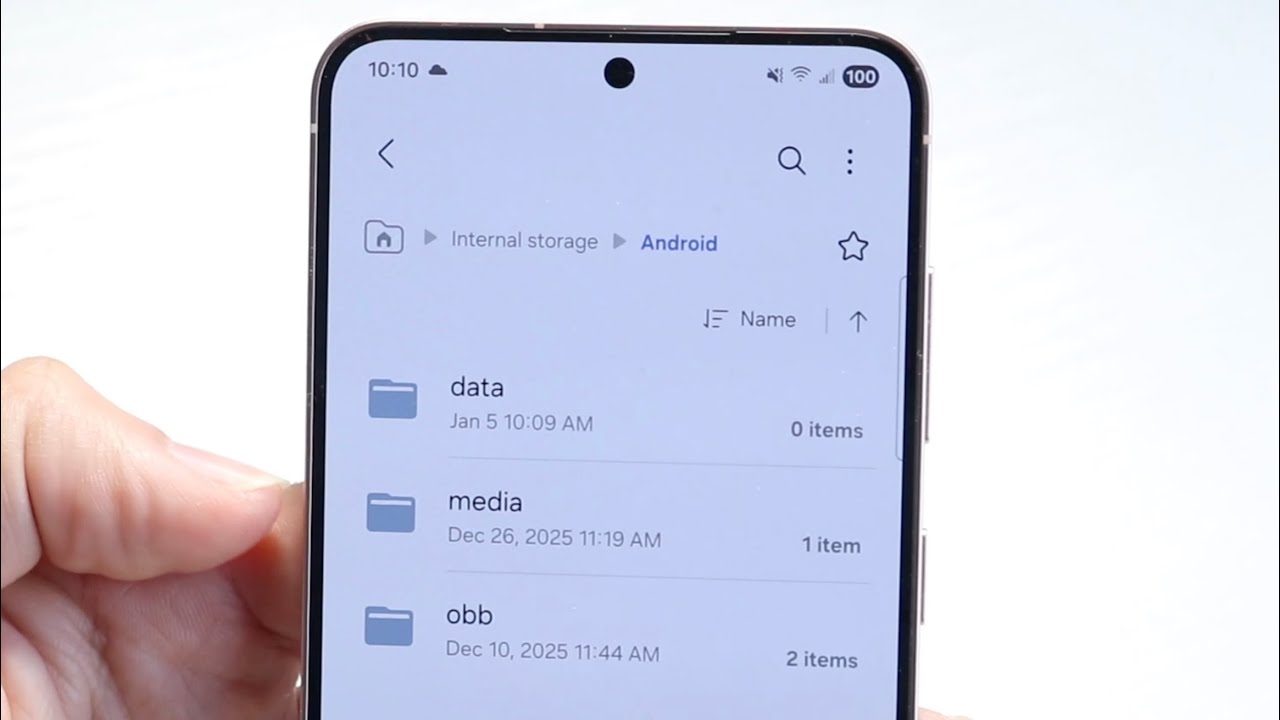
App data is everything an installed app saves to your device’s internal storage over time. This includes your login sessions, in-app settings, downloaded content, offline files, and local databases the app builds to function.
It’s not the same as cache. Cache is temporary. App data is persistent and survives reboots, updates, and even reinstalls in some cases.
Here’s how Android breaks down what’s stored per app:
| Storage Type | What It Holds | Cleared When You… |
|---|---|---|
| App Data | Logins, settings, preferences, local databases | Clear data / factory reset |
| Cache | Temporary files, recently loaded pages, thumbnails | Clear cache |
| App Storage | Downloaded files, offline content, media | Clear storage (same as clear data on Android 11+) |
The average smartphone user has between 60 and 90 apps installed on their device (Kurve, 2024). That’s a lot of data accumulating quietly in the background.
Some of it is recoverable after clearing. Some isn’t. Knowing the difference before you start matters.
What Gets Lost When You Clear App Data
Gone permanently (no cloud sync):
- Game progress saved locally
- Offline notes or documents not backed up
- App-specific settings and themes
- Downloaded media stored in the app’s private folder
Restored on next login:
- Google, Spotify, Netflix account data
- Cloud-synced contacts and calendar entries
- WhatsApp chats (if backed up to Google Drive)
Clearing app data on Android sets the app back to a fresh-install state. The APK stays. Everything else goes.
Does Android Have a One-Tap “Clear All” Option

No. Stock Android has no built-in button to wipe all app data across every installed app at once.
This surprises a lot of people, especially considering that Android’s digital wellbeing tools have gotten more capable in recent years. You’d think storage management would follow. It hasn’t, at least not natively.
The closest built-in option is a factory reset, which does wipe all app data. But it also wipes everything else.
Factory Reset vs. Targeted App Data Clear
These two things are not interchangeable. Here’s the actual difference:
| Action | Clears App Data | Removes Installed Apps | Wipes Accounts & Settings |
|---|---|---|---|
| Clear Data (per app) | Yes | No | No |
| Factory Reset | Yes | Yes | Yes |
A factory reset takes the phone back to the state it was in when you first bought it. All user-installed apps, accounts, saved Wi-Fi passwords, and personal settings are gone (Google Support, 2024).
If your goal is just to clean up storage or fix a misbehaving app, a factory reset is overkill. You need a targeted approach, which is what the rest of this guide covers.
How to Clear App Data for Every App Individually via Settings
This is the manual approach. No extra tools, no root, no computer. Just time.
The path is: Settings > Apps > [App Name] > Storage > Clear Data.
What you lose: logins, preferences, saved progress, offline content. What stays: the app itself, and anything synced to the cloud.
One thing worth knowing: since Android 11, “Clear Storage” and “Clear Data” are the same action. Nextpit confirmed in their June 2024 update that the labels changed, but the function is identical.
Steps on Stock Android (Pixel)
Open Settings, then go to Apps. Tap the app you want to clear. Select Storage & cache, then tap Clear storage. Confirm when prompted.
Pixel devices running Android 12 and above may show a slightly different layout, but the path stays the same. The option hasn’t moved in years.
Steps on Samsung One UI
Go to Settings > Apps. Tap the app, then select Storage. You’ll see both Clear cache and Clear data as separate buttons here.
Samsung keeps them split even on newer One UI versions, which is actually more useful than stock Android’s combined option. Clear cache first, see if that fixes the issue, then go for data if needed.
Steps on Xiaomi / MIUI
Open Settings > Apps > Manage apps. Find the app, tap it, then select Clear data. MIUI sometimes shows a pop-up asking which data to delete.
Worth noting: MIUI’s built-in cleaner under the Security app is separate from this and handles cache only. Don’t confuse the two.
How to Use ADB to Clear App Data in Bulk

This is the most efficient method for clearing data across multiple apps without touching each one manually. It requires a computer, a USB cable, and a few minutes of setup.
Android SDK tools include ADB (Android Debug Bridge) as part of the Platform Tools package, which you can download directly from the Android developer site. No root required for most apps.
Setup Requirements
- Download Android SDK Platform Tools from developer.android.com
- Enable USB Debugging: Settings > About Phone > tap Build Number 7 times > Developer Options > USB Debugging
- Connect your phone via USB and authorize the connection when prompted
- Open a terminal or command prompt in the platform-tools folder
The Commands That Actually Work
Clear a single app’s data:
adb shell pm clear com.example.appname
Replace com.example.appname with the actual package name. To find it, run:
adb shell cmd package list packages
Bulk clear data for all apps (use carefully):
adb shell cmd package list packages | cut -d”:” -f2 | while read package; do pm clear $package; done
This loops through every installed package and clears its data. Per XDA Forums, this works on non-rooted devices, though some system apps may return a “failed” message. That’s normal.
Clear all app caches in one command:
adb shell pm trim-caches 999999999
The number is a target free space value. Set it absurdly high and ADB trims every cache it can reach.
What to Know Before Running These
No undo. Once the command runs, the data is gone.
System apps may fail silently. Some built-in apps reject the clear command without root. This is expected behavior, not an error with your setup.
For developers who regularly test Android apps, this is the standard workflow. Most people in Android development use ADB clear commands as part of their daily testing routine before running fresh builds.
Third-Party Apps That Can Clear Multiple Apps’ Data at Once
The app-based route is more accessible than ADB but comes with a significant catch: most bulk-clear features require root access. Without root, these tools are limited to clearing cache, not full app data.
A quarter of smartphone users uninstall apps specifically because they run out of storage (Kurve, 2024). That makes cleanup tools genuinely in demand, which is why there are plenty of them. Quality varies a lot.
SD Maid (Non-Root and Root)
Best for: users who want a reliable, well-maintained cleaner with granular control.
SD Maid works on non-rooted devices for cache clearing and junk file removal. For clearing app data across multiple apps in bulk, you need SD Maid Pro and root access. Without root, it shows you what’s there but can’t touch private app data folders.
It’s been around since Android 2.x and is still actively developed. That longevity counts for something in a category full of short-lived apps.
App Manager (Root Required for Full Features)
Best for: power users who want deep control over installed packages.
- Open-source, no ads
- Supports batch operations on app data with root
- Shows detailed per-app storage breakdown
- Available on F-Droid and GitHub
What Non-Root Users Can Actually Do
Without root, no third-party app can access another app’s private data directory. That’s an Android security boundary, not a limitation of the tool itself.
What you can do without root:
- Clear cache for individual apps via the app
- Use ADB from a computer (covered in the previous section)
- Use the manual Settings method
Be careful with cleaner apps that promise “bulk clear” without disclosing whether root is needed. Many show impressive-looking interfaces and then can’t actually do anything meaningful on unrooted devices.
How to Perform a Factory Reset to Wipe All App Data
A factory reset is the one method that genuinely clears all app data across all installed apps at once. It’s also the most drastic option available.
Per Google’s official documentation (2024), a factory data reset erases all personal data, removes every user-installed app and its data, and restores the phone to the state it was in when shipped. Data stored in your Google Account can be restored after sign-in. Local-only data cannot.
Back Up Before You Reset
Do this first. No exceptions.
- Google Backup: Settings > Google > Backup > Back up now
- Samsung Cloud: Settings > Accounts and backup > Back up data
- Photos: Confirm Google Photos has synced everything before proceeding
- WhatsApp: In-app backup to Google Drive under Settings > Chats > Chat backup
Apps that store data locally without cloud sync will lose that data permanently. Game progress, offline notes, locally saved files. Gone.
How to Factory Reset on Stock Android
Go to Settings > System > Reset options > Erase all data (factory reset). Confirm twice. Enter your PIN or password if prompted. The process takes up to an hour on a full device (Google Support, 2024). Keep the phone charged above 70% and connected to Wi-Fi before starting.
How to Factory Reset on Samsung One UI
Navigate to Settings > General Management > Reset > Factory data reset. Scroll to the bottom and tap Reset, then Delete all. Samsung requires your Samsung account password if one is linked to the device.
When a Factory Reset Actually Makes Sense
Most of the time, you don’t need one. But these are the situations where it’s the right call:
- Preparing the device to sell or give away
- Persistent system-level issues that targeted app clears haven’t fixed
- Major Android version upgrade causing widespread instability
- Suspected malware that won’t respond to app-level removal
For everyday storage cleanup or fixing a single crashing app, jump back to the ADB or manual Settings methods instead. A factory reset for a single misbehaving app is like rebuilding a house because one window is broken.
How to Clear Cache for All Apps at Once

Cache and app data are not the same thing. This matters because clearing cache is safe every time. Clearing app data is not.
Cache holds temporary files: thumbnails, recently loaded pages, pre-fetched content. Clearing it doesn’t touch your logins, preferences, or saved progress. The app just rebuilds it on next use.
| What You Clear | What Gets Deleted | Login Required After? |
|---|---|---|
| Cache only | Temp files, thumbnails, prefetched content | No |
| App data / storage | Cache + settings, logins, local databases | Yes |
Android removed the one-tap “clear all cache” option starting with Android 10. On older versions (Android 6 through 9), you could go to Settings > Storage > Cached Data and clear everything in one tap. That option is gone on anything running Android 10 or later (MakeUseOf, 2023).
The ADB Command for All-App Cache Clear
This is the closest thing to a one-tap solution that still works on modern Android without root:
adb shell pm trim-caches 999999999
The value is a target free space parameter. Set it impossibly high and Android trims every accessible cache until it can’t clear any more. Technastic confirmed this command works across modern Android versions (2025).
Setup required: USB debugging on, ADB platform tools installed on your computer, phone connected via USB.
Samsung’s Built-In Storage Tool
Samsung One UI actually gives you something close to a native all-cache clear through Device Care.
Path: Settings > Battery and device care > Storage > Clean now.
This clears junk files and large cache chunks across multiple apps in one go. It doesn’t clear every byte of app cache, but for most users it handles the bulk of it without needing ADB or root.
Xiaomi’s Security app has a similar Clear Cache function under its Storage Cleaner section. Less thorough than ADB, more practical than doing it app by app.
Why Clearing All Cache Slows Things Down Initially
Every app that lost its cache has to rebuild it from scratch on next launch.
Spotify re-downloads playlist metadata. Chrome re-loads images on every site you visit. Maps re-fetches your common routes. Expect the first day after a full cache wipe to feel slightly slower, not faster. That’s normal and temporary (Android.com, 2024).
Bottom line: clear all app cache when storage is critically low or when multiple apps are misbehaving after a system update. Doing it monthly for “speed” doesn’t actually help.
What Happens After You Clear App Data

People clear app data expecting a performance boost and then panic when their apps ask them to log in again. Understanding what actually changes (and what doesn’t) saves a lot of confusion.
The short version: the app stays installed, the APK stays intact, but the app behaves like it was just installed fresh from the Google Play Store.
Apps That Recover Automatically
Apps tied to cloud accounts bounce back on their own after you log in. You won’t lose any real data.
- Google apps (Gmail, Drive, Photos) sync everything back from your account
- Spotify and Netflix restore your library, playlists, and download preferences after sign-in
- WhatsApp restores chat history from your Google Drive backup on first launch
- Banking apps re-establish secure sessions after you authenticate again
Luciq’s 2025 Mobile App Stability Outlook found the median crash-free session rate sits at 99.95% for well-built apps. When an app falls below that benchmark, corrupted local data is often the culprit. Clearing app data resets that local state.
Apps That Lose Data Permanently
No cloud backup means no recovery. Full stop.
Locally stored game saves that don’t sync to Google Play Games are gone. Offline-first note apps without a sync feature lose everything written since last export. Podcast apps lose your download queue and listening position.
Check before you clear. Open the app, look for a backup or sync option in settings. If there isn’t one, that data lives only on your device.
Does Clearing App Data Actually Speed Up Your Phone
Honestly, sometimes. Often not.
Clearing data from a misbehaving app that’s holding corrupted files can noticeably fix crashes and slow launches. Clearing data across all apps doesn’t make your phone magically faster, it just resets every app to square one. The performance improvement from wiping healthy app data is minimal and temporary since apps immediately start building local data again.
Android already manages app storage automatically in the background. As of Android 8.0, the OS uses filesystem quota support to prevent any single app from consuming more than 90% of disk space (Android Open Source Project). The system self-regulates more than most users realize.
When Clearing App Data Actually Fixes Problems
Clearing app data is not a general maintenance task. It’s a targeted fix for specific problems. Using it as a first response to every Android issue is like formatting your hard drive because a browser tab crashed.
That said, there are real situations where it’s the right call and nothing else works.
App Crashes and Freezing
Corrupted local data is one of the most common causes of persistent app crashes on Android.
Apps scoring below a 99.9% crash-free session rate are significantly more likely to receive sub-3-star ratings on app stores, per Luciq’s 2023 stability data. From the user side, an app that keeps crashing after updates is often holding outdated local data that conflicts with the new app version.
Clearing app data resets the local state. The app starts clean, pulls fresh data from its servers, and the conflict disappears.
Login Loops and Authentication Errors
Stuck on a login screen that keeps refreshing? Getting “session expired” errors even after re-entering credentials?
This is almost always a corrupted auth token stored in app data. The app keeps trying to use a broken session rather than starting a fresh authentication flow.
- Clear app data
- Relaunch the app
- Log in again
Fixes the problem in most cases. I’ve seen this happen with banking apps especially after a major OS update, where stored tokens become invalid.
Post-Update Preference Conflicts
Major Android version upgrades, say from Android 13 to Android 14, sometimes break how apps read their stored preferences. The app launched fine before the update and now behaves oddly: wrong theme, broken layout, missing options.
The app’s code changed but the old preference files didn’t. Clearing data wipes those stale settings and lets the app write fresh ones.
Android 14 currently holds the largest market share at 34.74% of active Android devices (Wearetenet, 2025), meaning a huge portion of users went through a major version transition recently. Post-upgrade app oddities are a genuine and common issue, not just edge cases.
When Clearing Data Won’t Help
Not every problem is a data problem. Clearing app data won’t fix:
- Server-side outages (the app’s backend is down)
- Hardware issues like failing storage or degraded RAM
- Bugs in the app’s code itself that require a developer update
- Network connectivity problems
If clearing data doesn’t resolve the issue within one or two launches, stop there. The problem isn’t in the local data. Check Android app permissions next, or check whether the app has a known issue reported on its Play Store listing. Sometimes the fix is just waiting for a developer patch.
If you’re an iPhone user curious about how this compares to iOS, the app cache process on iPhone is handled differently since iOS doesn’t expose per-app storage controls in the same way.
FAQ on How To Clear All App Data On Android At Once
Does Android have a built-in option to clear all app data at once?
No. Stock Android has no single button to wipe app data across all installed apps simultaneously. Your options are the manual Settings method per app, ADB commands from a computer, or a full factory reset if you want everything cleared at once.
What is the difference between clear cache and clear data on Android?
Cache holds temporary files only. Clearing it is safe and doesn’t affect logins or settings. Clear data (also called clear storage on Android 11+) resets the app completely, removing saved preferences, accounts, and any locally stored content.
Will clearing app data delete my photos and files?
No. Photos and files stored in your gallery or Downloads folder are unaffected. Clear data only removes what lives inside the app’s private storage directory, such as login tokens, settings, and cached databases specific to that app.
Can I clear app data on Android without a computer?
Yes. Go to Settings > Apps > [App Name] > Storage > Clear Data for each app individually. Samsung users can also use Device Care for a broader cleanup. No computer or root access needed for the basic per-app method.
What does ADB clear app data actually do?
The command adb shell pm clear [package.name] resets an app to its fresh-install state, removing all user data, settings, and cache. It works on non-rooted devices. Running it in a loop clears multiple apps without touching each one manually.
Do I need root to clear all app data at once on Android?
Not always. ADB works without root for most apps. Third-party tools like SD Maid can clear cache without root too. But bulk-clearing app data across all apps in one action through a third-party app typically requires root access.
Does clearing app data fix Android app crashes?
Often yes. Corrupted local data is a common cause of persistent crashes and login loops. Clearing app data removes the bad files and lets the app rebuild clean ones on next launch. It won’t fix server-side issues or code bugs.
How is clearing app data different from uninstalling an app?
Uninstalling removes both the app and its data. Clearing data keeps the app installed but resets it to a blank state. You skip the re-download step. Useful when an app is misbehaving but you still want to keep it on your device.
What happens to my app data after a factory reset?
A factory reset wipes all app data, installed apps, accounts, and settings permanently. Data synced to your Google Account can be restored after sign-in. Local-only data, like offline game saves or unsync’d notes, is gone with no recovery option.
How often should I clear app data on my Android phone?
Only when something is wrong. Clearing app data routinely gives no real performance benefit. Android manages app storage automatically in the background. Clear data when an app crashes repeatedly, gets stuck in a login loop, or behaves oddly after a system update.
Conclusion
This conclusion is for an article presenting every practical method to clear all app data on Android at once, from manual per-app wipes in Settings to bulk ADB commands and full factory resets.
The right method depends on what you actually need. Fixing one misbehaving app? Clear its data through Settings. Resetting dozens of apps before selling your device? ADB or a factory reset makes more sense.
Always back up first. Local-only data, game saves, unsync’d notes, offline downloads, won’t survive a bulk wipe.
Android’s internal storage management handles a lot on its own. Use these methods when something breaks, not as routine maintenance.
Targeted app data removal beats nuclear options every time.

- MongoDB Cheat Sheet - October 20, 2026
- Adding AI Video Generation to a Software Product: Architecture, Cost Guardrails and QA - October 20, 2026
- Show Hidden Characters, Spaces, and Line Endings in Notepad++ - October 19, 2026


