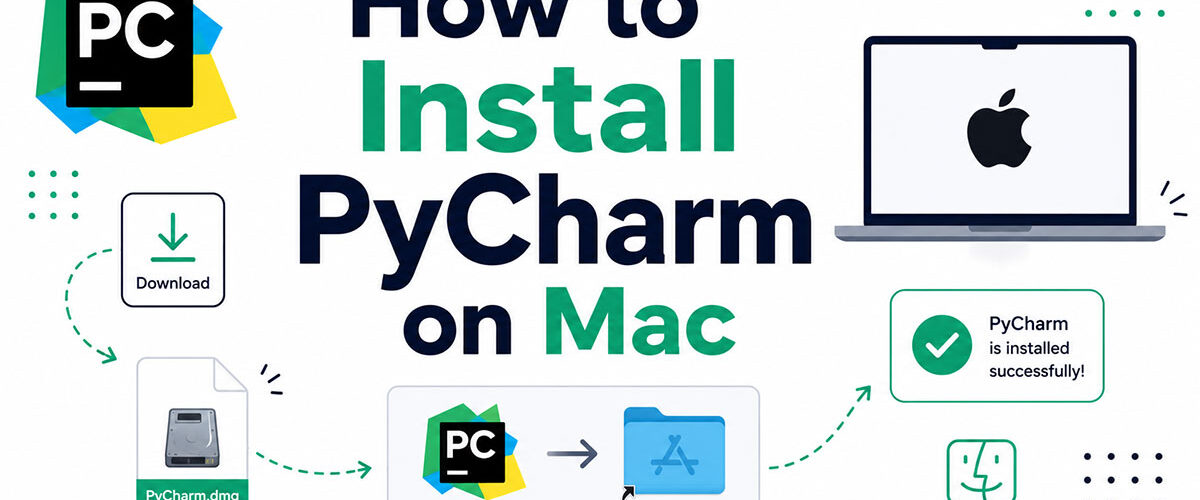
Getting your Python environment up and running on Mac takes less than ten minutes. But only if you know which build to download, which installation method fits your workflow, and what to configure first.
This guide covers how to install PyCharm on Mac from start to finish. That includes the DMG install, JetBrains Toolbox, and Homebrew, plus system requirements for both Intel and Apple Silicon machines.
You’ll also learn how to set up a Python interpreter, fix the most common macOS errors, and remove PyCharm cleanly when needed.
What Is PyCharm

PyCharm is a Python-focused IDE built by JetBrains, a Czech software company known for developer tooling. It handles code completion, debugging, refactoring, version control, and interpreter management all in one place.
It’s cross-platform, running on macOS, Windows, and Linux. On Mac, it works natively on both Intel and Apple Silicon hardware.
Big change in 2025: Starting with version 2025.1, JetBrains merged Community and Professional into one unified product. Core features (including Jupyter Notebook support) are now free. A Pro subscription unlocks Django, database tools, remote development, and advanced framework support.
Every fresh install comes with a 30-day Pro trial automatically. After that, you pick free or paid.
| Feature | Free (Core) | Pro Subscription |
|---|---|---|
| Python coding assistance | ✓ | ✓ |
| Jupyter Notebook support | ✓ | ✓ |
| Django / Flask / FastAPI | ✗ | ✓ |
| Database tools | ✗ | ✓ |
| Remote development | ✗ | ✓ |
The Python Developers Survey 2024 (30,000+ respondents across ~200 countries) confirms PyCharm as one of the top two most-used Python IDEs globally, alongside VS Code.
Worth knowing: among PyCharm users, 68% choose the Professional edition (JetBrains/PSF survey, 2023). That number may shift now that the unified model is in place.
If you’re doing general Python scripting or data work on Mac, the free core tier is plenty. Web developers who need Django or Flask support will want to activate Pro.
System Requirements for PyCharm on Mac
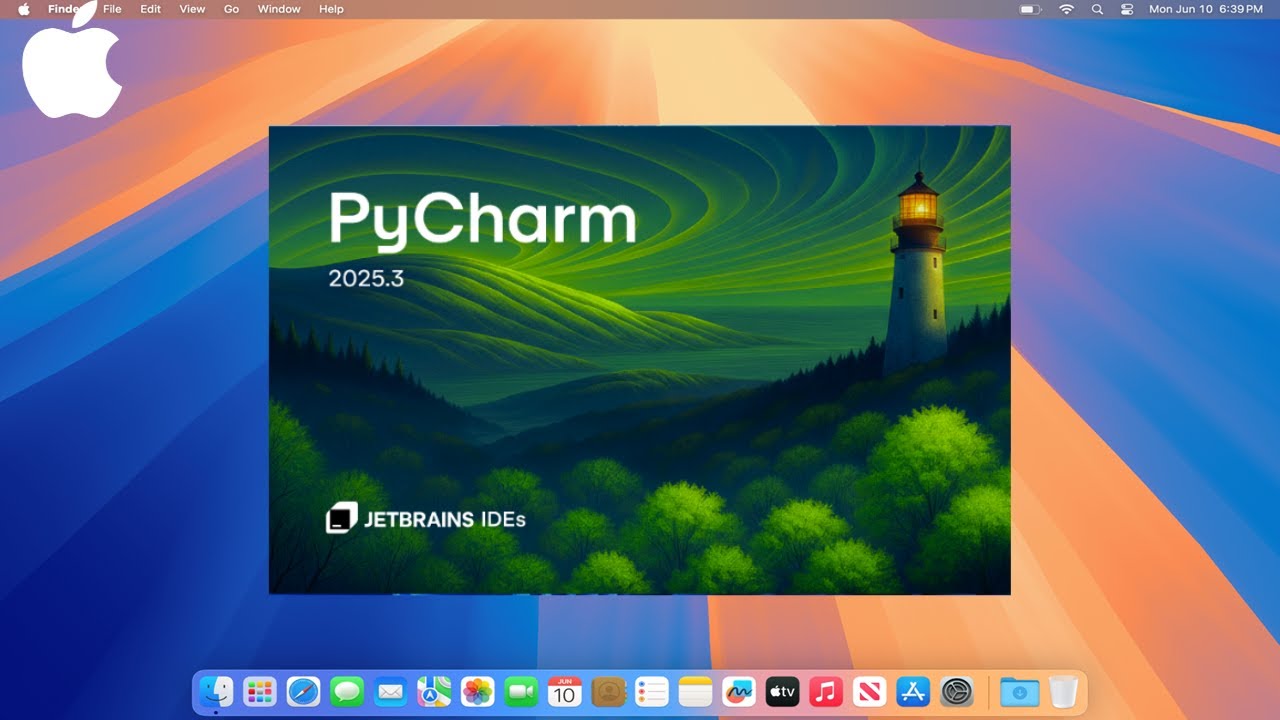
Before downloading anything, check that your Mac actually meets the requirements. PyCharm is not lightweight.
Minimum hardware:
- RAM: 4 GB (8 GB recommended for comfortable use)
- Disk space: 3.5 GB for the IDE itself, plus space for caches and projects
- macOS: 12 Monterey or later (Ventura, Sonoma, and Sequoia all supported)
- CPU: Intel or Apple Silicon (M1, M2, M3, M4)
No separate Java install needed. JetBrains bundles its own runtime (JBR 21) with PyCharm. Don’t install Java separately thinking it helps – it usually causes more problems than it solves.
Apple Silicon note: JetBrains ships separate builds for Intel (x86) and ARM (Apple Silicon). If you download the wrong one, PyCharm won’t launch. Check your Mac’s chip under Apple menu > About This Mac before downloading.
| Mac Type | Chip | Build to Download |
|---|---|---|
| MacBook Pro / Air (2020+) | M1 / M2 / M3 / M4 | Apple Silicon (.dmg) |
| MacBook Pro / iMac (pre-2020) | Intel Core i5 / i7 / i9 | Intel (.dmg) |
One common mistake I’ve seen: people with M-series Macs downloading the Intel build, then wondering why PyCharm runs sluggishly or throws launch errors. The ARM build runs significantly faster on Apple Silicon through native execution rather than Rosetta 2 translation.
How to Download PyCharm for Mac
Go directly to jetbrains.com/pycharm/download. Don’t use any third-party download sites.
The download page auto-detects your OS. macOS is pre-selected. From there:
- Select your chip: Apple Silicon or Intel
- Click Download – the .dmg file is around 800 MB to 1.1 GB
- Optionally, download via JetBrains Toolbox instead (more on that in the next section)
As of 2025, there’s no longer a separate “Community Edition” download page. The unified PyCharm download covers everything. The old pycharm-ce Homebrew cask now points to the unified pycharm cask.
SHA checksum verification is available on the download page if you want to confirm file integrity – useful in team or enterprise environments where you need to verify what’s being installed.
How to Install PyCharm Using the DMG File
This is the standard method. Straightforward, no terminal needed.
Steps:
- Open the downloaded
.dmgfile - Drag the PyCharm icon into the Applications folder
- Eject the disk image
- Open PyCharm from Applications, Launchpad, or Spotlight (Cmd+Space, type “PyCharm”)
First launch triggers a macOS security prompt. This is Gatekeeper doing its job – not a sign that something is wrong.
If macOS says “PyCharm cannot be opened because it is from an unidentified developer”, go to System Settings > Privacy & Security and click “Open Anyway.” This only happens once.
After that, PyCharm opens a setup wizard. It walks you through UI theme (light/dark), keymap selection, and optional plugin installs. You can skip all of it and configure later under PyCharm > Settings.
Pro trial activates automatically on first launch. No account required to start, though you’ll need a JetBrains account to manage your license long-term.
How to Install PyCharm Using JetBrains Toolbox

JetBrains Toolbox is a small app that manages all JetBrains IDEs from one place. If you use (or plan to use) more than one JetBrains product, Toolbox is worth it.
Why some developers prefer Toolbox:
- One-click updates across all JetBrains tools
- Easy version rollback if an update breaks something
- Automatic license activation when signed in to your JetBrains account
- Cleaner uninstall – removes all associated files, not just the app
To install via Toolbox:
- Download JetBrains Toolbox from jetbrains.com/toolbox-app
- Open the .dmg and drag Toolbox to Applications
- Launch Toolbox – it appears as a menu bar icon
- Find PyCharm in the list and click Install
Toolbox also provides separate disk images for Intel and Apple Silicon. It auto-detects your hardware and installs the right build. One less thing to get wrong.
JetBrains themselves recommend Toolbox for most users, especially anyone who needs to manage multiple IDE versions simultaneously. Data teams running different Python project configurations often keep two PyCharm versions installed this way.
How to Install PyCharm on Mac Using Homebrew

If you manage most of your Mac software through the terminal, Homebrew is the cleanest option.
Prerequisite: Homebrew must already be installed. Check with brew --version. If it’s not installed, run:
/bin/bash -c "$(curl -fsSL https://raw.githubusercontent.com/Homebrew/install/HEAD/install.sh)"
Then update Homebrew before installing anything:
brew update
Install PyCharm:
brew install --cask pycharm
That’s the unified build (previously the Professional cask). The old pycharm-ce cask now redirects to pycharm as well. Homebrew handles the Apple Silicon vs. Intel detection automatically.
To verify the install:
brew list --cask | grep pycharm
Updating later is just:
brew upgrade --cask pycharm
Key difference from DMG install: Homebrew gives you a proper upgrade path managed from the terminal. No clicking through download pages. For developers who use Homebrew to manage their entire development environment setup, keeping PyCharm in the same system makes environment management simpler and more consistent.
One thing to know: Homebrew Cask installs go into /Applications by default on Mac. The app behaves identically to a DMG install once it’s there.
How to Set Up a Python Interpreter in PyCharm

PyCharm does not use Python automatically. It needs to know which Python to use, and from where. This is the first thing to configure after installation, and skipping it means nothing will actually run.
On Mac, PyCharm can work with the system Python, a standalone install from python.org, a virtual environment, a conda environment, or pyenv-managed versions. The right choice depends on your project structure.
Setting Up a New Virtual Environment
Recommended for most projects.
When you create a new project in PyCharm, the setup wizard offers to create a virtual environment automatically. Accept it. PyCharm bundles virtualenv, so no separate install is needed.
- Go to File > New Project
- Under “Python Interpreter,” select “New environment using Virtualenv”
- Choose your base Python version from the dropdown
- Click Create
The environment gets created inside your project folder. PyCharm switches to it automatically.
Adding an Existing Interpreter
Already have a conda or pyenv environment set up? Add it without recreating anything.
Path: PyCharm > Settings > Project > Python Interpreter > Add Interpreter > Add Local Interpreter
Select “Existing environment,” then browse to the Python executable. On Mac, the path typically looks like ~/.pyenv/versions/3.x.x/bin/python for pyenv, or ~/opt/anaconda3/envs/myenv/bin/python for conda.
PyCharm detects conda installations automatically if Anaconda is installed in the default location. If it doesn’t find it, point it to the conda executable manually.
Switching Interpreters Mid-Project
The interpreter selector lives in the bottom-right status bar. Click it to switch between any configured interpreter instantly.
No need to open Settings every time. This is useful when working across multiple projects that use different Python versions, which is a common setup for data teams managing separate project dependencies.
| Environment Type | Best For | Auto-detected by PyCharm |
|---|---|---|
| Virtualenv | General Python projects | Yes (bundled) |
| Conda | Data science, ML workflows | Yes (if default path) |
| pyenv | Multiple Python versions | Partial (manual path needed) |
| System Python | Quick scripts only | Yes |
One thing that trips people up: if PyCharm shows an “Invalid environment” warning, the Python binary path has moved or was deleted. Re-add the interpreter rather than trying to edit the broken path.
Common Installation Issues on Mac and How to Fix Them

Most PyCharm problems on Mac fall into a handful of categories. None of them require reinstalling macOS. All of them have straightforward fixes.
“PyCharm Is Damaged and Can’t Be Opened”
This is a Gatekeeper issue, not actual file damage. macOS applies a quarantine flag to apps downloaded from the internet.
Quickest fix: Open Terminal and run:
sudo xattr -r -d com.apple.quarantine /Applications/PyCharm.app
Then try launching again. If that doesn’t work, go to System Settings > Privacy & Security and click “Open Anyway” after attempting to launch.
Re-downloading from scratch also works. Sometimes a partial download corrupts the signature and the quarantine removal command has nothing to fix.
PyCharm Not Detecting Python on Apple Silicon
Two causes. Either the wrong build was downloaded (Intel instead of ARM), or Python itself was installed as an x86 binary and runs under Rosetta.
Check which build you’re running:
file /Applications/PyCharm.app/Contents/MacOS/pycharm
Output should say arm64 on an M-series Mac. If it says x8664, download the Apple Silicon build from jetbrains.com.
For Python, check with python3 –version and file $(which python3). A native ARM Python will perform significantly better in PyCharm than one running through Rosetta 2 emulation.
Black Screen or UI Rendering Issues on macOS Sonoma
Confirmed bug in early PyCharm builds on macOS Sonoma 14.x. JetBrains has addressed the majority of these in releases from 2024.1 onward.
Fix options:
- Update to the latest PyCharm version through JetBrains Toolbox or the IDE itself
- If stuck on an older version, add -Dsun.java2d.metal=true
toHelp > Edit Custom VM Options
- Reset the UI by deleting the ~/Library/Application Support/JetBrains/PyCharm[version]/options
folder and relaunching
Slow Startup and High Memory Usage
PyCharm indexes your entire project on first open. That’s expected. Slow every launch is a different problem.
Common causes and fixes:
Too many plugins: Go to Settings > Plugins and disable anything you don’t use. The Markdown, Database Tools, and various framework plugins all add startup overhead.
Oversized project: PyCharm indexes everything in your project root. If nodemodules, .venv, or large data folders are inside the project, right-click them and select “Mark Directory as > Excluded.”
Cache corruption: Go to File > Invalidate Caches > Invalidate and Restart. This forces a full reindex and clears stale data.
How to Uninstall PyCharm from Mac

Dragging PyCharm to Trash only removes the app binary. It leaves behind several gigabytes of config files, caches, logs, and plugin data.
A full uninstall takes an extra two minutes and is worth doing properly.
Uninstall via JetBrains Toolbox
The cleanest method if you installed through Toolbox.
Open JetBrains Toolbox, click the three-dot menu next to PyCharm, and select Uninstall. Toolbox removes the application and offers to delete IDE data directories as well.
Check the box to remove IDE data. That covers config, caches, and logs in one step.
Manual Uninstall (DMG or Homebrew Install)
Step 1: Quit PyCharm completely. Check Activity Monitor to confirm no PyCharm processes are running.
Step 2: Move /Applications/PyCharm.app to Trash.
Step 3: Remove leftover files. In Terminal, run:
find ~/Library/ -iname "pycharm" -exec rm -r "{}" ;
Or delete these paths manually via Finder > Go > Go to Folder:
- ~/Library/Application Support/JetBrains/PyCharm[version]
- ~/Library/Caches/JetBrains/PyCharm[version]
- ~/Library/Logs/JetBrains/PyCharm[version]
- ~/Library/Preferences/com.jetbrains.PyCharm.plist
Step 4: Empty Trash and restart your Mac.
For Homebrew installs, the removal is simpler:
brew uninstall --cask pycharm
Then run the Library cleanup above. Homebrew removes the app itself but does not touch the ~/Library data directories.
What Happens to Your Projects
Uninstalling PyCharm does not delete your Python projects. Project files live wherever you saved them on disk (typically ~/PycharmProjects) and are completely separate from the IDE itself.
If you’re switching to another editor like VS Code, your project folders open directly without any migration. The only thing that won’t transfer is PyCharm-specific run configurations stored in the .idea folder inside each project directory.
According to JetBrains documentation, PyCharm preserves config and plugin directories even after removal, in case you reinstall later. If you want a completely clean slate, the Terminal command above handles that.
FAQ on How To Install PyCharm On Mac
Is PyCharm free to install on Mac?
Yes. Since the 2025.1 release, PyCharm is a unified product. Core features, including Jupyter Notebook support, are free. Every install comes with a 30-day Pro trial automatically. After that, you can keep using the free tier indefinitely.
Which PyCharm build should I download for my Mac?
Check your chip first. Apple menu > About This Mac. M1, M2, M3, or M4 = download the Apple Silicon build. Older Intel Mac = download the Intel build. Installing the wrong one causes launch errors.
Does PyCharm work on macOS Sonoma and Sequoia?
Yes, both are supported. Some early builds had rendering issues on Sonoma 14.x, but those are resolved in PyCharm 2024.1 and later. Always use the latest version to avoid known compatibility problems.
Do I need to install Python separately before installing PyCharm?
Yes. PyCharm is an IDE, not a Python runtime. You need Python installed on your Mac first, then configure it as the project interpreter inside PyCharm under Settings > Project > Python Interpreter.
Can I install PyCharm on Mac using Homebrew?
Yes. Run brew install –cask pycharm in Terminal. Homebrew auto-detects your chip and installs the correct build. The old pycharm-ce cask now redirects to the unified pycharm cask as of 2025.
What is JetBrains Toolbox and do I need it?
JetBrains Toolbox is a free app that manages all JetBrains IDEs from one place. It handles updates, version rollbacks, and license activation automatically. Not required, but worth using if you run multiple JetBrains tools.
Why does macOS say PyCharm is damaged and can’t be opened?
That’s Gatekeeper blocking the app, not real file damage. Run sudo xattr -r -d com.apple.quarantine /Applications/PyCharm.app in Terminal, then relaunch. Alternatively, go to System Settings > Privacy & Security and click “Open Anyway.”
How do I set up a virtual environment in PyCharm on Mac?
When creating a new project, select “New environment using Virtualenv” in the interpreter settings. PyCharm bundles virtualenv so no separate install is needed. The virtual environment gets created inside your project folder automatically.
How do I uninstall PyCharm completely from Mac?
Drag the app to Trash, then remove leftover files. In Terminal, run find ~/Library/ -iname “pycharm” -exec rm -r “{}” ;. For Homebrew installs, use brew uninstall –cask pycharm first, then clean the Library folder.
Will uninstalling PyCharm delete my Python projects?
No. Your project files are stored separately on disk, typically in ~/PycharmProjects. Removing PyCharm only deletes the IDE. Your Python files and project folders remain completely untouched.
Conclusion
This conclusion is for an article presenting how to install PyCharm on Mac using three methods: the DMG file, JetBrains Toolbox, and Homebrew.
Each approach works. The right one depends on how you manage your Mac development environment and whether you need multi-IDE version control.
Once installed, the two things that matter most are downloading the correct build for your chip and configuring a Python interpreter before writing any code.
Gatekeeper errors, slow startup, and Apple Silicon detection issues all have fixes. None require a reinstall.
Whether you’re setting up a conda environment, a pyenv-managed version, or a basic virtualenv, PyCharm handles it. Get the setup right once, and it stays out of your way.

- Notepad++ Android Options: Apps That Come Close - October 21, 2026
- Data Management Services: A Practical Guide for Growing Companies - October 21, 2026
- MongoDB Cheat Sheet - October 20, 2026