Raw XML is unreadable. One long line of nested tags, no indentation, no structure you can actually follow.
Learning how to format XML in Notepad++ solves that instantly. The editor does not pretty print XML on its own, but with the right plugin, it takes seconds.
This guide covers everything: installing the XML Tools plugin, running Pretty Print, validating syntax, handling minified XML, and formatting specific file types like SVG, XSLT, and Web.config files.
By the end, you’ll have a working XML formatting setup in Notepad++ and know exactly what to do when it doesn’t behave.
What Is XML Formatting in Notepad++?

XML formatting in Notepad++ is the process of converting flat, unindented XML content into a structured, human-readable layout with proper tag nesting, line breaks, and indentation. The result is called pretty-printed XML.
This matters more than it sounds. Raw XML from API responses, config files like Web.config or App.config, and XSLT exports typically arrive as a single continuous line or near-unreadable block of tags. Formatting makes the document structure visible.
Notepad++ does not format XML on its own. Without the XML Tools plugin, the editor gives you syntax highlighting but no actual code beautification. The plugin is what does the formatting work.
XML remains widely used. About 40% of organizations still rely on XML for configuration management and document storage (MoldStud, 2024), and roughly 30% of enterprise applications depend on XML for data exchange in finance and healthcare. That’s a lot of XML files that need to be read and edited regularly.
Two things are worth separating here: syntax highlighting and formatting. Notepad++ handles the first natively. The second requires a plugin.
| Feature | Notepad++ (native) | With XML Tools plugin |
|---|---|---|
| Syntax highlighting | Yes | Yes |
| Pretty print (indentation) | No | Yes |
| XML validation | No | Yes (XSD + DTD) |
| Linearize XML | No | Yes |
What Are the System and Version Requirements?
XML Tools requires Notepad++ v8.3 or higher for the current plugin version (3.1.1.13). The plugin manifest specifies “npp-compatible-versions”: “[8.3,]”, meaning earlier versions are not supported with the latest release.
Notepad++ is a Windows-only application, built with native Win32 API calls. There is no macOS or Linux version. The editor runs on Windows 7 through Windows 11.
32-bit vs. 64-bit compatibility
Architecture matters. The XML Tools plugin ships as separate 32-bit and 64-bit DLL files. Installing the wrong architecture causes the plugin to fail silently or not appear in the Plugins menu at all.
- Check your Notepad++ build: go to ? > About Notepad++
- The dialog shows whether you’re running the 32-bit or 64-bit build
- Download the matching DLL from the XML Tools GitHub releases page
Plugin Admin availability
Plugin Admin was introduced in Notepad++ v7.6. If you’re running an older build, Plugin Admin won’t exist in the menu and you’ll need to install XML Tools manually.
Most corporate environments that have restricted software installs are still on older Notepad++ builds. Manual DLL installation is more common in those setups than people expect.
How to Install the XML Tools Plugin in Notepad++

The XML Tools plugin is the standard way to format XML files in Notepad++. It’s maintained on GitHub by morbac and adds pretty print, linearize, XSD validation, XSLT transformation, and XPath evaluation to the editor.
Notepad++ holds 27.4% usage among developers as of the 2025 Stack Overflow Developer Survey, down from a peak of 35.6% in 2016 but still a significant user base. Most of those users dealing with XML files will need this plugin.
Installing via Plugin Admin
This is the fastest path for anyone on Notepad++ v7.6 or later.
- Open Notepad++ and go to Plugins > Plugins Admin
- Type XML Tools in the search box
- Check the checkbox next to XML Tools in the results list
- Click Install at the top right
- Notepad++ will prompt you to restart. Click Yes.
- After restart, confirm the plugin is active: go to Plugins and look for the XML Tools submenu
The plugin installs to %AppData%Notepad++pluginsXMLTools by default in newer versions.
Installing manually without Plugin Admin
Use this method if Plugin Admin is unavailable, the network blocks the download, or you’re on a restricted machine.
- Go to the XML Tools GitHub releases page: github.com/morbac/xmltools/releases
- Download the correct ZIP for your architecture (32-bit or 64-bit)
- Extract the ZIP. You’ll get an XMLTools.dll file and a folder
- Copy the DLL and its folder to: C:Program FilesNotepad++pluginsXMLTools
- Restart Notepad++
If the plugin still doesn’t appear after a restart, double-check that the DLL isn’t blocked by Windows. Right-click the DLL file, go to Properties, and look for an Unblock button at the bottom of the General tab.
How to Format XML Using XML Tools Pretty Print

Pretty Print is the core formatting function in XML Tools. It takes your XML content, whatever state it’s in, and outputs an indented, readable document structure with correct tag nesting and line breaks.
XML Tools version 3.1.1.13 (current as of 2025) includes 2 Pretty Print variants. Knowing which one to use saves a lot of frustration.
| Function | What it does | Best for |
|---|---|---|
| Pretty Print (XML only) | Indents tags, preserves existing line breaks | Already-structured XML that needs cleanup |
| Pretty Print (XML with line breaks) | Adds line breaks before formatting | Minified or single-line XML |
Step-by-step: formatting an XML file
Open your XML file in Notepad++. The editor usually auto-detects .xml files and sets the language to XML, shown in the bottom status bar. If it shows a different language, go to Language > X > XML and set it manually.
- With the XML file open and active, go to Plugins > XML Tools
- Click Pretty Print (XML only) for structured XML
- The document reformats immediately, no confirmation dialog
- Undo with Ctrl+Z if the output isn’t what you expected
Pretty Print applies to the active document only. It does not affect other open tabs unless you use the “Apply to all open files” option in the XML Tools menu, which is worth knowing about because it can cause unexpected results across multiple files.
What the output looks like
Before formatting (minified XML):
“ <catalog><book id=”b1″><title>XML Basics</title><author>J. Smith</author></book></catalog> `
After Pretty Print:
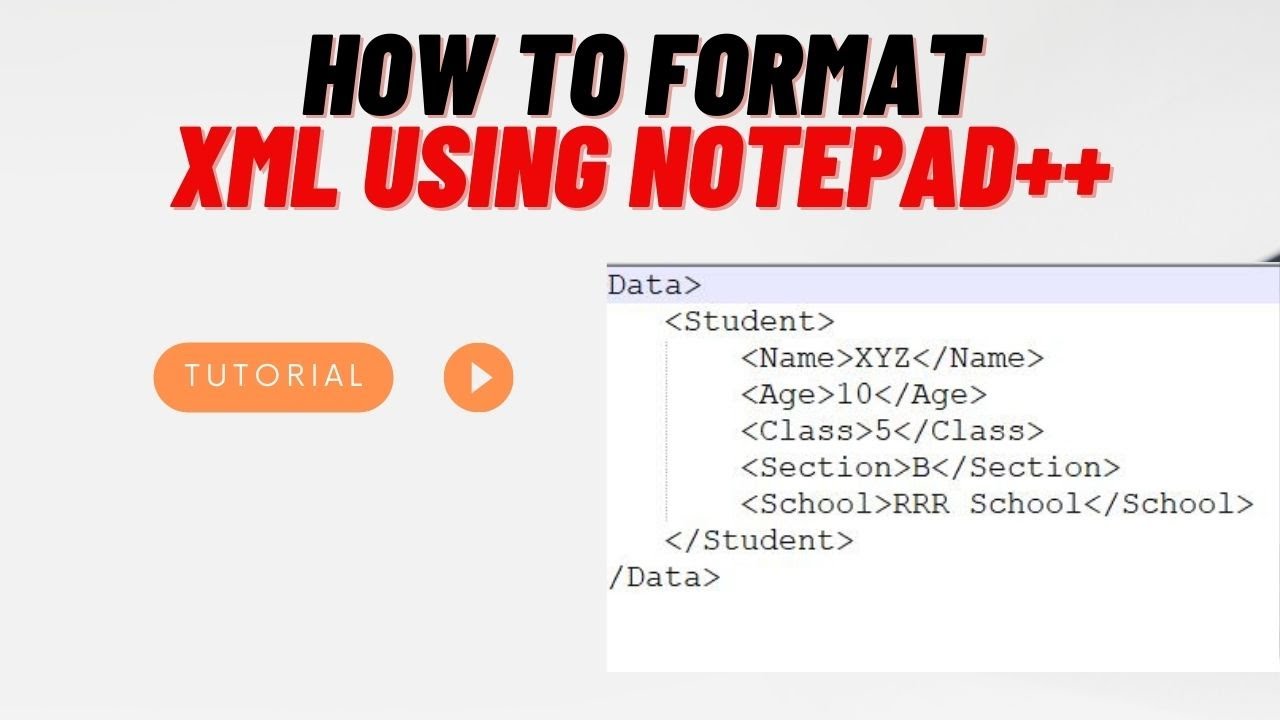
` <catalog> <book id=”b1″> <title>XML Basics</title> <author>J. Smith</author> </book> </catalog> `
Each nested element gets indented by 2 spaces (the default). Attributes stay on the same line as their opening tag. The XML declaration at the top of the document, if present, is preserved as-is.
How to Format XML with a Keyboard Shortcut in Notepad++
XML Tools assigns a default keyboard shortcut to Pretty Print on installation: Ctrl+Shift+Alt+B. That’s a four-key combo, which is awkward, but it works out of the box.
The 2025 Stack Overflow Developer Survey notes that 42% of developers use more than one editor in their regular workflow (Second Talent, 2025). For those who use Notepad++ for quick XML edits alongside a heavier IDE, a fast keyboard shortcut is more useful than navigating menus repeatedly.
Remapping the Pretty Print shortcut
Shortcut Mapper is where all keyboard bindings live in Notepad++.
- Go to Settings > Shortcut Mapper
- Click the Plugin commands tab
- Search for Pretty Print in the filter box
- Double-click the entry to edit it
- Assign a new shortcut and click OK
Watch for conflicts. If the shortcut you want is already assigned to a core Notepad++ function, the remapper will warn you. Ctrl+Shift+F is a common choice for formatting, but it’s often taken by Find in Files. Try Ctrl+Alt+F or Ctrl+Shift+X as alternatives.
How to Format Minified or Single-Line XML
Minified XML is exactly what it sounds like: all tags, attributes, and values on a single continuous line, no whitespace, no indentation. This is the default output from most REST API responses, some build pipelines, and export functions in tools like SAP or Oracle ERP systems.
About 70% of web services use XML for data interchange (MoldStud, 2025), and a large portion of that XML arrives minified. So this case comes up constantly.
Which Pretty Print variant handles minified XML
Pretty Print (XML only) sometimes fails on single-line XML.
It relies on existing structure to work correctly. With no line breaks to orient from, it can produce incorrect output or format only partially. Use Pretty Print (XML with line breaks) instead. This variant inserts line breaks first, then applies indentation, which handles minified content reliably.
Encoding issues with minified XML
Minified XML from external sources occasionally arrives with encoding problems, specifically non-UTF-8 characters embedded in attribute values or text nodes. These break the XML parser inside XML Tools before formatting can run.
- Check the bottom status bar in Notepad++ for the current encoding
- Go to Encoding > Convert to UTF-8 if needed
- Re-run Pretty Print after converting
If the XML Tools pretty print still fails, the XML itself is likely malformed. Run Plugins > XML Tools > Check XML Syntax Now to find the error before trying to format again.
How to Validate XML While Formatting in Notepad++

XML Tools includes a syntax checker that runs independently of Pretty Print. This is useful because malformed XML causes Pretty Print to fail or produce garbled output, and the error message from the plugin alone isn’t always clear about where the problem is.
About 35% of organizations report fewer deployment errors when using XML configurations with validation in place versus without (MoldStud, 2024). Running a quick syntax check before formatting is a small habit that prevents a lot of rework.
Checking XML syntax in Notepad++
Two ways to run the syntax check:
- Go to Plugins > XML Tools > Check XML Syntax Now
- Or use the keyboard shortcut assigned to that function in Shortcut Mapper
If the XML is well-formed, a small dialog appears: “XML is well formed.” If not, the error output panel opens at the bottom of the editor and shows the line number, column, and error type. Click the error line to jump directly to the problem in the document.
Well-formed vs. valid XML
Well-formed means the XML follows basic syntax rules: all tags are closed, attributes are quoted, no illegal characters. This is what the syntax checker validates.
Valid means the XML conforms to a specific XSD schema or DTD. XML Tools handles both: use Validate Now from the XML Tools menu and point it at your .xsd file. SAP, for example, requires schema-valid XML for IDoc and BAPI file exchanges, so this function is practical in enterprise workflows.
Common errors the syntax checker catches
| Error type | Common cause |
|---|---|
| Unclosed tag | Missing or self-closing slash |
| Attribute not quoted | id=123 instead of id="123" |
| Illegal character | Unescaped &, <, or > in text nodes |
| Invalid declaration | XML declaration not on the first line |
How to Format XML in Notepad++ Using Macros
Notepad++ macros record sequences of editor actions and replay them on demand. They are stored in %AppData%Notepad++shortcuts.xml as XML action entries.
There is one hard limit to know upfront: the macro recorder does not capture plugin commands, including Pretty Print. Plugin menu IDs are not stable across installations, so the recorder skips them by design (Notepad++ Community, confirmed in multiple threads).
What macros can and cannot do with XML
Macros can handle:
- Find and Replace operations with regex patterns
- Keyboard-triggered menu commands with fixed IDs
- Running a macro across all lines in a document
Macros cannot handle:
- Deep tag nesting with correct indentation
- XML-aware formatting that respects attribute positioning
- Pretty Print or Linearize (these are plugin commands)
When macros are the only viable option
Corporate machines with restricted software installs sometimes block Plugin Admin entirely. In those setups, manual DLL installation is also locked down.
A regex-based Find and Replace macro can add basic line breaks after closing tags, which gets flat XML into a more readable state. It won’t produce properly indented XML, but it makes long single-line XML scannable without any plugins installed.
The practical workaround for locked environments: use an XML to XSD converter or online XML beautifier for one-off formatting jobs, then paste the result back into Notepad++.
How to Set Notepad++ to Auto-Detect XML Files

Notepad++ assigns a language to each file based on its extension. The XML language activates syntax highlighting and enables XML Tools to run correctly. If the wrong language is detected, Pretty Print either fails or produces no output.
The editor natively recognizes these extensions as XML: .xml, .xsd, .xsl, .xslt, .svg, .xaml, .kml, .gpx, .plist, .wsdl (Notepad++ langs.xml config, confirmed in community documentation).
Adding custom extensions to the XML language
Files like .config, .csproj, or custom export formats won’t be detected as XML by default. Adding them takes about 30 seconds.
- Go to Settings > Style Configurator
- Find XML in the language list on the left
- In the User ext. field at the bottom, type your extension (e.g., config csproj)
- Click Save & Close
Multiple extensions go in the same field, space-separated. No dot needed before the extension name. After saving, any file with that extension opens directly in XML mode and is ready for Pretty Print.
When auto-detection still sets the wrong language
Files that start with trigger XML auto-detection regardless of extension, which can override custom language settings for non-XML files that happen to contain XML headers.
The fix: open the file, go to Language > [your correct language] and select it manually. That overrides auto-detection for that session.
For permanent fixes on files that keep getting misidentified, the Notepad++ Community recommends editing langs.xml directly to remove the conflicting extension from the XML language block. Back up the file first.
How to Format Large XML Files Without Crashing Notepad++

Notepad++ handles small and medium XML files without issues. Performance degrades noticeably above roughly 4-5 MB, and the editor can become unresponsive or freeze when XML Tools tries to process very large files.
The root cause is well-documented in the Notepad++ community: XML Tools’ auto-syntax check feature processes the entire document on every keystroke or save. On a 4 MB XML file with thousands of tags, that’s enough to lock the editor for several minutes (Notepad++ Community, 2023).
Disabling auto-syntax check before formatting large files
This is the fix that resolves most large-file freezes.
- Go to Plugins > XML Tools
- Look for Enable XML syntax auto-check and make sure it is unchecked
- Close the Function List panel if it’s open (View > Function List)
- Now run Pretty Print
Disabling auto-check alone is often enough to restore normal performance on files up to ~20 MB, based on community reports.
Using the large file limit setting in Notepad++
Settings > Preferences > MISC contains a threshold setting for large file detection.
Set a file size limit (in MB) above which Notepad++ disables syntax highlighting and plugin processing automatically. Files above the threshold open as plain text, which is fast. You can still run Pretty Print manually after the file loads.
Splitting large XML before formatting
XML files above 50 MB are a different category. Notepad++ is not the right tool for those.
Split the file into smaller segments using a command-line tool like xml_split (part of the XML::Twig Perl module) or Python’s lxml library. Format each segment in Notepad++, then recombine. Oracle and SAP both produce XML exports in this size range for data migrations, so this split-format-merge approach is common in enterprise workflows.
How to Convert Formatted XML Back to Minified XML in Notepad++
Linearize XML is the reverse of Pretty Print. It collapses a formatted, indented XML document into a single continuous line with no whitespace between tags.
| Operation | XML Tools function | Result |
|---|---|---|
| Pretty Print | Pretty Print (XML only) | Indented, multi-line XML |
| Linearize | Linearize XML | Single-line, minified XML |
How to run Linearize XML
Go to Plugins > XML Tools > Linearize XML. The document collapses to a single line immediately.
All attributes and values are preserved exactly. Linearize only removes whitespace between tags. It does not alter content, reorder attributes, or strip the XML declaration.
There is a known edge case: Linearize can strip whitespace between inline elements like and in mixed-content XML, which changes the rendered output for XHTML documents. Check the result if your XML contains inline formatting tags (Notepad++ Community, 2022).
Use cases for linearized XML
Common reasons to minify XML output:
- Preparing XML payloads for REST or SOAP API transmission
- Reducing file size before logging or archiving
- Matching the expected input format for a downstream parser
If you work regularly with API integration pipelines that consume XML, the Linearize function saves a step compared to manually stripping whitespace or running a separate minification tool.
How to Format XML in Notepad++ on Specific File Types

Any file that is valid XML can be formatted with Pretty Print in Notepad++. That includes file types that don’t carry a .xml extension but follow XML document structure rules.
About 41% of developers prefer XML for configuration management in enterprise applications (MoldStud, 2024). A large portion of those config files have non-standard extensions that Notepad++ doesn’t automatically recognize as XML.
SVG files
SVG (Scalable Vector Graphics) is valid XML. Pretty Print formats SVG files without any issues once the language is set to XML in Notepad++.
SVG files exported from Illustrator or Figma often arrive minified. Formatting them in Notepad++ makes the path data, group structure, and attribute values readable for manual editing. The .svg extension is already in Notepad++’s default XML language list, so no extra configuration is needed.
XSLT and XSD files
XSLT (.xsl, .xslt) and XSD (.xsd) files follow the same XML formatting rules as standard XML documents. Pretty Print applies to them without any special handling.
XML Tools also supports running XSLT transformations directly in Notepad++: open the XML source file, go to Plugins > XML Tools > XSL Transformation, and point it at your stylesheet. The output appears in a new tab. Useful for testing XSLT logic without switching to a separate tool like Altova XMLSpy.
Web.config and App.config files
These .NET configuration files are XML but use the .config extension, which Notepad++ doesn’t recognize as XML by default.
Add config to the User ext. field under Style Configurator > XML (as covered in the auto-detect section). After that, Web.config and App.config files open in XML mode and format correctly with Pretty Print.
One real risk: whitespace is meaningful in some config values. Connection strings, regex patterns in , and custom section values can break if Pretty Print adds unexpected indentation inside attribute values. Always review the diff before saving a reformatted config file to a production environment.
Files where formatting can cause problems
| File type | Risk | Recommendation |
|---|---|---|
| XHTML with mixed content | Inline whitespace changes rendering | Test in browser after formatting |
| Web.config / App.config | Whitespace in attribute values | Review diff before saving |
| Android layout XML | Safe to format | No known issues |
| RSS / Atom feeds | Safe to format | No known issues |
If you’re comparing formatted XML output across different tools or editors, the Notepad++ vs VS Code comparison covers how each editor handles XML formatting and which workflows each is better suited for.
FAQ on How To Format XML In Notepad++
Does Notepad++ format XML natively?
No. Notepad++ provides XML syntax highlighting out of the box, but it does not pretty print or indent XML without a plugin. You need the XML Tools plugin installed to format XML documents properly.
What plugin do I need to format XML in Notepad++?
The XML Tools plugin is the standard choice. Install it through Plugins Admin by searching “XML Tools,” checking the box, and clicking Install. Notepad++ restarts automatically after installation.
If you need to import XML into a relational database or convert complex structures into SQL-ready tables, using a reliable XML-to-SQL converter like Flexter, can automate the entire process and save hours of manual cleanup.
What is the keyboard shortcut for Pretty Print in Notepad++?
The default shortcut is Ctrl+Shift+Alt+B. You can reassign it under Settings > Shortcut Mapper > Plugin Commands if the four-key combo feels awkward for regular use.
Why is Pretty Print not working on my XML file?
Two common causes: the file language is not set to XML, or the XML is malformed. Check the status bar for the active language, then run Check XML Syntax Now from the XML Tools menu to find any errors.
How do I format minified XML in Notepad++?
Use Pretty Print (XML with line breaks) instead of the standard Pretty Print option. This variant inserts line breaks before applying indentation, which handles single-line or minified XML reliably where the standard function sometimes fails.
Can I format SVG files using XML Tools in Notepad++?
Yes. SVG is valid XML, and the .svg extension is already in Notepad++’s default XML language list. Open the SVG file, confirm the language shows as XML in the status bar, then run Pretty Print normally.
How do I format Web.config files in Notepad++?
Add config to the User ext. field under Settings > Style Configurator > XML. After saving, Web.config files open in XML mode automatically. Always review the output before saving to avoid whitespace issues in attribute values.
Why does Notepad++ freeze when formatting large XML files?
The XML Tools auto-syntax check processes the entire document on every save, which locks the editor on large files. Disable it under Plugins > XML Tools before formatting. Also close the Function List panel to recover performance.
How do I convert formatted XML back to a single line in Notepad++?
Use Linearize XML from the XML Tools menu. It collapses the indented document into a single continuous line, preserving all attributes and values. Useful for preparing XML payloads for API transmission or file size reduction.
How do I add .config or .xslt files to XML language detection in Notepad++?
Go to Settings > Style Configurator, select XML from the language list, and type your extensions (e.g., config xslt) in the User ext. field. Multiple extensions are space-separated. No dot prefix needed.
Conclusion
This conclusion is for an article presenting how to format XML in Notepad++, and the core takeaway is simple: the XML Tools plugin does the heavy lifting.
Pretty Print handles indentation. Linearize XML collapses it back. The syntax checker catches malformed tag nesting before it causes problems.
Custom extension mapping through Style Configurator means XSLT, XSD, and Web.config files all format the same way as standard XML documents.
For large XML files, disabling the auto-syntax check is the fix that actually works. No guesswork needed.
Whether you’re cleaning up API response payloads, editing XML declarations, or reviewing a deeply nested document structure, Notepad++ handles it once the setup is right.

- Application Performance Monitoring Beyond the Code: Why Infrastructure Matters - October 26, 2026
- How to Share GitHub Repository Access With Collaborators - October 25, 2026
- Streamlining Client Projects: Modern Cloud ERP Solutions - October 25, 2026