
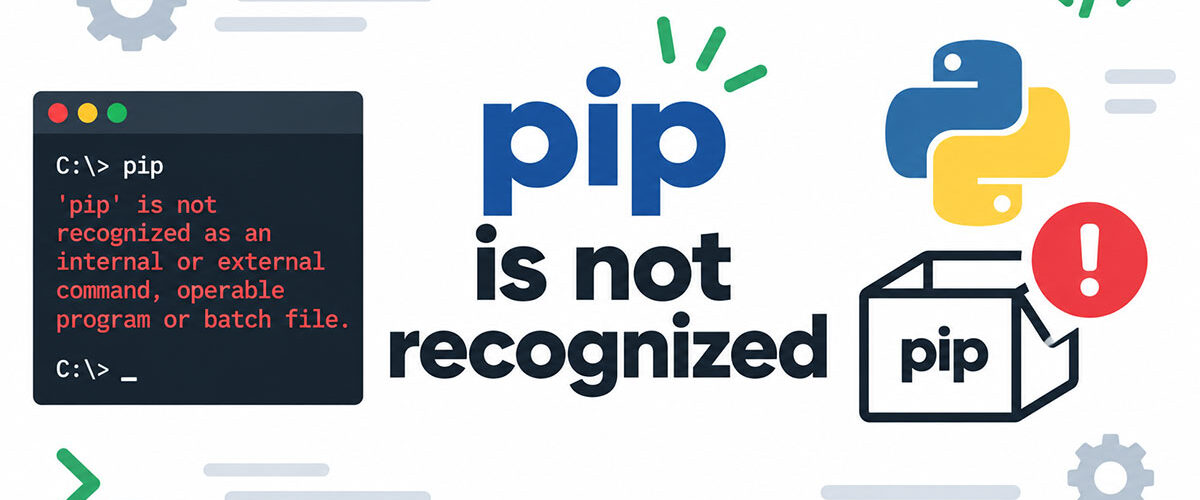
pip is not recognized in VS Code shows up more than almost any other Python terminal error, and most of the time nothing is actually broken.
PyPI hosts more than 763,000 Python packages now (PyPI, 2026). pip is the only way in. When the terminal can’t find it, the whole library looks off limits, even though it’s sitting right there.
Windows phrases the error one way. Mac and Linux phrase it another. And the wording itself tells you roughly where to start looking before you touch anything.
- Windows: pip is not recognized as an internal or external command
- macOS/Linux: command not found: pip
Knowing which one you’re staring at can save a full PATH rebuild when the actual fix takes thirty seconds.
What Is the “pip Is Not Recognized” Error in VS Code

The terminal panel built into VS Code can’t locate the pip executable on its command search path. That’s the whole error, at the shell level, nothing more mysterious than a missing lookup.
Pip itself isn’t broken. The shell just doesn’t know where to look for it.
Windows spells it out in full: pip is not recognized as an internal or external command, operable program or batch file. Mac and Linux cut that down to almost nothing.
| Platform | Shell | Error Text |
|---|---|---|
| Windows | Command Prompt or PowerShell | pip is not recognized as an internal or external command |
| macOS | zsh (default) or bash | command not found: pip |
| Linux | bash or zsh | command not found: pip |
Command Prompt, PowerShell, bash, zsh, whichever one you’re running, the message comes from the shell itself. Not from Python. And not because Python went missing.
How It Differs From “No Module Named pip”
“No module named pip” is a different problem entirely. It means pip is genuinely gone from that particular Python install, not just unreachable by name.
“pip is not recognized” happens even when pip is sitting somewhere on the machine. The terminal’s search path just doesn’t reach the folder holding it.
- pip not recognized: pip exists, PATH points elsewhere
- No module named pip: pip is actually missing, needs reinstalling
Why pip Gets Not Recognized Specifically Inside VS Code
VS Code trips this error more than a plain system terminal does. Its integrated terminal spawns a shell tied to whatever PATH existed the moment the app launched, not whatever PATH exists right now.
Restarting the app itself, not just the terminal tab, is usually the fix people skip past.
Working with Python inside VS Code involves more moving parts than a bare terminal window. There’s an extension in the mix, an interpreter setting tucked into the status bar, and on top of that a workspace configuration file most people never open on purpose.
Python usage among developers hit 57.9% in 2025, a jump of 7 percentage points from the year before, and VS Code held its spot as the most-used editor at 75.9% (Stack Overflow Developer Survey, 2025). Put those two numbers together and it’s obvious why this exact error fills so many forum threads.
- PATH can go stale. VS Code inherited whatever environment variables existed at launch, and a PATH edit made after that doesn’t reach the session already running.
- The interpreter shown in the status bar isn’t always the one the terminal actually resolves. Two installs, two different answers.
- A virtual environment that never got activated leaves the terminal talking to the global Python install instead of the project’s own copy, and getting one active inside VS Code works a little differently depending on which shell you’re running.
Multiple Python Installations Conflict
| Install Source | PATH Behavior | Common Conflict |
|---|---|---|
| python.org installer | Adds to PATH only if the checkbox is selected | Skipped checkbox leaves it invisible to Command Prompt |
| Microsoft Store | Uses a sandboxed WindowsApps folder with execution aliases | Can intercept the python command even when a real install exists |
| Anaconda or Miniconda | Prepends its own Scripts folder to PATH | Overrides pip from other installs when both are present |
Windows App Execution Aliases can quietly grab the python command shown in that table, even with a real install already sitting on the machine. VS Code just goes along with whichever one wins.
Installing a second Python distribution rarely cleans up the first one’s leftover PATH entries. They just pile up.
Wrong Interpreter Selected in VS Code
The interpreter picker and the terminal don’t always agree with each other.
Status bar says one Python version. Terminal resolves a completely different executable the second pip gets typed. Both readings can be true at once, they’re just pulling from different places.
Selecting the correct interpreter through the Command Palette fixes this in most cases. The full walkthrough for that comes later in this guide.
How to Check If Python and pip Are Actually Installed

A handful of terminal commands settle whether pip is actually there, each one ruling out a different failure point before anyone touches PATH or reinstalls anything.
Run these inside VS Code’s own terminal panel, not a separate system terminal, since that’s where the error is actually happening.
PyPA’s own pip documentation points people toward py –version first, then py -m pip –version (PyPA, pip documentation).
| Command | Confirms | Platform |
|---|---|---|
python --version or py --version | Which Python launcher resolves | Windows, macOS, Linux |
python -m pip --version | Whether pip exists for that interpreter, plus its site-packages location | All platforms |
where python / which python | The exact file path of the active install | Windows uses where, Mac/Linux use which |
python -m ensurepip | Whether pip is bundled with that interpreter | All platforms |
python -m pip –version does the most work of that group. It calls pip through whatever interpreter is already resolving on PATH, so it keeps working even when plain pip fails outright.
How to Fix pip Not Recognized by Using python -m pip
Running python -m pip install instead of pip install solves the error immediately by calling pip through the interpreter already sitting on PATH, skipping the broken lookup entirely.
pip install requests fails because the shell looks for a standalone pip.exe or pip script on PATH.
python -m pip install requests works because Python is already resolved, and pip loads as one of its modules instead of a separate executable. pip.pypa.io lists this as the recommended invocation on both Windows (py -m pip) and Unix systems.
It works identically across Windows, macOS, and Linux without touching a single environment variable, and it needs no VS Code restart and no admin access either. PyPA, the Python Packaging Authority, documents this as the official invocation method.
This doesn’t fix the underlying PATH problem, though. Plain pip commands, and any tool that calls pip directly by name, will keep failing until PATH itself gets corrected.
How to Add Python and pip to the Windows PATH Manually

Doing this the permanent way means finding the install folder and its Scripts subfolder, registering both through the System Properties environment variable panel, then restarting VS Code completely.
Finding the Correct Python Install Path
The default python.org install location follows a predictable pattern tied to the version number.
- C:Users\AppDataLocalProgramsPythonPython3XX (the main interpreter folder)
- C:Users\AppDataLocalProgramsPythonPython3XXScripts (where pip.exe actually lives)
Both folders need their own separate entry in the Environment Variables dialog. Adding only the first one leaves pip unreachable even after python starts working.
Restarting VS Code After PATH Changes
Editing PATH and testing inside that same still-open VS Code window rarely works.
The integrated terminal already grabbed the old PATH at launch. Editing System Properties afterward doesn’t reach a session that’s already running.
Closing VS Code completely, not just the terminal tab, is the step people skip most. Reopening the app reads the environment variables fresh.
Reinstalling Python with the “Add python.exe to PATH” checkbox selected (it’s unchecked by default in the official python.org installer) skips this whole manual process.
How to Fix pip Not Recognized on Mac and Linux
Fixing this on macOS or Linux means editing the shell’s profile file directly rather than a settings panel, since PATH on Unix-based systems lives in a text configuration file the terminal reads on startup.
zsh vs bash Profile Differences
zsh has been the default shell on macOS since Catalina, reading its configuration from .zshrc (Apple Support, 2019). bash was the default back on Mojave and earlier, and it’s still common across plenty of Linux distributions, reading from .bashrc or .bash_profile instead.
Editing the wrong file is the most common mistake here. A PATH line added to .bashrc does nothing if the terminal is actually running zsh.
Checking which shell is active first (echo $SHELL) saves a wasted edit, and a quick bash command reference covers the export syntax either file needs.
Homebrew Python Path Conflicts
Homebrew-installed Python adds its own complication on macOS.
It writes its binaries to /opt/homebrew/bin on Apple Silicon, or /usr/local/bin on Intel Macs, and that folder can start fighting with the system Python Apple already shipped.
Running python3 -m pip instead of plain pip sidesteps most of this. Plain pip on macOS often points at Python 2, or nothing at all.
How to Select the Correct Python Interpreter in VS Code

Selecting the right interpreter through VS Code’s Command Palette overrides every terminal-level PATH fix, since a mismatched interpreter runs code against one Python version while the terminal’s pip command targets a completely different one.
- Open the Command Palette: Ctrl+Shift+P on Windows and Linux, Cmd+Shift+P on Mac
- Type “Python: Select Interpreter” and choose it
- Pick from whatever gets detected, global installs, virtual environments, conda environments
- Check the bottom-right corner of the status bar to confirm the change went through
The official Python extension documentation confirms this list updates the workspace’s settings.json file automatically once an interpreter gets chosen (Microsoft, VS Code documentation).
For a full walkthrough with screenshots, the guide on changing the Python interpreter in VS Code covers each screen in order.
A mismatched interpreter is the single most common reason the same PATH fix works in one project and fails in another opened five minutes later.
How to Fix pip Not Recognized Inside a Virtual Environment
Whether a virtual environment is genuinely active comes down to one visual check. Look for a (venv) prefix, or something close to it, sitting right in front of the terminal prompt. python -m venv finishing without errors doesn’t actually prove the environment is active, that’s a separate thing.
VS Code auto-activates an environment only when the correct interpreter is already selected and the terminal profile supports it.
Manual Activation Commands by Platform
| Platform | Shell | Activation Command |
|---|---|---|
| Windows | Command Prompt | .venv\Scripts\activate.bat |
| Windows | PowerShell | .venv\Scripts\Activate.ps1 |
| macOS/Linux | bash or zsh | source venv/bin/activate |
PowerShell blocks the .ps1 script by default under its execution policy, throwing a “running scripts is disabled on this system” error instead of activating anything. This one catches almost everybody the first time they hit it.
Conda vs venv Activation
Conda environments don’t use an activation script file at all.
venv runs a script sitting inside the environment’s own Scripts or bin folder. conda skips that entirely, using conda activate followed by the environment name, one command that works from any directory.
Mixing the two syntaxes, typing conda activate inside a venv or source activate inside a conda environment, is a frequent source of this exact error. A fuller breakdown of when each tool fits is covered in the venv vs conda vs poetry comparison.
When neither activation command works and the folder itself looks corrupted, deleting and recreating the environment is usually faster than debugging the syntax mismatch.
How to Reinstall pip When It Is Missing Entirely
Reinstalling pip when it’s genuinely absent, confirmed by “No module named pip” rather than “not recognized,” takes one built-in command before reaching for any external script.
Python’s ensurepip module has shipped with every release since Python 3.4 specifically for this situation (Python Software Foundation, ensurepip documentation).
python -m ensurepip –upgrade installs pip into the currently active virtual environment, or into the system-wide site-packages if no environment is active. It works entirely offline too, since ensurepip doesn’t reach out to the internet at all.
Not every build ships it, though. Minimal or custom Python builds skip it, so do certain Linux distribution packages, and some embeddable Windows builds leave it out as well.
Downloading get-pip.py from PyPA’s official bootstrap source and running python get-pip.py handles those cases instead (PyPA, pip installation documentation). The exact command sequence for running that script inside VS Code is covered in the guide on installing pip in VS Code.
Confirming success afterward with python -m pip –version matters more than trusting the reinstall output. A silent failure here can look identical to a successful one.
How to Fix pip Not Recognized in the Microsoft Store Python Version

Microsoft Store Python installs into a sandboxed WindowsApps folder, and Windows ships execution alias entries for python.exe and python3.exe active by default on most Windows 10 and 11 machines, even before any Store version gets installed.
Typing python in a fresh terminal, before a real install exists, redirects straight to the Microsoft Store instead of throwing an error.
- Open Settings, then Apps, then Advanced app settings
- Select App execution aliases
- Turn off the toggle next to python.exe and python3.exe
This applies regardless of whether the alias was ever intentionally turned on. Windows ships both entries active on a clean install, with or without a Store install present.
Uninstalling the Store version entirely and reinstalling from python.org, with the PATH checkbox selected during setup, avoids the alias conflict altogether.
Common Mistakes That Keep pip Unrecognized After a Fix
Most repeat failures after a PATH fix trace back to scoping, not a broken fix itself. The table below covers the usual suspects.
| Mistake | Why It Still Fails |
|---|---|
| Editing PATH, not restarting VS Code | The terminal session keeps the environment variables it inherited at launch |
| Editing PATH in PowerShell while VS Code defaults to Command Prompt | Each shell reads its own profile or registry path separately |
| Installing a new Python version without removing old PATH entries | The older, broken entry still resolves first in the search order |
| Confusing workspace and global interpreter settings | A fix applied to one scope doesn’t carry over to a project opened under the other |
VS Code stores the interpreter choice in settings.json, and that file exists at both the workspace level and the user level inside VS Code’s settings interface.
A workspace-level setting overrides the global default for that folder only, which explains why the same fix can work in one project and fail the moment a different folder gets opened.
FAQ on pip Is Not Recognized in VS Code
Does pip not recognized mean Python needs to be reinstalled?
No, not usually. pip is not recognized is a PATH lookup failure, nothing more, and it’s not proof Python itself is broken. Reinstalling barely helps unless someone actually checks the “Add python.exe to PATH” box this time around. python -m pip install, or a manual PATH edit, gets there faster.
Is there a difference in how PowerShell and Git Bash handle pip inside VS Code?
Yes, and it trips people up constantly. Git Bash reads Unix-style paths and its own profile file, even on Windows, while PowerShell reads the Windows registry PATH directly. One shell can resolve python fine and choke on pip if only one of the two profiles got updated.
Does restarting the whole computer fix pip not recognized in VS Code?
It works, technically. A full reboot reloads every environment variable system-wide, including the one VS Code inherited at launch. Overkill, though. Closing and reopening VS Code does the same job without the wait.
Can pip3 be used instead of pip when pip is not recognized?
Sometimes, yes. pip3 gets created as an alias alongside pip on macOS, Linux, and most python.org installs, though not every install method bothers with it. If pip3 also fails, python3 -m pip bypasses the alias question entirely.
What does it mean if python works but pip still gets flagged as not recognized?
Usually it means PATH includes the main Python folder but skipped its Scripts or bin subfolder, where pip.exe actually lives. Adding both folders separately, not just the one holding python.exe, resolves this exact split.
How can I check whether a PATH edit actually saved before restarting VS Code?
Open a Command Prompt or Terminal window that has nothing to do with VS Code, and run echo %PATH% or echo $PATH there. If the new folder shows up, the edit saved fine, and VS Code just hasn’t caught up to it yet.
Is pip not recognized different when Python runs inside WSL?
Yes, they don’t share anything. WSL runs a real Linux distribution with its own filesystem and PATH, separate from Windows entirely. A Windows-side PATH edit does nothing for a WSL terminal, and a WSL edit does nothing for Windows.
Does running pip install upgrade pip fix the not recognized error?
No, and this one trips people up a lot. That command upgrades a pip installation that already works. It can’t run at all if the shell can’t locate pip first, which is the actual problem behind the not recognized message in the first place.
Do I need administrator rights to fix pip not recognized on Windows?
Not for editing PATH through System Properties on a personal account, no. Administrator rights matter only when installing Python for all users on a shared or managed machine, rather than the current user alone.
Does pip not recognized affect Jupyter notebooks running inside VS Code?
Yes, though it shows up a little differently there. Jupyter kernels inside VS Code run through the selected kernel environment, not the integrated terminal, so a terminal-level PATH fix doesn’t always reach a notebook cell running pip install.
Conclusion
pip is not recognized in VS Code rarely justifies a full troubleshooting pass. Reach for python -m pip first, always, before opening System Properties or editing a shell profile.
That single habit resolves most cases in under a minute, and it never touches operating system settings that outlast the current project.
Expect it to come back, though. A fresh Python installer can reset the PATH entry that made yesterday’s fix work. So can a new virtual environment. Even a routine Microsoft Store update has been known to quietly undo it.
Treat the interpreter shown in VS Code’s status bar as the real source of truth, not whatever pip install happened to work last week. Confirm it before debugging anything else.

- Notepad++ Android Options: Apps That Come Close - October 21, 2026
- Data Management Services: A Practical Guide for Growing Companies - October 21, 2026
- MongoDB Cheat Sheet - October 20, 2026


