

In PyCharm, pygame goes in through the Python Packages tool window. Search for it, click Install, and you’re done. The library lands in the project interpreter, which means the import statement works in every project that uses that interpreter and breaks in the ones that don’t.
On Python 3.14 that same click goes nowhere. The pygame release files on PyPI (2026) list wheels for CPython 3.6 through 3.13 only, so pip tries a source build and stops with a build error.
pygame-ce has wheels through Python 3.15 and installs the same way on a 3.14 interpreter.
Installing pygame Through the PyCharm Interface
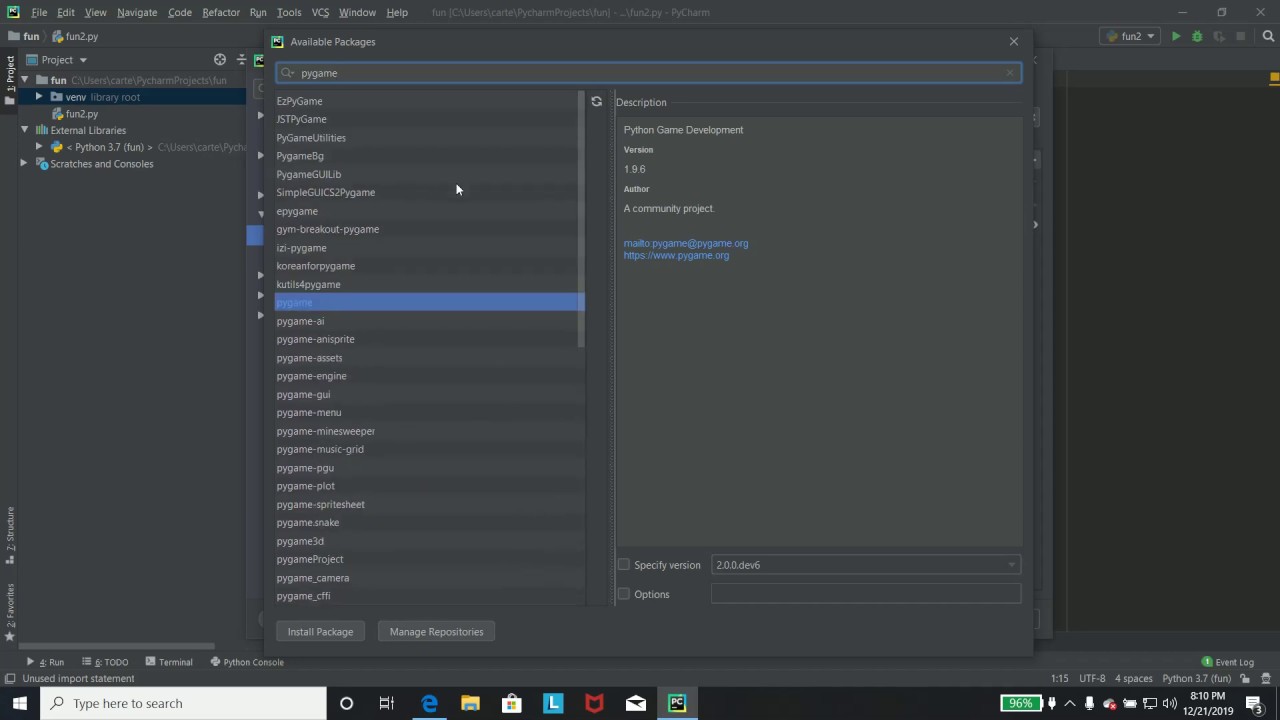
Open View | Tool Windows | Python Packages, search for pygame and click Install. PyCharm puts the library into whichever interpreter the project currently uses.
You can do this from the Python Packages tool window or from the Python Interpreter settings page. Both run pip against the project interpreter, which is PyCharm’s default package manager (JetBrains, PyCharm 2026.2 Help).
The clicks aren’t pygame-specific. This guide to installing other packages in PyCharm covers the general case.
Python Packages tool window
This is the quicker route. The tool window sits on the left toolbar by default.
- Open the Python Packages tool window from the left toolbar or from View | Tool Windows | Python Packages.
- Check which interpreter is selected for the project, because the window only shows packages for that one.
- Type pygame in the search field. Results come from PyPI, plus the conda repository when the interpreter is a conda environment.
- Select the pygame entry and pick a version from the list, or leave the latest.
- Click Install and wait for the progress bar to finish.
- Confirm that pygame now appears in the installed list with its version number.
Right-click next to the package name and choose Install with Options if you need to pass pip flags. For pygame you’ll rarely bother.
Python Interpreter settings page
On Windows and Linux, go to File | Settings | Python | Interpreter (Ctrl+Alt+S opens Settings directly). On macOS it’s PyCharm | Settings | Python | Interpreter, and Cmd+, gets you into Settings faster.
Click Install in the toolbar to open the Available Packages dialog. Search for pygame, tick Specify version if you need a fixed release, then click Install Package.
Tutorials disagree on the path. Finxter’s walkthrough sends you through a Project page first, while the PyCharm 2026.2 help (updated 17 August 2026) lists Settings | Python | Interpreter with no Project page in between.
The result matches the tool window. The settings page does add Version and Latest version columns, which makes outdated packages easy to spot.
Installing pygame With pip in the PyCharm Terminal
Open the Terminal tool window (View | Tool Windows | Terminal, or Alt+F12) and run python -m pip install pygame. The command installs into whichever interpreter that python belongs to.
pip’s documentation (v26.2.1) says python -m pip runs pip for the interpreter you named. On Windows, py -m pip uses the latest Python installed, which isn’t always the project’s.
Look at the start of the prompt before pressing Enter. If the venv name isn’t there in parentheses, the command may be about to hit a different Python.
Windows offers several shells in the Terminal: Windows PowerShell, Command Prompt, PowerShell, Git Bash and any installed WSL distributions (JetBrains). Any of them runs the same pip command, and a guide to opening the terminal in PyCharm covers switching between them.
The pygame wiki adds –user to its install command, and that causes trouble. pip refuses a –user install inside a standard virtual environment, because the user site isn’t on that environment’s path. Leave it off in a project venv and keep it for installs into a bare system Python.
If you’d rather record the package in a file, add the line pygame to requirements.txt, or pygame==2.6.1 to pin the latest PyPI release (uploaded 29 September 2024).
- PyCharm prompts to install the listed packages when the file is added to the project
- From the terminal,
python -m pip install -r requirements.txtdoes the same job - To generate the file from an existing setup, run
python -m pip freeze > requirements.txt
One catch with pip freeze. It pins every package in the environment, not only pygame, so trim the file by hand if you want a short list.
Which Installation Method Fits Your Project?
For a first install in a single project, the Python Packages tool window is enough. Once a second machine or a teammate gets involved, move to requirements.txt.
| Method | Where | Best for | Limit | ||
|---|---|---|---|---|---|
| Python Packages tool window | Left toolbar | One package, one project | Needs a valid interpreter selected | ||
| Interpreter settings | Settings | Python | Interpreter | Reviewing all packages and versions | More clicks than the tool window |
| Terminal pip | Terminal tool window | pip flags, scripted setups | Hits the wrong Python if the venv is inactive | ||
| requirements.txt | Project file | Repeating the setup elsewhere | pip freeze pins every package, not only pygame |
I’d skip the terminal on a first pygame project. The tool window gives the same result with fewer ways to hit the wrong interpreter. Interface routes suit one-off installs and quick version checks, while the terminal and file routes are for anything you need to repeat.
Why Does PyCharm Say “No Module Named pygame” After a Successful pip Install?
Because PyCharm runs each project against its own interpreter, and pip installs only into the Python it belongs to. A pygame installed from cmd lands in a different Python, so the project raises ModuleNotFoundError on import pygame.
A python-forum.io thread shows the pattern. pip list in cmd returned pygame 1.9.6, while PyCharm 2019.3.1 Community still reported the module as missing.
The fix is to install pygame for the project interpreter, or add an interpreter that already contains it.
How to check which interpreter the project uses
Open Settings | Python | Interpreter and read the interpreter field, then the package list below it. The Python Packages tool window lists packages for that same selected interpreter and nothing else.
In the terminal, run python -m pip list and compare the output with what the other two show. If pygame appears in one list and not the other, they’re different interpreters.
Venv versus system interpreter
A project venv keeps its packages private. An install from a system shell never reaches it, and a new project starts without pygame.
The system interpreter works the other way around. Every project that selects it shares the same packages, a pip install run outside PyCharm usually lands there, and upgrading pygame changes it for all of those projects at once.
Fixing the mismatch
Install from inside PyCharm with the project interpreter selected. The tool window and the Terminal both work.
If no listed interpreter has pygame and none fits, this guide to adding a Python interpreter in PyCharm walks through the setup.
For a clean start, creating a virtual environment in PyCharm gives the project a private interpreter. pygame then goes in from the tool window.
If PyCharm’s own install ends in a build error, the interpreter is fine. The Python version or the package is the problem.
Why Does pip Fail to Build pygame, and When to Use pygame-ce
On Python 3.14, pip downloads the pygame source and fails to compile it, because the latest release ships wheels for CPython up to 3.13 only. Drop to a 3.13 or older project interpreter, or install pygame-ce, which publishes wheels through Python 3.15.
What the build-wheel error means
PyPI’s release files for pygame list CPython wheels from 3.6 through 3.13 and nothing newer (as of October 2026).
pip prefers a prebuilt wheel. When none matches the interpreter, it falls back to the source archive and compiles it, which needs a compiler (pygame wiki).
The listing also declares Python 3.6 or later with no upper bound. That’s why pip attempts the source build on 3.14 instead of rejecting the install up front.
The error reads Failed to build 'pygame' when getting requirements to build wheel.
One user on Python 3.14 tried all the usual fixes. They upgraded pip, setuptools and wheel, installed Visual Studio Build Tools 2022 and 2026, and tried the –pre flag (discuss.python.org). The error stayed.
The sources don’t agree here either. The pygame wiki recommends running the latest Python version, but PyPI’s release files for pygame stop at 3.13 and its classifiers stop at 3.12. For this package the release files decide, and the wiki advice doesn’t hold for 3.14.
Fix 1: use an interpreter pygame has wheels for
Switch the project interpreter to Python 3.13 or older. pygame 2.6.1 ships wheels for CPython 3.13 and older, so those interpreters install without a source build. Upgrade pip first, since the pygame wiki says pygame needs a recent pip.
Swapping versions takes a few clicks, and this guide to changing the Python version in PyCharm covers the settings page.
Reinstall pygame once the new interpreter is selected. Packages belong to the interpreter and don’t carry over.
Fix 2: install pygame-ce
Run python -m pip install pygame-ce in the Terminal, or search for pygame-ce in the Python Packages tool window.
The import name doesn’t change. The pygame-ce documentation’s quick start still opens with import pygame.
PyPI lists pygame-ce 2.5.8, uploaded 9 August 2026, with wheels for CPython 3.10 through 3.15 and a Python 3.10 minimum. On the 3.14 side, pygame-ce 2.5.6 was the first release to support 3.14 at launch, per its GitHub release notes. Wheels for 3.14 had been added to the release before it.
Choosing between pygame and pygame-ce
pygame’s wheels reach back to CPython 3.6, so older interpreters install cleanly, and it matches the pygame wiki and most older tutorials. The problem is Python 3.14. There’s no wheel, pip drops to a source build, and a compiler becomes your problem the moment a wheel is missing.
pygame-ce has wheels for CPython 3.10 through 3.15 and keeps the same import line. It needs Python 3.10 or newer, so older interpreters are out. It also replaces pygame in an environment instead of sitting beside it.
On Python 3.14, pick pygame-ce. On 3.13 or older either one installs, and pygame is the shorter path if you follow older tutorials.
How to Verify That pygame Works in PyCharm
Import pygame in the Python Console, then run a short script that opens a window. If both succeed, the install is good.
- In the Terminal, run
python -m pip listand look for pygame or pygame-ce. The name shows which package the project received. - Open the Python Console and run
import pygame. The banner prints the package name, version, SDL version and Python version, such aspygame-ce 2.5.7 (SDL 2.32.10, Python 3.14.4)in one forum report. - Run
python -m pygame.examples.aliensin the Terminal. The pygame wiki uses it as the install test, and a game window opens when everything works. - Create a new file, paste the test script below and run it.
- Close the window with the X button and confirm that the script exits without a traceback.
The SDL number in the banner refers to the Simple DirectMedia Layer, the multimedia library pygame is built on (PyPI).
import pygame

pygame.init()
screen = pygame.display.set_mode((640, 480))
pygame.display.set_caption("pygame check")

running = True
while running:
for event in pygame.event.get():
if event.type == pygame.QUIT:
running = False

screen.fill((30, 30, 60))
pygame.display.flip()

pygame.quit()
For run configurations and the Run button, this guide to running code in PyCharm has the details.
pygame.init() initializes the imported pygame modules, and pygame.display.set_mode((640, 480)) opens the window and returns the display surface. The loop calls pygame.event.get() to read the event queue so the QUIT event can end it, and pygame.display.flip() pushes each frame to the screen.
If the window closes at once, the event loop is missing and the script reaches pygame.quit() immediately. If the import raises ModuleNotFoundError, the console or run configuration uses a different interpreter than the one that received the install.
How to Upgrade, Pin or Uninstall pygame in PyCharm
Each interface route has an upgrade and an uninstall control, and the terminal equivalents are pip install --upgrade and pip uninstall. Pinning needs more thought, because a pinned version can outlive the Python it was built for.
| Action | Python Packages tool window | Python Interpreter settings page | Terminal |
|---|---|---|---|
| Upgrade | Update button beside the package | Upgrade arrow in the toolbar | python -m pip install –upgrade pygame |
| Uninstall | Uninstall package button | Uninstall button in the toolbar | python -m pip uninstall pygame |
| Pre-releases | Install with Options | Show early releases | –pre flag |
pip removes the old version automatically before it installs the new one (pip documentation). On the settings page you can hold Ctrl (Cmd on macOS), select multiple packages and click Upgrade (JetBrains).
A pinned pygame stays pinned when the project moves to a newer Python. The reinstall then fails with the build error if the new interpreter has no matching wheel.
Keep the interpreter on a version with wheels, or change the requirements.txt line to pygame-ce.
Switching packages follows one order. Uninstall pygame, install pygame-ce, then swap the line in requirements.txt. The import statement stays as it is.
The pygame-ce release notes for 2.5.8 give the same order, with the old pygame removed first to prevent clashes between the two packages.
Installing pygame in PyCharm FAQ
What is pygame used for?
Mostly games. It’s a free, open-source library for building multimedia applications such as video games in Python, covering 2D graphics, sound in WAV, MP3 and OGG formats, and keyboard, mouse and joystick input. It’s built on SDL (PyPI project description).
Does installing pygame work the same in PyCharm Community Edition and Professional?
Yes. The PyCharm 2026.2 Help page on installing packages lists no edition restriction, and a python-forum.io user ran the same in-IDE install on PyCharm 2019.3.1 Community. Current versions no longer split into two editions. 2025.2 was the last standalone Community release, and PyCharm has shipped as one unified product since 2025.3 (JetBrains).
How do I install pygame in a conda environment in PyCharm?
Select the conda environment as the project interpreter, then install from the Python Packages tool window as usual. PyCharm adds a Use Conda Package Manager toggle, on by default for conda environments, which installs from the conda repository instead of PyPI (JetBrains).
Can pygame be installed from a downloaded .whl file?
Yes. Click Advanced Package Install beside the search bar in the Python Packages tool window and point it at the file. JetBrains accepts zip and whl archives.
The wheel’s Python and platform tags, such as cp313 and win\_amd64, must match the interpreter.
Is there a pygame wheel for Apple Silicon Macs?
Yes. PyPI lists macOS 11.0+ ARM64 wheels for pygame on CPython 3.8 through 3.13, so pip installs a prebuilt file.
Python 3.14 has no pygame wheel on any platform, so an ARM Mac on 3.14 needs pygame-ce.
Should Linux users install pygame with apt or with pip?
Use pip inside a project venv. The apt package python3-pygame goes into the system Python and can be older than the PyPI wheel (pygame wiki).
A global pip install on Debian or Ubuntu can also fail with an externally-managed-environment error, according to the pygame-ce documentation.
A Default Setup for Your Next pygame Project
Installing pygame in PyCharm repeats cleanly when each project gets its own venv on a Python version that has wheels, plus a requirements.txt that records the package.
Do it in order: interpreter version first, then the project venv, then the requirements.txt line.
The version comes first because it decides which package has wheels. The venv inherits that version, and requirements.txt only records what already works.
Python 3.10 through 3.13 is the one range where both pygame and pygame-ce install from wheels, so the package choice only becomes forced above 3.13.
A pygame release with Python 3.14 wheels would remove the reason to prefer pygame-ce, and PyPI listed none on 7 October 2026.
Check the release files before each new project, then follow this guide to creating a new project in PyCharm for the setup itself.

- Notepad++ Vulnerability History and How to Stay Safe - October 27, 2026
- What Code-Level Optimisations Technical SEO Specialists Perform - October 27, 2026
- How to Add an AI Support Agent to a SaaS Product: Data, Integration and Guardrails - October 27, 2026


