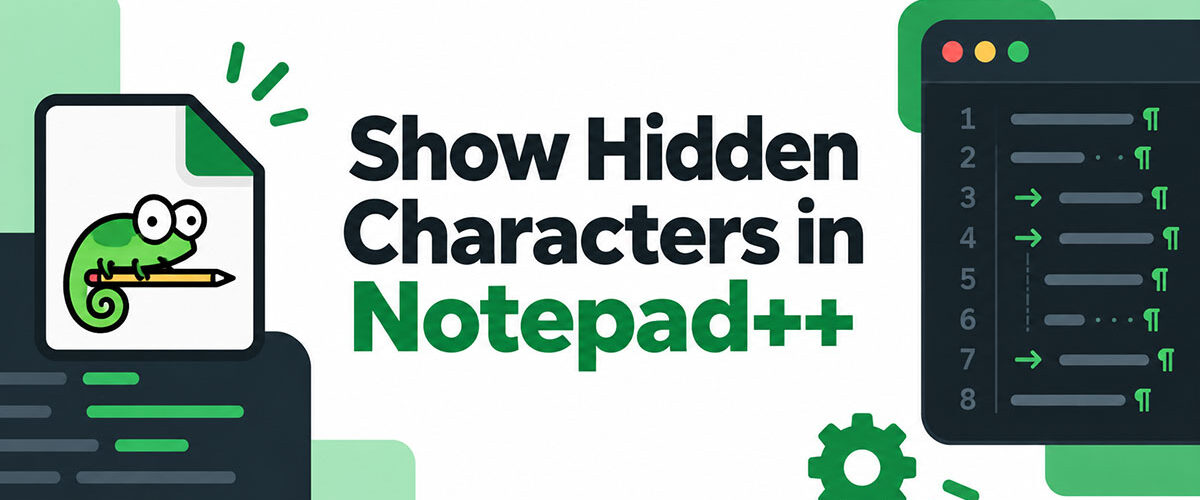
A file can look completely clean on screen right up until you turn on show hidden characters in Notepad++. Then every stray tab, every mismatched line break, every extra space that was sitting there the whole time suddenly shows up.
Don Ho built the editor back in 2003. It picked up more than 28 million downloads on SourceForge alone, long before the project ever moved over to GitHub.
Whitespace and line endings are the boring stuff nobody thinks about, until a script won’t run, a config file won’t parse, or a diff comes back looking like the whole file changed when really one line did.
Fixing it takes one click, most of the time. Knowing where that click lives, and what each little symbol on screen is actually telling you, is the part worth spending five minutes on.
How to Turn On Show Hidden Characters in Notepad++

Turning the display on takes one click either way, menu or toolbar. Both routes flip the exact same rendering layer.
Using the View Menu Path
Here’s the menu path:
- Open View in the top menu bar
- Hover over Show Symbol
- Select Show All Characters
The Show Symbol submenu today has four separate entries you can toggle independently. That wasn’t always the case. Earlier versions only let you have one option active at a time, and independent toggles arrived in Notepad++ v8.5, according to the official Notepad++ User Manual.
Using the Toolbar Icon
There’s also a paragraph mark icon sitting right on the standard toolbar that does the exact same job in one click. No submenu, no digging.
Click it again and the symbols vanish. Nothing about the file underneath ever changes either way, since Show Symbol only touches how it’s rendered.
For a quick reference on this menu path and a bunch of others, the Notepad++ Cheat Sheet covers the whole shortcut list on one page.
What the Hidden Character Symbols Represent
Each hidden character gets its own glyph once Show Symbol is switched on. The table below covers the ones you’ll actually run into.
| Symbol | Character | Meaning |
|---|---|---|
| Centered dot | Space | Single space character |
| Small arrow | Tab | Tab character |
| CR / LF / CRLF label | Line ending | End-of-line marker |
| Boxed abbreviation | Control character | Non-printing byte (NUL, NBSP, etc.) |
Space and Tab Symbols
A space shows up as a small dot sitting mid line. Tabs are different, a short arrow that stretches out to the next tab stop.
Four spaces and one tab can look exactly the same on screen. They’re not the same character though, and code that depends on one over the other can behave completely differently the moment a script or formatter gets ahold of it.
End of Line Symbols
Windows wraps every line in CRLF. Linux and Unix skip the extra byte and just use LF. Old Mac OS did its own thing too, ending lines with a lone CR, though you’d be lucky to run into one of those files today.
Notepad++ tags each line ending right where it happens, at the end of the row. A file with mixed line ending markers, some rows in CRLF, others in LF, gives itself away the second symbols are switched on.
How to Show Only Whitespace and Tab Characters
View > Show Symbol > Show Space and Tab displays spaces and tabs while leaving line endings alone. It’s the narrower option inside the same menu.
Line ending markers stay hidden this way. Only spaces and tabs get symbols, so the screen stays a lot less cluttered when indentation is the only thing you’re actually chasing.
This narrower view earns its keep in a couple of situations. Checking indentation consistency is the obvious one, especially when you don’t want CR or LF clutter sitting at the end of every single row. It also helps when you’re comparing two blocks of code purely on their leading whitespace, or when you already know a file’s line endings are fine and just want a cleaner read.
You don’t need to close and reopen the file to switch between this and Show All Characters either. Both live under that same View > Show Symbol menu.
How to Show End of Line Characters

View > Show Symbol > Show End of Line displays only the line ending markers, leaving spaces and tabs untouched. It’s the option built specifically for tracking down line ending problems.
CR, LF, and CRLF Differences
| Marker | Bytes | Origin |
|---|---|---|
| CRLF | \r\n | Windows |
| LF | \n | Unix, Linux, macOS |
| CR | \r | Classic Mac OS (pre-OS X) |
Git deals with this exact split through its core.autocrlf setting. GitHub’s own documentation recommends core.autocrlf input on macOS and Linux, and core.autocrlf true on Windows, keeping files in Unix style inside the repository no matter what a contributor’s machine is doing locally.
A file pulled down on Windows and edited on Linux, or the other way around, can end up with rows in two different formats. Show End of Line makes that visible instead of guessable.
Why Showing Hidden Characters Matters for Code and Text Files
Whitespace and line endings stay invisible right up until the moment they break something. Most of that damage happens quietly, well before anyone notices.
Mixed Tabs and Spaces Indentation Errors
Python’s PEP 8 style guide calls for 4 spaces per indentation level, and Python 3 raises a hard TabError the moment tabs and spaces mix inconsistently inside the same block.
Python and YAML fail in completely different ways, though.
- Python scripts refuse to run at all when indentation is inconsistent
- YAML configs get misread silently, since YAML has no equivalent hard error
Stack Overflow’s 2017 Developer Survey, still the last major primary study on this specific split, found tabs and spaces close to even: 40.7% tabs versus 41.8% spaces, with 17.5% using both, across 28,657 professional developer respondents.
Line Ending Mismatches Between Operating Systems
A file saved with Windows line endings and reopened on Linux can show every single line as changed in a git diff, even when nobody touched the actual content.
This is a documented problem, not a theoretical one. Official Linux kernel documentation is explicit that trailing whitespace must be removed, and the kernel’s own checkpatch.pl script reports it as an outright error, not a warning, when reviewing a patch.
Turning on Show Symbol before committing a file catches both problems before they reach a shared branch.
How to Find Hidden Characters With Regular Expressions
Regex search finds hidden characters that Show Symbol only lets you see. Once a pattern is written, Notepad++ can locate every instance across a file or an entire folder.
Search Mode has to be switched to Regular expression first, inside the Find dialog. A regex cheat sheet covers the syntax if any of the patterns below look unfamiliar.
Regex Patterns for Tabs and Spaces
These patterns cover most whitespace searches:
| Pattern | Matches | Typical Use |
|---|---|---|
\t | Tab character | Finding tab indentation |
\s | Any whitespace | Broad whitespace search |
\S | Any non-whitespace | Isolating real content |
Regex Patterns for Line Breaks
Line break patterns need a bit more care. Notepad++ requires the correct search mode, not plain text search, for these to match reliably.
- rn matches a Windows style line break
- n matches a Unix style line break on its own
- r matches a lone carriage return, rare outside old Mac files
The same regex approach extends to characters Show Symbol cannot render at all, including zero width Unicode characters and byte order marks, a case covered separately in the guide on how to find special characters in Notepad++.
How to Convert Line Endings Once Hidden Characters Are Visible
Edit > EOL Conversion is where the actual fix happens once Show Symbol reveals a mismatch. The current format shows as greyed out inside that same submenu, so you always know what you’re converting from.
| Target format | Menu option | Result |
|---|---|---|
| Windows | Windows (CR LF) | Every line ends in \r\n |
| Unix | Unix (LF) | Every line ends in \n |
| Macintosh | Macintosh (CR) | Every line ends in \r |
A shell script saved with Windows line endings and run on Linux fails with an interpreter error, since the stray CR shows up as a literal Ctrl-M character the shell doesn’t expect. Converting to Unix (LF) before the file leaves your machine avoids that entirely.
After converting, reopen Show End of Line and confirm every marker actually changed, not just the lines you touched.
A full-file conversion rewrites every line ending, so version control registers every line as touched, not only the ones you edited. A quick diff check afterward, using the commands from a git cheat sheet, separates a real edit from a line ending sweep.
How to Show Indent Guides and Wrap Symbols
View > Show Symbol > Show Indent Guide and View > Show Symbol > Show Wrap Symbol round out the display options. Both work independently of the character symbols covered earlier.
Indent Guide draws a thin vertical line at each indentation level. It makes it a lot easier to tell which block a line actually belongs to once code gets nested several layers deep.
Wrap Symbol works differently. It adds a small arrow at the exact point where a long line wraps onto a second visual row.
This marks a soft wrap, not an actual line break, which matters once End of Line symbols are also turned on.
Without the wrap arrow, a wrapped line and a genuinely broken line can look identical on screen. Notepad++ users who rely on word wrap in Notepad++ for long log lines or minified code depend on this distinction to avoid editing the wrong spot.
Both options toggle independently of Show All Characters, so indent guides can run without also showing every space and tab.
How to Detect a Byte Order Mark With Show Hidden Characters
A byte order mark sits invisibly at the very start of a file, before the first character anyone actually typed. Show Symbol doesn’t render it, which is exactly what makes it dangerous.
The UTF-8 BOM is a fixed 3 byte sequence, EF BB BF in hex, and its only job is signaling that the text stream is UTF-8 encoded.
UTF-8 BOM vs UTF-8 Without BOM

| Encoding menu label | BOM present | File starts with |
|---|---|---|
| UTF-8 | No | The first real character |
| UTF-8-BOM | Yes | EF BB BF, then the first character |
RFC 8259, the official JSON specification, states that JSON text must not begin with a BOM, though many parsers tolerate it anyway. A shell script starting with #!/bin/bash fails outright if a BOM sits in front of the shebang line, since the kernel reads the wrong bytes and never recognizes the interpreter directive.
To remove a stray BOM, switch to Encoding > Convert to UTF-8 and save. To confirm the raw bytes before making that change, a hex to text converter shows exactly what sits at the start of the file.
How to Set a Keyboard Shortcut for Show All Characters
The Shortcut Mapper is Notepad++’s own name for its keyboard shortcut list, covering nearly every command that can have one, according to the official Notepad++ User Manual.
Here’s how to set one up:
- Open Settings > Shortcut Mapper > Main menu
- Find “Show all characters” in the list
- Click into the shortcut field and press your chosen key combination
- Save, checking for a conflict warning first
Show All Characters ships without a default key combination in a standard install. Anyone who toggles it often enough to want a shortcut has to assign one.
Once saved, the shortcut triggers the identical view as clicking through View > Show Symbol manually. Nothing about the underlying rendering changes, only how fast you get there.
When Show Hidden Characters Does Not Reveal Every Character
Show Symbol covers spaces, tabs, line endings, and most control characters. It doesn’t cover everything a file can contain.
Binary and Non-Text Files
Notepad++’s own issue tracker documented years of reports about a zero-width space, Unicode character U+200B, staying completely invisible even with Show All Characters switched on. The cursor would still move through it fine, but no glyph ever showed up. Notepad++ v8.5 finally closed that gap with a new Show Non-Printing Characters option, rendering U+200B and a bunch of other invisible-by-design Unicode characters (non-breaking spaces, joiners, directional marks, that sort of thing) as a small boxed abbreviation like ZWSP.
Binary files run into a wall from a different direction. Executables, images, and compiled files aren’t made of characters at all, so a character-based overlay has nothing consistent to render.
A text to hex converter or a dedicated hex editor is the right tool once a file stops being reliably text, since both work on raw bytes instead of assumed characters.
Encoding Mismatches That Change What Is Hidden
Opening a file in the wrong encoding doesn’t just misrender accented letters. It changes which bytes Show Symbol treats as printable and which ones it boxes up as unknown control characters.
A file saved as Windows-1252 and opened as UTF-8 can shift entire ranges of bytes into different symbol categories. What looked like a clean control character list under one encoding turns into a different list under another.
When the symbols on screen don’t match what you expect, checking the Encoding menu selection is the first step, before assuming Show Symbol itself is broken.
FAQ on Show Hidden Characters In Notepad++
Why are spaces and tabs hidden in Notepad++ by default?
Spaces, tabs, and line breaks do a job, they’re not there to be looked at. Rendering them as blank space keeps everyday writing readable. Notepad++ only draws a glyph for each one once Show Symbol gets switched on, which keeps the default view clean.
Is there a separate Show Symbol option just for non-printing control characters?
Yes. Beyond whitespace and end of line markers, the View > Show Symbol menu also has Show Non-Printing Characters, a separate option specifically for control character glyphs. It’s documented in the official Notepad++ User Manual under Preferences and Editing settings.
Can the color of the hidden character symbols be changed?
Yes. Settings > Style Configurator > Global Styles lets you recolor whitespace dots, EOL markers, and control character boxes on their own. That matters more than you’d think on dark backgrounds, where the default grey symbols pretty much disappear.
Does Notepad++ automatically convert tabs to spaces while typing?
Only if you turn that on yourself. Settings > Preferences > Indentation has an Indent Using option (Space character(s) versus Tab character) set per language, and it controls what a fresh Tab key press inserts going forward. Tabs already sitting in a file don’t get touched until you convert them manually.
Is Show All Characters the same feature as the hidden character view in Windows Notepad?
Not really. Notepad++ has had CR, LF, tab, and space symbols since its early releases. Classic Windows Notepad never had anything like it, and a full Notepad++ vs Notepad comparison shows just how far the feature set has grown since.
Can Notepad++ show hidden characters inside a PDF or Word document?
No. PDF and DOCX files are structured binary formats, not plain text, so Notepad++ just opens them as garbled bytes instead of readable content. Show Symbol has nothing useful to render there, the native application is the right tool for that job.
Does copying text from Notepad++ also copy the invisible characters, not just the symbols?
Yes. The dots and arrows are only a display layer, copying a selection carries the real space, tab, and line ending bytes to the clipboard regardless. Turning Show Symbol on or off never changes what actually gets pasted elsewhere.
Does the Show Symbol setting stay on after closing and reopening Notepad++?
Generally, yes, Notepad++ remembers the last Show Symbol state between sessions. There’s a known quirk logged on the project’s GitHub tracker though: the toolbar icon can occasionally fall out of sync with the menu setting after a restart.
Can tab symbols be shown without also showing space dots?
Not through the menu, no. Show Space and Tab toggles both together as one single option, Notepad++ doesn’t split tabs and spaces into separate visibility switches. Style Configurator can recolor them differently, but it can’t hide just one.
Can a script or macro detect hidden characters automatically, without turning on Show Symbol manually?
Yes. Notepad++’s PythonScript plugin can scan a document for control characters programmatically, and even strip unwanted ones on save. Community-built scripts on the Notepad++ forum already handle this for stray characters left behind by unmapped shortcut keys.
Conclusion
Turning on show hidden characters in Notepad++ fixes most of what goes wrong, in one click. Not everything, though.
Start with Show All Characters and Show End of Line together. Those two catch the bulk of indentation and line ending issues long before they ever reach a shared codebase.
Regex search and a hex editor pick up from there, catching the stuff that never gets a glyph in the first place: byte order marks, zero-width characters, that whole category of invisible troublemaker.
Treat the display setting as a first check, not the entire toolkit. If a file starts behaving strangely, look at the encoding before you touch a single character.
And if you’re working on a team, just agree on one line ending format up front. That one decision alone prevents more noisy diffs than any amount of individual discipline.

- Show Hidden Characters, Spaces, and Line Endings in Notepad++ - October 19, 2026
- Military and Defense UI/UX Design Services Firms to Know in 2026 - October 19, 2026
- How to Manage Your Google Play Subscriptions - October 17, 2026