You open two files that are supposed to be identical, and they’re not anymore. Something moved, or got deleted, or one character changed three lines down, and you have no idea which until it breaks something.
That’s usually the moment people search for how to compare two files in Notepad++. A script stopped working, a config file started behaving differently than it did yesterday, and scrolling through both files side by side isn’t cutting it anymore.
Notepad++ has been downloaded more than 28 million times over its years on SourceForge, according to Wikipedia. Despite that, the editor has no built-in way to show what changed between two documents. It’s a strange gap once you notice it, and longtime users tend to notice it more than people who just installed the thing.
The fix isn’t hidden in some obscure menu. It’s a plugin, and once it’s installed, what used to take an hour of manual scanning turns into a couple of clicks.
What Is File Comparison in Notepad++

There’s no comparison feature sitting inside Notepad++ itself. The entire feature comes from a plugin called ComparePlus (it used to just be called Compare plugin, before the rename), and it works by scanning two open documents and highlighting anywhere they differ.
Every diff feature Notepad++ has runs through this one add-on. Nothing about it is native to the core editor.
Stack Overflow’s 2024 Developer Survey put Notepad++ usage at 23.9% among respondents, putting it fourth behind Visual Studio Code, Visual Studio, and IntelliJ IDEA. That’s still a large number of people who occasionally need to check whether two files actually match, and most of them are probably relying on a plugin without realizing it’s separate from the editor.
Anyone curious about the editor itself, rather than just the comparison plugin, can start with what Notepad++ actually is before going further.
According to the plugin’s official GitHub documentation, ComparePlus can:
- Compare two full files side by side
- Compare only a selected portion of two files
- Find lines unique to one file
- Diff a file against its Git or SVN history
- Diff a file against clipboard content
Most people reach for it during code review, config audits, or hunting down what changed in a log file overnight.
How Does the Compare Plugin Work in Notepad++
ComparePlus splits the Notepad++ window into two panes that scroll together. It checks line by line first, then drops down to character level inside any line that actually changed, so a single swapped digit doesn’t get lost inside a generic “this line is different” flag.
Synchronized scrolling keeps matching lines level across both panes. Line 400 in one file sits next to line 400 in the other, gaps included, so you’re never hunting for where things line up.
Navigation buttons jump straight to the next or previous difference, which beats scrolling through 800 lines hoping you don’t blink past the one that matters.
Line-Level Differences vs Character-Level Differences
| Pass | What It Flags | Best For |
|---|---|---|
| Line-level | Added, removed, or reordered lines | Spotting structural changes fast |
| Character-level | Edits inside a matched line | Catching one changed value or typo |
The same comparison engine handles diffs against Git. It pulls the last committed version through libgit2 and runs it through the same logic as a standard git diff. SVN history gets the same treatment, through a bundled sqlite library, according to the ComparePlus GitHub repository.
How to Install the Compare Plugin in Notepad++

Getting the plugin running is a two-minute job if you’re on a recent build. Open Plugins Admin, search for ComparePlus, check its box, click Install, and Notepad++ restarts on its own to load it in.
ComparePlus needs Notepad++ 8.4.2 or later. The Plugins Admin dialog itself doesn’t even show up in the Plugins menu until Notepad++ 8.4.5, so anyone running something older has to install manually instead, which is more annoying but not exactly hard.
Installing via Plugins Admin
- Open Plugins, then Plugins Admin
- Type “Compare” into the Available tab search box
- Check the box next to ComparePlus
- Click Install and let Notepad++ restart
That dialog has more fields than this brief version covers. The walkthrough on how to install plugins in Notepad++ goes through every one of them, worth a look if Plugins Admin ever throws you something unfamiliar.
Manual Installation for Older Versions
- Create a ComparePlus folder inside Notepad++’s Plugins directory
- Download the release zip matching the system architecture (x86, x64, or ARM64)
- Copy the contents into that folder
- Restart Notepad++
By the time ComparePlus hit version 3.0.0 in May 2026, the project had pulled in over 1,300 stars and 162 forks on GitHub. Not huge numbers by GitHub standards, but enough to show it’s still actively maintained and not some abandoned side project.
How to Compare Two Files Using the Compare Plugin
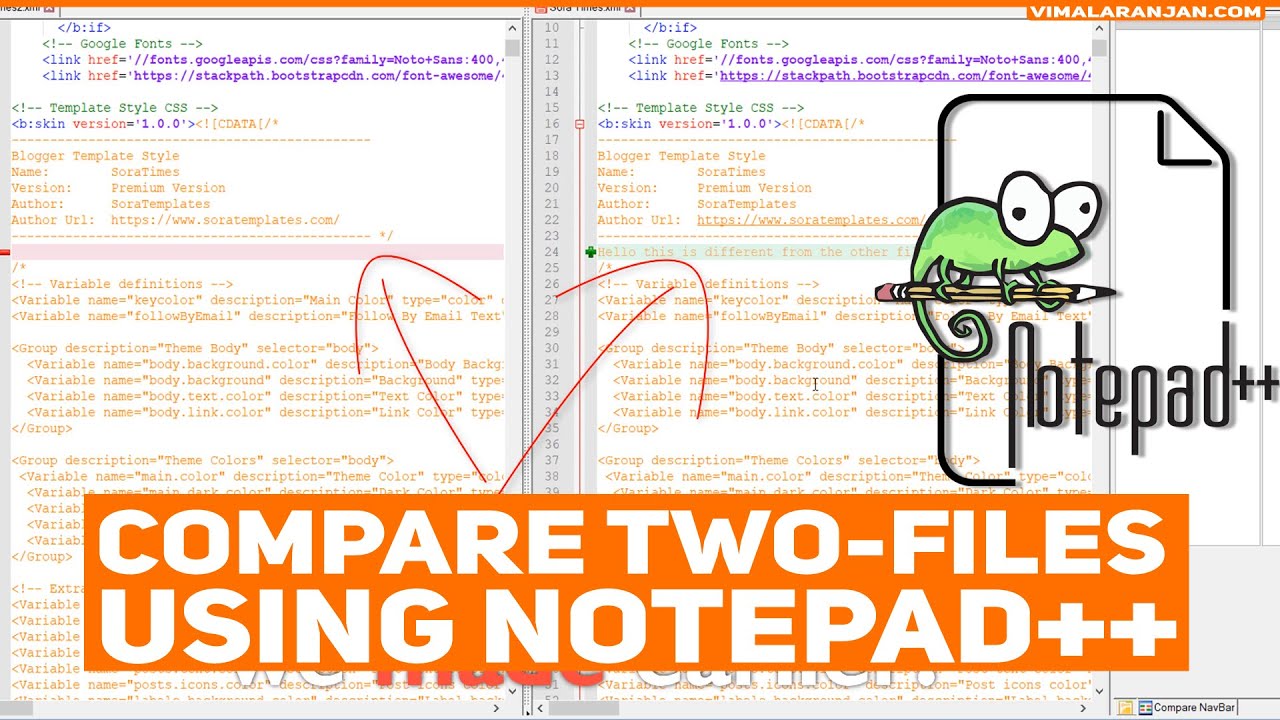
Open both files in separate tabs first. Then run Plugins > Compare > Compare, or just hit Alt+D, and the window splits with every difference marked automatically.
- Open the first file
- Open the second file in a new tab
- Run the Compare command (menu or Alt+D)
- Read the split-pane output, colors and all
- Step through changes with Next Difference and Previous Difference
Several file pairs can stay open and compared at once, according to the plugin’s documentation. Comes in handy when you’re reviewing more than one changed file in the same sitting.
Alt+D is one shortcut among many. The full list lives in the Notepad++ cheat sheet, worth a bookmark if you’re in the editor daily.
What Do the Compare Plugin’s Colors and Symbols Mean
Every difference gets a color and a small symbol in the margin. Added lines turn green. Removed ones show up red, and anything modified internally, a value that changed but the line’s otherwise the same, gets flagged yellow or orange.
| Color | Meaning | Example |
|---|---|---|
| Green | Line added | A new config key inserted in one file |
| Red | Line removed | A deleted function no longer present |
| Yellow/Orange | Line modified | A changed variable value on an otherwise identical line |
| Blue | Moved line (Detect Moves on) | A block relocated without edits |
The margin markers point at the exact line, not just a general “something’s different here” feeling. That precision is basically the whole reason to run a plugin instead of eyeballing two files side by side.
How to Configure Compare Plugin Settings for Accurate Results
What counts as a real difference is something you get to decide, not something ComparePlus assumes for you. Plugins > Compare > Options opens toggles for ignoring whitespace, ignoring letter case, detecting moved lines, and skipping lines that match a regex pattern.
| Setting | What It Does |
|---|---|
| Ignore whitespace | Skips indentation and spacing changes |
| Ignore case | Treats “Value” and “value” as identical |
| Detect moved lines | Flags relocated blocks instead of delete-plus-add |
| Ignore regex | Excludes lines matching a pattern, timestamps for example |
The regex option earns its keep in build logs, where a timestamp or session ID changes every single run even though nothing else in the file actually did. If you’re not comfortable writing the pattern yourself, a regex cheat sheet covers the syntax while you build it.
Skip this step and reformatted code starts looking like a hundred separate changes when really only three lines moved.
How to Compare a File Against Clipboard Content in Notepad++
Sometimes there’s no second file, just something you copied and want to check against what’s already saved. Copy the text, then run the plugin’s compare-to-clipboard command instead of opening a second document at all.
- Copy the target text to the clipboard
- Open the file to check it against
- Run Plugins > Compare > Compare to Clipboard
- Read the output exactly as with a normal two-file comparison
The plugin’s own feature list on GitHub describes this as diffing a file or parts of it against clipboard text content.
No second file needed, no extra tab to manage. Just a fast check before something gets overwritten that maybe shouldn’t be.
How to Compare Two Files in Notepad++ Without Installing a Plugin
Not everyone can or wants to install a plugin. Windows still has a few native and manual ways to spot differences between two files, even without ComparePlus in the picture.
- Split view through View > Move/Clone to Other View, for reading two files side by side manually
- The Windows fc command, run from Command Prompt
- Column mode editing, useful for aligning short, similarly structured blocks of text
- A browser-based diff tool, pasting both files in when nothing else is installed
Using the Windows fc Command
fc is a built-in Windows utility, documented by Microsoft, for comparing two files or sets of files straight from the command line. No editor required at all.
- fc /b runs a binary comparison
- fc /n displays line numbers next to each difference
- fc /c ignores case
For ASCII comparisons, fc only holds up to 100 lines in an internal buffer, according to Microsoft’s own documentation. Anything larger than that, or different enough that the tool can’t resynchronize, triggers a Resynch failed. Files are too different. message instead of an actual diff.
Running diff commands from a Linux shell or WSL instead of fc follows different syntax entirely, laid out in a Bash cheat sheet for anyone jumping between the two regularly.
Why Does the Compare Plugin Fail to Load or Show Errors
Most load failures trace back to the same root cause, an architecture mismatch. A 64-bit plugin file sitting inside a 32-bit Notepad++ install, or the other way around.
| Cause | Symptom | Fix |
|---|---|---|
| Architecture mismatch | “Cannot load 32-bit plugin” on startup | Match plugin build (x86/x64/ARM64) to Notepad++’s own architecture |
| Corrupt or zero-length DLL | Same “32-bit” error, even on a matching architecture | Delete and redownload the plugin file |
| Missing execute permission | Load failure with no obvious cause | Check folder permissions on the Plugins directory |
| Missing libgit2/sqlite files | Base compare works, Git or SVN diff doesn’t | Re-copy the full release zip, not just the .dll |
An official Notepad++ GitHub issue (notepad-plus-plus/notepad-plus-plus #12565) confirmed that the “32-bit” error message is actually misleading. Testers reproduced it using a corrupted, zero-length DLL that had nothing to do with architecture at all.
The original Compare plugin, by the way, came from Ty Landercasper. Jean-Sebastien Leroy took over as its long-time maintainer after that, and development continues today under Pavel Nedev as ComparePlus. Anyone still running the old, unmaintained Compare-plugin build is more likely to run into load errors on a current release of Notepad++.
When Does File Comparison in Notepad++ Not Work Well
Plain text is where ComparePlus lives. Step outside of that and things start to break down.
ComparePlus doesn’t touch binary files. Its documented feature set covers text and character-level diffs only, and nothing in the official plugin list mentions reading .exe, .pdf, or image files.
There’s also no merge view built in. The plugin diffs two files and shows you what’s different, but it won’t help you reconcile conflicting edits the way a dedicated three-way merge tool would.
Size matters more than people expect too. Notepad++’s own issue tracker recorded the editor hanging while comparing two 400KB XML files back on version 8.0 (issue #10013), and a Notepad++ community thread from earlier this month still reported the plugin hanging on certain comparisons. So this isn’t some old bug that got quietly fixed.
Encoding mismatches cause their own kind of trouble. A file saved in UTF-8 compared against the same content saved in UTF-16 can show a wall of false differences that have nothing to do with the actual text.
What Are the Best Alternatives to Notepad++ for Comparing Files
WinMerge, Beyond Compare, and the diff view already built into Visual Studio Code pick up most of the slack ComparePlus leaves behind, binary diffing, folder-level comparison, actual merge support.
| Tool | Cost | Platform | Standout Feature |
|---|---|---|---|
| WinMerge | Free, GPLv2 | Windows only | Folder comparison and patch generation |
| Beyond Compare | Paid, 30-day trial | Windows, macOS, Linux | Handles binary and archive comparison |
| Visual Studio Code | Free | Windows, macOS, Linux | Diff editor built in, no extension needed |
WinMerge ships as x86, x64, and ARM64 builds and stays under active development on GitHub. Its 32-bit build does run into memory limits on very large text files though, since it holds file content in memory as UTF-16.
Beyond Compare, from Scooter Software, is proprietary: a 30-day free trial, then a Standard or Pro license, currently at version 5.2.5.
If you’re already living inside an editor instead of reaching for a standalone tool, the built-in diff view might just be simpler. The steps for comparing two files in VS Code take about as long to run as opening ComparePlus in the first place.
FAQ on How To Compare Two Files In Notepad++
Can ComparePlus compare more than two files at once?
Not as a single three-way view, no. ComparePlus works on one file pair at a time, though you can keep several pairs open and active at once. For actual multi-file or three-way merges, you’ll want a dedicated tool like WinMerge or Beyond Compare instead.
Is the Compare plugin free to use?
Yes, completely. ComparePlus is free and open source, distributed under the GPL-3.0 license on GitHub. No trial period, no paid tier, nothing locked behind a subscription, which isn’t true of every desktop alternative built for comparison work.
Does comparing two files in Notepad++ change or modify them?
No, it’s a read-only action. ComparePlus just highlights differences in the editor view; neither file gets altered, saved, or overwritten in the process. Any edits you make afterward inside Notepad++ still need a normal save, same as always.
What is the keyboard shortcut for the Compare command?
Alt+D, once both files are open in separate tabs. It’s the fastest way into ComparePlus without touching the Plugins menu at all, and it works the same whether you’re comparing two files or comparing a file against clipboard content.
Can Notepad++ compare two folders instead of two files?
No. ComparePlus only works at the file level, there’s no folder-comparison mode anywhere in its official feature list. If you need to diff entire directories, matching filenames and flagging what’s missing, WinMerge is built for that specifically.
Does the Compare plugin handle different line endings?
Not really, no. A file saved with Windows-style CRLF line endings compared against the same content saved with Unix-style LF can end up showing every single line as changed, similar to what happens with mismatched text encoding.
Does ComparePlus work on Notepad++ for Mac or Linux?
There’s no official build. Notepad++ itself only runs natively on Windows (x86, x64, and ARM64), so ComparePlus is Windows-only by extension. Running it through Wine on Linux is technically possible, but plugin behavior isn’t guaranteed there.
How do I uninstall the Compare plugin?
Open Plugins Admin, find ComparePlus under the Installed tab, uncheck it, and restart Notepad++. If you installed it manually, just delete the ComparePlus folder from the Plugins directory and restart the editor.
How do I see what changed since a file was last saved?
There’s a dedicated command for exactly this: diffing the current, unsaved buffer against whatever’s already on disk. It’s the fastest way to review your edits before committing to a save, and you don’t even need to open a second file.
Can I save or export the comparison results?
Not with ComparePlus itself. No export or report feature exists there, differences only live in the editor view. Beyond Compare can generate saved reports of a comparison for recordkeeping, which is one reason some teams pick it over a plugin.
Conclusion
Install the plugin first and skip the workarounds until you actually need them. fc and browser-based tools are fine as backups, but ComparePlus should be the starting point, not something you reach for after everything else fails.
Right after install, open the settings and turn on ignore whitespace before you trust any result it gives you. That one setting matters more than it looks like it should, since reformatted code and mismatched line endings both create false positives that look exactly like real edits. Skip it and you’ll waste more time chasing fake differences than the plugin ever saves you.
Comparison isn’t really a one-off task. Once it’s set up, it ends up folded into config audits, log reviews, and regular code review without much thought.

- MongoDB Cheat Sheet - October 20, 2026
- Adding AI Video Generation to a Software Product: Architecture, Cost Guardrails and QA - October 20, 2026
- Show Hidden Characters, Spaces, and Line Endings in Notepad++ - October 19, 2026