Notepad++ crossed 28 million downloads on SourceForge alone between 2003 and 2010, back before the project moved to TuxFamily and then GitHub. A lot of that came down to something unglamorous: someone opening a file, staring at rows that repeat, and needing them gone.
Log files paste in with the same handful of lines repeated forty times. CSV exports do it too, and so does anything scraped off a page. None of it’s exciting work.
There’s a built-in command for exactly this. It handles most files in a few seconds, no spreadsheet app required. Getting it wrong, though, and a two-minute job turns into a lost afternoon pretty fast.
What Is the Remove Duplicate Lines Command in Notepad++
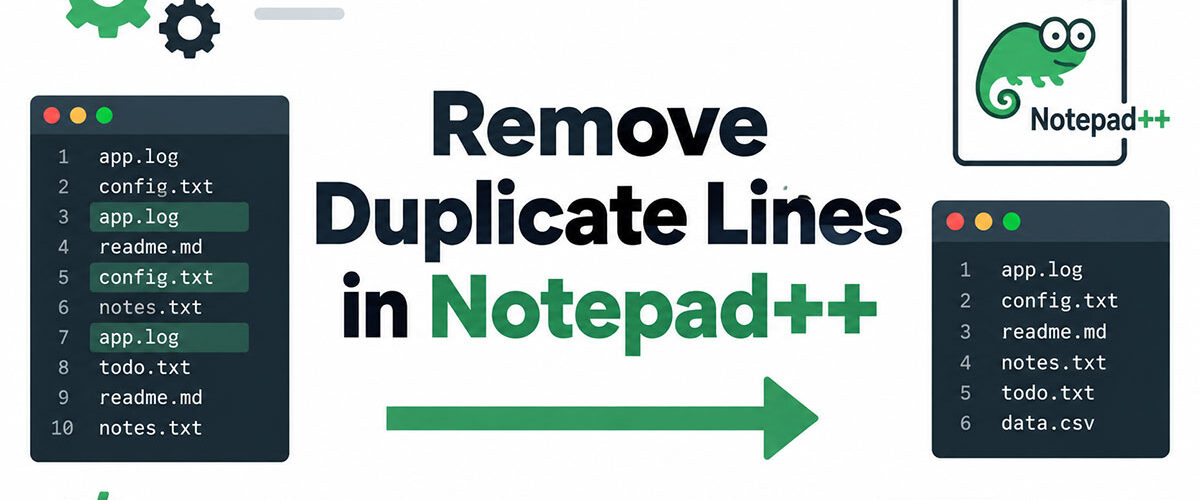
Open Edit, then Line Operations, and there it is, sitting next to the sort commands and a handful of other tools that work on whole lines instead of individual characters. Run it against an open file and Notepad++ deletes every line that’s already shown up earlier, leaving just the first copy standing.
Notepad++ itself is a free, open source text editor built for Windows, built on the Scintilla editing component and released under GPL 3.0. That part matters less than the numbers behind it.
Stack Overflow’s 2025 Developer Survey put Notepad++ usage at 27.4% among all respondents, and the split leans toward people who write code for a living: 26.9% of professional developers said they use it, against 21.1% of people still learning.
A lot of that usage runs alongside a heavier IDE rather than replacing one. That’s more or less why the Notepad++ versus VS Code comparison keeps resurfacing in developer forums, and it’s probably not going away anytime soon.
The same Line Operations menu holds commands for clearing out blank lines and a set of sort variants. All of them act on complete lines rather than partial matches, which matters once regex enters the picture further down.
| Command | Scope | What Survives |
|---|---|---|
| Remove Duplicate Lines | Entire document | First occurrence of each line |
| Remove Consecutive Duplicate Lines | Adjacent lines only | First line of each matching run |
| Remove Empty Lines | Entire document | Every non-blank line |
Don Ho, who maintains Notepad++, built this directly into the core editor instead of pushing it off to a plugin, according to the project’s GitHub commit history. Small detail, but plugin-dependent features tend to break first when Notepad++ updates, so it’s a decision that’s aged well.
One thing worth flagging early: matching is case sensitive by default across every command in this menu. Error and error look the same to a person and completely different to Notepad++. More on that further down.
How to Remove Duplicate Lines With the Line Operations Menu

Running it takes three clicks and maybe twenty seconds if the file isn’t huge.
- Select the text with Ctrl+A, or highlight just the lines that need cleaning
- Open the Edit menu and hover over Line Operations
- Click Remove Duplicate Lines
Notepad++ rewrites the buffer the moment you click, so a pasted list of email addresses, or a stack of repeated log entries, drops down to unique rows in one pass. No dialog box, no confirmation, nothing to wait for.
It’s not flawless, though. Notepad++’s GitHub issue tracker has a report against version 8.1.9.3 where someone selected a block of roughly 4,000 lines and ran the command, and some duplicates survived anyway. A separate report against 8.4.4 describes the command finding zero duplicates in a file where the same rows were flagged as matches by Microsoft Excel, which is a strange one. And a third, filed against 8.4.8, shows lines with different line endings, CRLF versus LF, sometimes getting treated as non-identical even though the visible text is exactly the same.
Removing Duplicates From a Selected Block Instead of the Whole File
Highlighting a chunk of text before running the command works exactly the same way as running it on the whole file. Notepad++ only touches what’s selected. Everything outside stays exactly where it was.
That matters most on files where one row shouldn’t be touched, like a CSV export with a header sitting at the top. Select the data rows, leave the header alone, then run Remove Duplicate Lines from the Line Operations submenu like normal.
How to Sort Lines and Remove Consecutive Duplicates Only
This command only catches a duplicate if it’s sitting right next to its match. Two identical lines separated by anything else, even a single unrelated row, both survive. So scattered duplicates need sorting first, which lines everything up before the command runs.
According to Notepad++’s own feature request history on GitHub, this sort-then-remove combination actually predates the whole-file Remove Duplicate Lines command. It was the original method before the simpler version existed.
| Command | Scope | Needs Sorting First |
|---|---|---|
| Remove Duplicate Lines | Entire document | No |
| Remove Consecutive Duplicate Lines | Adjacent lines only | Usually, for scattered data |
Sort Lines Lexicographically Ascending vs Descending
The submenu holds sort commands in both directions, plus case-insensitive versions of each:
- Sort Lines Lexicographically Ascending
- Sort Lines Lexicographically Descending
- Sort Lines Lexicographically Ascending Ignoring Case
- Sort Lines Lexicographically Descending Ignoring Case
The ignoring case versions group Apple, apple, and APPLE together before anything gets removed. Skip that step on a data set with mixed capitalization and the consecutive duplicate check will miss half of what it should catch.
When Remove Consecutive Duplicate Lines Misses Entries
Nine times out of ten, the reason this command looks broken is that the sort step got skipped.
There’s also a smaller inconsistency worth knowing about. Notepad++’s issue tracker notes plans to make partial selections expand automatically for this command, the way Remove Duplicate Lines already does. Until that change ships, results can differ slightly depending on which of the two commands is running.
Sort first, run the consecutive command second, then compare the line count before and after. If the numbers don’t match what’s expected, the sort step is almost always the culprit.
How to Remove Duplicate Lines While Keeping the Original Line Order
Sorting reorders the whole file, and that breaks anything where position means something, timestamped logs being the obvious example. Nobody wants their log file sorted alphabetically.
Regex-based Find and Replace solves this because it removes duplicates without moving anything else. Press Ctrl+H, switch Search Mode to Regular expression, and pick a pattern depending on which copy needs to survive. A quick regex syntax reference helps if the syntax below looks unfamiliar.
| Goal | Pattern Behavior | Best For |
|---|---|---|
| Keep last occurrence | Matches and deletes earlier duplicates | Logs where the latest entry matters most |
| Keep first occurrence | Needs a numbering or reversal workaround | Lists where original order should stay intact |
Regex Pattern That Keeps the Last Occurrence
Paste (?s)^(.?)$s+?^(?=.^1$) into Find what, leave Replace with blank, and hit Replace All.
People on the Notepad++ community forums have tested this one enough to confirm it keeps the last copy of each duplicate and strips the earlier ones. It’s not perfect on everything, though. The same forum thread flags a real limitation: on very large files, or when two duplicate lines end up separated by something like 10,000 lines or more, the pattern can misfire and grab way more text than it should. Worth a spot check on big files before trusting one Replace All pass with something that matters.
Workaround for Keeping the First Occurrence Instead
Notepad++’s native Find and Replace is built around keeping the last occurrence, so getting the first copy to survive instead takes a workaround: reverse the file, run the pattern above, then reverse it back to normal.
PythonScript offers a cleaner route if the reverse trick feels fiddly. Number each line first, dedupe by content, then strip the numbers back out. Same result, no reversing involved.
How to Remove Duplicate Lines Without Case Sensitivity
Case sensitivity is on by default across the whole Line Operations menu, no exceptions. Error and error count as two separate lines until something tells Notepad++ otherwise.
There’s no toggle for this inside the built-in command, but a couple of workarounds get around it without touching what Remove Duplicate Lines itself does:
- Add a case insensitive flag inside the regex pattern from the previous section
- Normalize capitalization first with Edit, Convert Case to, then run duplicate removal on the normalized text
One catch with the second option: Convert Case to rewrites the original capitalization permanently. Work on a copy, not the source file, unless losing the original casing doesn’t matter.
How to Remove Duplicate Lines With the TextFX Plugin

TextFX hasn’t been updated since 2009. Version 0.2.6 was its last official release, years before Notepad++ even had a 64-bit build, and yet plenty of old tutorials still point people toward it because it used to be the standard tool for this job.
Installing it today means adding a plugin the normal way: open Plugins, then Plugins Admin, search for TextFX Characters, check the box, restart Notepad++.
- Select all text with Ctrl+A
- Go to TextFX, TextFX Tools, and check “+Sort outputs only UNIQUE (at column) lines”
- Click Sort lines case sensitive or Sort lines case insensitive
Here’s the real problem with recommending it: starting with Notepad++ version 8.4.3, changes to the plugin interface broke old TextFX installs outright. They won’t load anymore, and trying just crashes the program, since TextFX’s calls are too outdated for what newer builds expect.
How to Remove Duplicate Lines With the PythonScript Plugin
PythonScript runs actual Python code inside Notepad++, which covers dedupe logic that no built-in command or regex pattern can handle by itself. Install it from Plugins, then Plugins Admin, searching for PythonScript.
Nothing else needs installing separately since the plugin ships its own interpreter. PythonScript 2.1 comes with Python 2.7.17. The newer PythonScript 3.0.22 bundles Python 3.12.9 instead. Most scripts floating around online still target the 2.1 branch, mainly because that’s the version Plugins Admin lists front and center.
Sample Script Structure for Custom Deduplication Rules
The basic shape of a dedupe script is simple enough. Read every line into a list, filter out anything that’s already been seen while tracking what’s passed through, then write the filtered result back to the document. That’s really it.
A quick Python syntax reference helps if the list and set operations feel rusty. And once that basic structure is in place, the same script can normalize whitespace or capitalization in the same pass, something no native command or regex pattern manages on its own.
Which Method Removes Duplicate Lines Fastest and With the Least Risk
Every method here trades something for something else. Speed against control, mostly.
The native menu command wins on raw speed for most files. Regex and PythonScript give up a bit of that speed in exchange for keeping line order intact and allowing custom logic the built-in command simply can’t do.
| Method | Order Preserved | Case Sensitive | Plugin Needed |
|---|---|---|---|
| Line Operations menu | No | Yes, by default | No |
| Sort + Remove Consecutive | No, reorders file | Optional variants | No |
| Regex Find and Replace | Yes | Optional, via flag | No |
| TextFX | No | Optional | Yes, abandoned |
| PythonScript | Yes | Coded manually | Yes |
For a one-off cleanup on a small file, the Line Operations menu is the obvious pick. When order matters, logs or timestamped data especially, regex Find and Replace is worth the extra setup. Recurring cleanup jobs with rules specific to the data justify PythonScript, and anyone already working inside a TextFX-based workflow can keep using it, with the version caveats from earlier in mind.
Regex and PythonScript both cost more time upfront. That cost mostly disappears by the second or third time the same job runs.
Why Notepad++ Fails to Detect Duplicate Lines
Two lines can look completely identical on screen and still fail every duplicate check Notepad++ runs. Frustrating, but there’s usually a reason. The mismatch tends to hide in characters the editor doesn’t render by default, the kind nobody notices unless they go looking for them.
Trailing Whitespace and Mixed Line Endings
Edit, Blank Operations, Trim Trailing Space strips whitespace sitting after the last visible character on each line. According to the Notepad++ user manual, that’s all it touches. Leading spaces, gaps between words, and lines that look blank but actually hold spaces all survive untouched.
Running a full pass to remove spaces in Notepad++ before attempting a dedupe catches whitespace mismatches that would otherwise pass as unique lines. It’s an easy step to skip and an annoying one to diagnose after the fact.
Mixed line endings are a separate problem entirely. Edit, EOL Conversion converts the whole file to Windows CRLF, Unix LF, or old Mac CR, so every line shares the same ending before any duplicate check runs.
Hidden Unicode Characters That Look Identical
Byte order marks cause most of this. Notepad++’s own GitHub issue tracker confirms they stay invisible even with View, Show Symbol, Show All Characters switched on, and a feature request filed against version 8.8.5 in late 2025 shows that gap is still open.
The invisible byte count depends on which encoding is involved:
- UTF-8 BOM: 3 invisible bytes
- UTF-16 Big Endian BOM: 2 invisible bytes
- UTF-16 Little Endian BOM: 2 invisible bytes
Regex search skips right past the BOM, so none of the Find and Replace patterns covered earlier will ever catch it. Checking a file’s hidden characters in Notepad++ before running any duplicate removal saves a wasted cleanup pass later.
How to Set a Keyboard Shortcut for Duplicate Line Removal
No default shortcut exists for Remove Duplicate Lines. Until someone assigns one manually, running it from the mouse is the only option.
That absence trips people up more than you’d expect. One documented case on the Notepad++ community forum has a user reporting, after an upgrade, that Trim Trailing Space had “lost” its Alt+Shift+S shortcut. Turned out that shortcut had always belonged to Macro, Trim Trailing Space And Save, a completely different command, not the Line Operations one at all. Nothing broke. It was just never assigned to begin with.
- Open Settings, Shortcut Mapper
- Select the Main menu tab
- Search for Remove Duplicate Lines in the filter box
- Select it, click Modify, and enter a key combination that isn’t already in use
- Click OK, then Close
The official user manual calls the Shortcut Mapper the full list of every command in Notepad++ that can take a shortcut. Any change made there only writes to disk once Notepad++ closes, so it’s worth actually closing the program after setting one rather than assuming it saved automatically. A Notepad++ shortcut reference is a decent way to confirm a chosen combination isn’t already doing something else.
How to Recover Lines After Removing Duplicates by Mistake
Ctrl+Z undoes a duplicate removal right away, and it keeps working way past what most people would guess. Community testing on the Notepad++ forums pushed past 8,192 individual undo actions in one session without hitting any hard limit.
| Scenario | Undo Still Works |
|---|---|
| Same session, file still open | Yes, tested past 8,192 actions |
| After closing Notepad++ or restarting | No, history is cleared |
That safety net vanishes the moment the file or the program closes, though. Undo history only lives in memory, and there’s no snapshot sitting anywhere to bring it back once it’s gone.
So before running anything on a file that actually matters:
- Save a copy first with File, Save a Copy As
- Run Remove Duplicate Lines or whichever method fits the job
- Compare the result against the saved copy if anything looks off
The Compare files feature in Notepad++ comes from a third-party plugin called ComparePlus, installable through Plugins Admin. It has a command built specifically for finding unique lines between two files, which comes in handy exactly here.
FAQ on How To Remove Duplicate Lines In Notepad++
Can Notepad++ remove duplicate lines across multiple open files at once?
No, and this trips people up constantly. Remove Duplicate Lines only touches the file that’s currently active.
Cleaning several files means either Find in Files with a regex pattern, or a PythonScript loop that opens each one, dedupes it, and saves before moving to the next.
Does Notepad++ show how many duplicate lines got removed?
Not directly, no. The workaround is easy though: check the line count before and after, or open View, Summary to see the difference at a glance.
A PythonScript loop can log the exact number if the script is written to track what it removes.
Can duplicate removal target just one column in CSV-style data?
Not with the native command, since it checks entire lines rather than columns.
A regex pattern with a lookahead can isolate column-level duplicates if the data is predictable enough, but PythonScript paired with an actual CSV parser handles this more reliably in practice.
Does removing duplicate lines change a file’s encoding or line endings?
No. It only touches content.
Encoding and line endings stay exactly as they were before the command ran, unless something else, EOL Conversion or Convert Case to, gets run afterward on purpose.
Can duplicate line removal run automatically every time a file saves?
Not on its own, no. Notepad++ doesn’t have a save-trigger setting built in for this.
What works instead is a macro combining Remove Duplicate Lines with a save action, mapped over the Ctrl+S shortcut, so the cleanup step fires before every save.
Does indentation or leading whitespace count as part of a duplicate line?
Yes, and this catches people off guard. The command compares the full line, so two lines with identical words but different leading spaces or tabs read as unique to Notepad++.
Running Trim Leading Space beforehand normalizes indentation so the duplicate check actually works as expected.
Can Remove Duplicate Lines be triggered from a macro?
Yes. Start Macro Recording, run Remove Duplicate Lines once, stop the recording, and save it under whatever name makes sense.
From there it shows up in the Macro menu and can even get its own Shortcut Mapper assignment.
Is Remove Duplicate Lines available in the portable version of Notepad++?
Yes, the portable build runs the same core editor as the installer version, so every Line Operations command works identically between the two.
The only real difference shows up in plugin availability, not in the core commands.
Can duplicate lines be highlighted without deleting them?
Yes. The Mark tab inside the Find dialog can bookmark every line that matches a duplicate-detecting regex pattern, without touching a single character.
Good for flagging candidates and reviewing them before actually committing to Remove Duplicate Lines.
Is there a way to remove duplicates only from a specific file type like JSON or XML?
File type doesn’t actually matter here. Remove Duplicate Lines works on raw line text, not on syntax, so it treats a JSON or XML file exactly like plain text would be treated.
Heavily structured data is the exception. That usually needs a dedicated parser instead of a line-by-line tool.
Conclusion
Treat the native command as the default, not the fallback. For most files, the entire job starts and ends with one menu click, and there’s no reason to reach for anything heavier than that.
Save regex and PythonScript for the actual exceptions, files where order matters, or cleanup work that repeats often enough to make the setup time worth it.
Case sensitivity stays on by default no matter which method gets used. That’s the one constraint that doesn’t go away. A file where Error and error both show up will still carry near-duplicates after any of these passes, unless something’s done about it specifically.
Run the check on a copy first, not the working file, and confirm the line count before trusting whatever came out the other end.
- Small file, one-off cleanup: the Line Operations menu
- Order-sensitive data or a job that repeats: regex or PythonScript

- Show Hidden Characters, Spaces, and Line Endings in Notepad++ - October 19, 2026
- Military and Defense UI/UX Design Services Firms to Know in 2026 - October 19, 2026
- How to Manage Your Google Play Subscriptions - October 17, 2026