Most PyCharm users spend more time than they should hunting for the terminal on their first day.
Knowing how to open the terminal in PyCharm unlocks the full command-line access you need for pip installs, virtual environment activation, Git commands, and running scripts without ever leaving the IDE.
This guide covers every method available, including the keyboard shortcut, the View menu, the Find Action palette, and the bottom toolbar. You’ll also learn how to set your default shell, open multiple terminal sessions, and fix the most common issues when the terminal tab goes missing or refuses to load.
What Is the Terminal in PyCharm
PyCharm’s terminal is a built-in shell that runs directly inside the IDE. It’s not a separate application. It’s an embedded command-line session tied to your project directory from the moment it opens.
This matters more than it sounds. When you open a terminal session in PyCharm, you’re already inside your project’s root folder. No cd commands, no hunting for paths.
The terminal runs whatever shell your operating system uses by default: bash on most Linux machines, zsh on macOS (since Catalina), and PowerShell or cmd.exe on Windows. It’s not a custom PyCharm shell. It’s the real thing, just embedded.
Terminal vs. Python Console vs. Run Window
These three are easy to mix up. They’re completely different tools.
| Tool | What it runs | Best for |
|---|---|---|
| Terminal | Your OS shell (bash, zsh, PowerShell) | pip installs, git commands, scripts |
| Python Console | Interactive Python interpreter | Testing snippets, quick REPL work |
| Run Window | Output from running a Python file | Seeing script results, not interacting |
PyCharm holds 15% IDE market share among developers as of 2025, according to Stack Overflow data. Most of those users interact with the terminal regularly, since activating virtual environments and running pip commands requires it.
One thing worth knowing: PyCharm’s terminal preserves tab names, the working directory, and even shell history between sessions. Close PyCharm, reopen it, and your terminal picks up roughly where you left off.
Keyboard Shortcut to Open the Terminal
This is the fastest method. One keystroke, terminal opens. No menu navigation required.
According to Pieces for Developers research, using keyboard shortcuts instead of mouse navigation can recover up to 8 full workdays per year for a developer working standard hours. For something you trigger dozens of times a day, the shortcut matters.
Default Shortcuts by OS
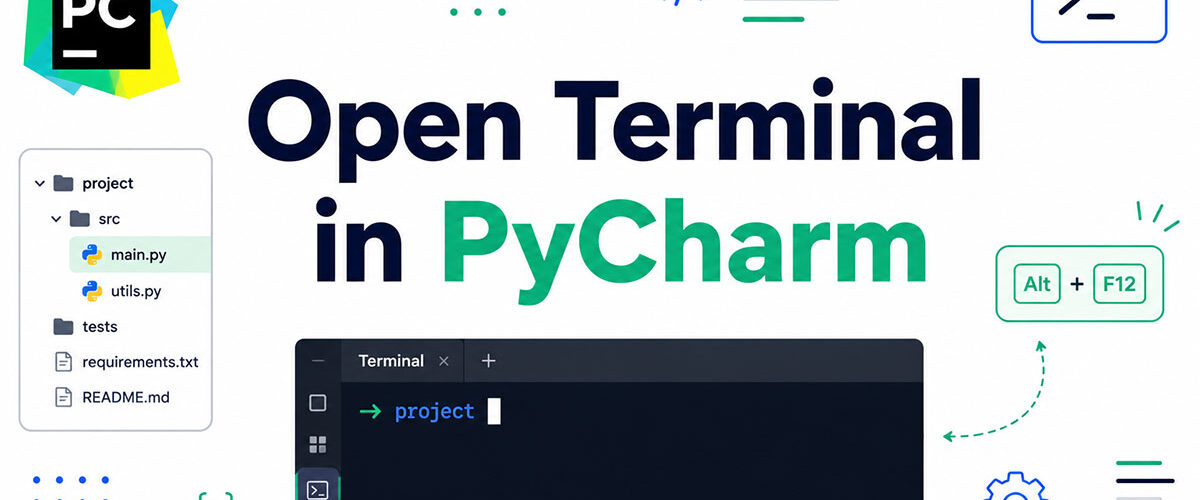
Windows and Linux: Alt + F12
macOS: Option + F12
Press it once to open the terminal. Press it again to hide it. The toggle behavior is intentional: it keeps the terminal out of the way when you don’t need it without closing the session.
What to Do When the Shortcut Doesn’t Work
The most common reason: another application or system shortcut has already claimed Alt + F12. This happens often on Windows with certain audio drivers or display utilities.
To check your current keybinding:
- Open Settings with
Ctrl + Alt + S(Windows/Linux) orCmd + ,(macOS) - Go to Keymap
- Search for “Terminal” in the action list
- Right-click the Terminal action and assign a new shortcut
If you’re comparing editors, the VS Code terminal uses ` Ctrl + ` by default, which many developers find easier to reach. That's a fair point. PyCharm's Alt + F12 is a bit of a stretch on a standard keyboard layout.
The full PyCharm keyboard shortcut reference covers every action with its default key binding and notes which ones conflict most often.
Opening the Terminal from the View Menu
The menu path works on every OS, every PyCharm version. It’s slower than the shortcut but completely reliable when keybindings are broken or remapped.
Path: View > Tool Windows > Terminal
Three clicks. The terminal panel opens at the bottom of the IDE, same position as with the shortcut.
When to Use the Menu Instead
Practically speaking, most developers only fall back to the menu when something’s wrong. A few real scenarios where this matters:
- Fresh install where keybindings haven’t been configured
- Working on a machine where Alt + F12
is claimed by system software
- Using a laptop keyboard where the F12
key requires aFnmodifier
- Screen-sharing or demoing code where keyboard shortcuts aren’t visible to viewers
The menu also confirms which tool windows are active. If the Terminal option is greyed out, that’s a sign the Terminal plugin has been disabled, which happens occasionally after updates.
Using the Terminal Tool Window Button
The terminal icon lives in the bottom toolbar of the PyCharm window. It looks like a small command prompt icon, usually labeled “Terminal” when the toolbar is expanded.
Click it once to open the terminal. Click it again to collapse it. Same toggle behavior as the keyboard shortcut.
If the Toolbar Isn’t Visible
This one catches people off guard. The bottom toolbar can be hidden, especially in older PyCharm installations or after a UI customization. If you don’t see it:
Classic UI (pre-2023): Go to View > Appearance > Tool Window Bars and make sure it's checked.
New UI (2023+): Right-click anywhere on the bottom bar area, or use View > Appearance > Status Bar Widgets to restore it.
Pinning the Terminal for Persistent Access
Right-click the Terminal tab header and select Pin Tab to keep the terminal visible even when switching between tool windows. Useful on wider monitors where you want the terminal always available without toggling.
Opening the Terminal via Find Action
Find Action is PyCharm’s command palette. It searches every available action in the IDE by name. For keyboard-first developers, this is often the most practical fallback when a shortcut isn’t memorized.
Trigger it with:
- Ctrl + Shift + A
on Windows and Linux
- Cmd + Shift + A
on macOS
Type “Terminal” and the Terminal action appears immediately. Hit Enter. Done.
Why This Method Is Worth Knowing
Find Action doesn’t just open the terminal. It shows the currently assigned shortcut next to the action name. So if you’ve forgotten what Alt + F12 is mapped to, or if someone remapped it, Find Action shows the truth.
This approach is also the fastest way to reach the terminal when the bottom toolbar is hidden and the menu path feels slow. Two keystrokes to open Find Action, type three letters, press Enter. Total time: about two seconds.
The same technique works across all JetBrains IDEs. If you use PyCharm alongside IntelliJ IDEA, the Find Action shortcut and behavior are identical in both.
How to Open Multiple Terminal Tabs
One terminal session is often not enough. Running a Django dev server in one tab while installing packages in another is a common pattern. PyCharm handles this well.
According to the Python Developers Survey 2024 (JetBrains/PSF, 30,000+ responses), 42% of Python developers use three or more IDEs or editors simultaneously. Multi-tab terminal usage follows a similar multi-context pattern: developers run parallel processes and don’t want to interrupt one to run another.
Opening New Terminal Tabs
Click the + icon on the terminal toolbar to open a new session tab. Each tab starts in the project root directory by default.
Keyboard shortcut for a new tab: Ctrl + Shift + T
To rename a tab, double-click its name in the tab bar. Naming tabs “Server”, “pip”, “Git” keeps things readable when you have several open.
Splitting Terminal Panes
Right-click any tab and select Split Right or Split Down to divide the terminal area into side-by-side or stacked panes. Both panes run independent shell sessions.
| Action | How to Do It | Result |
|---|---|---|
| New tab | Click + or Ctrl + Shift + T | Separate session in a new tab |
| Split right | Right-click tab → Split Right | Two panes side by side |
| Split down | Right-click tab → Split Down | Two panes stacked vertically |
| Switch tabs | Alt + Right / Alt + Left | Move between open sessions |
A practical example: if you’re working on a Flask app, you can run flask run in one pane and handle pip install commands or git operations in the split pane next to it, without stopping the server.
Setting the Default Shell for PyCharm Terminal
PyCharm detects your system’s default shell automatically. Most of the time it gets this right. When it doesn’t, the fix is in Settings | Tools | Terminal, under the Shell path field.
This matters especially for virtual environments. The shell path determines how your activate scripts run, which environment variables load, and whether pip installs go to the right place.
Shell Path Examples by OS
Common shell paths to set manually:
- bash (Linux/macOS): /bin/bash
- zsh (macOS default): /bin/zsh
- PowerShell (Windows): powershell.exe
- Git Bash (Windows): C:Program FilesGitbinbash.exe
- cmd (Windows fallback): cmd.exe
Shell integration (for history tracking and config file loading) is supported for sh, bash, zsh, and fish in the Reworked 2025 terminal engine, according to JetBrains documentation. PowerShell and Git Bash also get command completion support in this engine.
Why the Shell Path Affects Virtual Environments
Starting with PyCharm 2025.1, the Community and Professional editions merged into a single unified product, according to JetBrains. The terminal behavior is identical across both tiers.
When PyCharm opens a terminal session, it checks the Activate virtualenv checkbox in Settings | Tools | Terminal. If that's enabled and your shell path is set correctly, the project's venv activates automatically on each new terminal tab.
If pip installs are landing in the global Python environment instead of your venv, this setting is almost always the root cause. Check the shell path first, then check whether Activate virtualenv is actually ticked.
Windows-Specific Shell Issue
Windows users frequently open PyCharm and find cmd.exe running instead of PowerShell. This happens when the system default shell hasn't been updated after a PowerShell installation.
To fix it: set the shell path explicitly to powershell.exe in terminal settings. If PowerShell throws execution policy errors on startup, add the -ExecutionPolicy Bypass flag directly in the shell path field.
Developers comparing editors often find that the differences between VS Code and PyCharm come down to exactly these kinds of configuration details. VS Code handles shell detection a bit more transparently on Windows.
Terminal Not Showing or Not Working in PyCharm
The terminal tab is missing. Or it opens but hangs on load. Or it opens fine but does nothing when you type. These are three different problems with three different fixes.
Terminal issues spike after PyCharm version upgrades. The deprecation of the Experimental 2024 terminal engine in PyCharm 2025.x caused a wave of reported issues, according to JetBrains documentation, which now defaults to the Reworked 2025 engine instead.
Terminal Tab Is Missing
The Terminal plugin can get disabled after certain updates. It’s a plugin, not a built-in feature.
To re-enable it:
- Press Ctrl + Alt + S
to open Settings
- Go to Plugins
- Open the Installed tab
- Find “Terminal” and make sure the checkbox is selected
- Restart PyCharm
If the plugin is enabled but the tab still doesn’t appear, go to View | Tool Windows and check whether Terminal is listed but hidden.
Terminal Opens but Hangs
Hanging on load almost always points to a shell path or ConPTY issue. On Windows specifically, a known fix involves disabling the terminal.use.conpty.on.windows registry flag.
Steps to fix ConPTY hang on Windows:
- Open Find Action (Ctrl + Shift + A
)
- Type “Registry” and press Enter
- Find terminal.use.conpty.on.windows
- Uncheck it
- Restart PyCharm
This fix applies mostly to older Windows 10 builds where ConPTY support is incomplete, based on JetBrains community reports from 2024.
Terminal Works but Virtual Env Doesn’t Activate
| Symptom | Likely Cause | Fix |
|---|---|---|
| No (venv) prefix in prompt | Activate virtualenv unchecked | Enable in Settings → Tools → Terminal |
| pip installs go to global Python | Wrong interpreter set for project | Reassign interpreter in Project Settings |
| venv path broken after moving project | Absolute path in interpreter config | Add new interpreter pointing to new path |
| Terminal slow or frozen on macOS | Shell permission or .zshrc loading issue | Use zsh --login --interactive as shell path |
The process of creating a virtual environment in PyCharm includes an “Activate virtualenv” option that’s easy to miss during initial project setup. If it wasn’t enabled at creation time, the terminal won’t auto-activate the venv.
Clearing the IDE Cache
IDE cache corruption causes more terminal problems than most people expect. It’s worth trying before reinstalling.
Go to File | Invalidate Caches and select “Invalidate and Restart.” PyCharm clears its index and cache files, then rebuilds them on next launch. This fixes a range of odd behaviors including terminal hangs that have no obvious cause.
If you’ve worked through the steps above and still have issues, the PyCharm plugins ecosystem includes terminal-related extensions that can replace or supplement the built-in terminal for edge cases where the default engine doesn’t cooperate.
FAQ on How To Open Terminal In PyCharm
What is the fastest way to open the terminal in PyCharm?
Press Alt + F12 on Windows or Linux, or Option + F12 on macOS. That’s it. The terminal opens instantly at your project root. Press the same shortcut again to hide it without closing the session.
Where is the terminal button in PyCharm?
Look at the bottom toolbar of the PyCharm window. There’s a Terminal icon there, usually labeled. Click it once to open, once more to collapse. If the toolbar is hidden, go to View | Tool Windows | Terminal.
How do I open the terminal from the menu in PyCharm?
Go to View, then Tool Windows, then Terminal. Three clicks and the embedded terminal opens in the tool window panel at the bottom of the IDE. Works on every OS and PyCharm version.
Can I open multiple terminal tabs in PyCharm?
Yes. Click the + icon on the terminal toolbar or press Ctrl + Shift + T to start a new session tab. You can also right-click a tab and select Split Right or Split Down for side-by-side terminal panes.
Why is my PyCharm terminal tab missing?
The Terminal plugin is probably disabled. Open Settings with Ctrl + Alt + S, go to Plugins, find Terminal in the Installed tab, and make sure the checkbox is ticked. Restart PyCharm after enabling it.
How do I change the default shell in PyCharm’s terminal?
Go to Settings | Tools | Terminal and update the Shell path field. Set it to /bin/zsh, /bin/bash, or powershell.exe depending on your OS. PyCharm applies the change to every new terminal session.
Why doesn’t my virtual environment activate in the PyCharm terminal?
Check that Activate virtualenv is enabled in Settings | Tools | Terminal. Also confirm the Python interpreter path for your project is correct. A broken or relocated venv path is the most common cause of this problem.
How do I open the terminal using Find Action in PyCharm?
Press Ctrl + Shift + A on Windows/Linux or Cmd + Shift + A on macOS to open Find Action. Type "Terminal" and hit Enter. It also shows your current keybinding next to the action name.
Is the PyCharm terminal the same as the Python console?
No. The terminal runs your OS shell, such as bash, zsh, or PowerShell. The Python console runs an interactive Python interpreter. Use the terminal for pip commands and Git. Use the console for quick Python snippets.
Does PyCharm Community edition have a built-in terminal?
Yes. The embedded terminal is available in all editions. Since PyCharm 2025.1, Community and Professional merged into a single product. The terminal works identically across both tiers, with no feature differences between them.
Conclusion
This conclusion is for an article presenting every practical method to access the embedded terminal in PyCharm, from the Alt + F12 shortcut to Find Action, the View menu, and the bottom toolbar.
Each approach fits a different workflow. Keyboard-first developers will stick to the shortcut. Those troubleshooting a broken shell path or a missing terminal tab now have a clear fix path.
Getting the default shell configured correctly matters as much as knowing how to open the terminal. It affects virtual environment activation, pip behavior, and how bash or zsh loads your config files.
Multiple terminal sessions, split panes, and persistent tab history make PyCharm’s built-in command-line access genuinely useful for day-to-day Python development.

- Show Hidden Characters, Spaces, and Line Endings in Notepad++ - October 19, 2026
- Military and Defense UI/UX Design Services Firms to Know in 2026 - October 19, 2026
- How to Manage Your Google Play Subscriptions - October 17, 2026