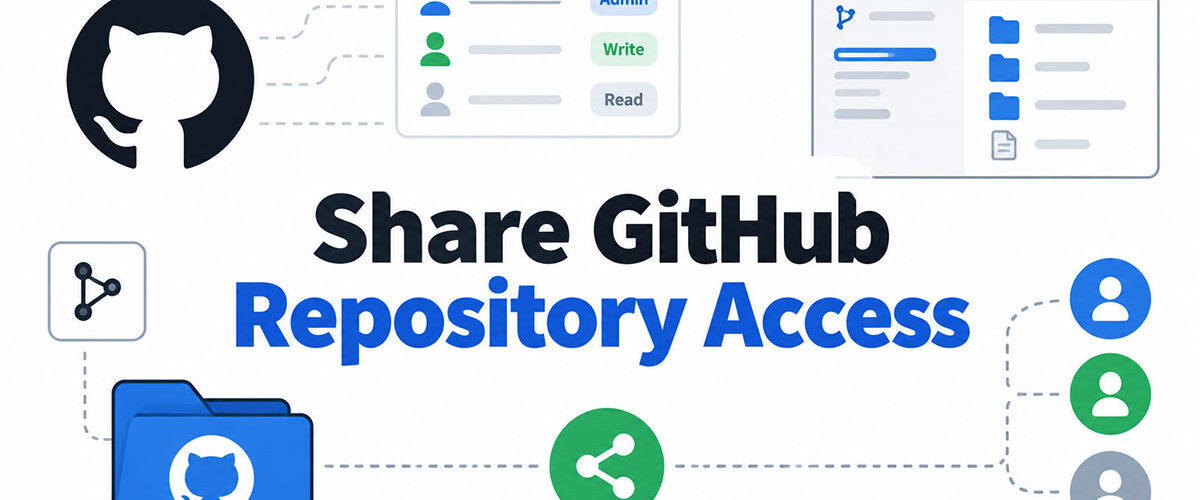
On a personal account, a private repository can only grant collaborators write access, so read-only sharing means moving the repository to an organization or issuing a scoped token (GitHub Docs).
That one limit explains most of what follows. Public code is the easy case, because you send the URL and you’re finished. Private code is where the choices start.
Which way of sharing a GitHub repository fits your situation?
It mostly comes down to who receives the code and whether they should be able to change it. A public link works for readers. If one person needs to push, invite them as a collaborator, and for a group, set up a team. Forks, templates and ZIP archives are for people who should get a copy and nothing more.
| Method | Who gets access | Main limit |
|---|---|---|
| Public link | Anyone with the URL | Everything in the repository becomes visible to everyone |
| Collaborator invitation | One named GitHub account, can pull and push | Private personal repositories offer write access only |
| Organization team | Organization members, with a set role | Needs an organization, and outside collaborators cannot join a team |
| Fork | A linked copy owned by the other person | Removing someone’s access deletes their private forks |
| Template repository | Anyone with access can generate a new repository from your files | Only admins can create one, and Git LFS files are excluded |
| Archive download | Anyone who can view the repository gets a ZIP or tarball | A snapshot only, with no full history and no push access |
If the code can be public, share the link and stop there. If it can’t, invite named accounts.
Once a private repository needs more than two or three people on different roles, move it into an organization. Personal accounts have nowhere to put a reader who should not write.
How to share a public repository by link

Copy the repository address from the browser bar and send it. A public repository opens for anyone with the link, signed in or not.
A private repository behaves differently. The link opens only for accounts that already have access, so the visibility setting decides whether the link works at all.
Copying the link
Every repository has two addresses and they do different jobs. The page URL in your browser opens the repository for reading. The clone URL under the Code button gives people a local copy, and it comes in HTTPS, SSH and GitHub CLI formats.
For a blog post or forum thread, the page URL is the one you want. Send the clone URL only to people who already use Git.
Changing repository visibility
GitHub Docs place the control in the Danger Zone at the bottom of the repository’s Settings page, next to Change repository visibility.
Click Change visibility, choose an option and confirm. Only the owner, or an organization member with the admin role, can do it.
Public means everyone who can visit GitHub.com can see the code. Private keeps it to the owner and the people given access. Internal only exists on GitHub Enterprise plans such as GitHub Enterprise Cloud, where it limits the repository to members of the enterprise.
What happens to forks when visibility changes
Existing forks do not follow the change, which catches people out.
If you go private, public forks stay public and split off into a separate network. Going public does the reverse for private forks. They stay private and detach into standalone private networks.
Stars and watchers are erased when a repository changes visibility, and the dependency graph, Dependabot alerts and code scanning availability can also change when a public repository goes private. Read the consequences notice in the confirmation dialog before you click through.
How to invite a collaborator to a private repository

Open the repository, go to Settings, click Collaborators in the Access section, then click Add people and choose the person. They receive an email, and access starts once they accept.
- Get the person’s GitHub username. If they have none, they sign up for a free account first.
- Open the repository’s main page and click Settings (use the dropdown menu if the tab is hidden).
- Click Collaborators in the Access section of the sidebar.
- Click Add people.
- Start typing the person’s name or username and pick the match from the list.
- Click Add NAME to REPOSITORY.
- Wait for the person to accept the emailed invitation.
GitHub also accepts an email address instead of a username. I’d still use the username, because it points at exactly one account.
Until the person accepts, the invitation stays pending. GitHub’s changelog entry of February 5, 2020 set its lifetime at seven days, after which it expires.
Accepting works from the email link. Posts in the GitHub Community forum also describe an accept screen that appears when the invited person opens the repository URL while signed in, which helps when the email goes missing.
Older tutorials still say free accounts are capped at three collaborators on a private repository. That limit is gone. The GitHub blog announced private repositories with unlimited collaborators for all accounts on April 14, 2020, and current GitHub Docs repeat it for GitHub Free.

What permission level does a collaborator get?
It depends on who owns the repository. On a personal repository, every collaborator gets the same level, pull and push. An organization repository lets you pick from read, triage, write, maintain and admin.
Personal account repositories
GitHub Docs define owner and collaborator as the only two permission levels for a repository owned by a personal account. A collaborator can pull and push code, open, assign and close issues, and remove themselves from the repository.
Adding collaborators, changing visibility, creating a template and deleting the repository stay with the owner. In a private repository the owner can grant write access only, so a read-only collaborator does not exist there.
Setup takes a minute, but you can’t limit anyone to reading, and that’s the annoying part. GitHub’s own advice for finer control is to transfer the repository to an organization.
Organization repositories
GitHub Docs list the roles from least access to most.
| Role | What it allows | Typical recipient |
|---|---|---|
| Read | View, clone, fork, open issues and discuss | Reviewers, non-code contributors |
| Triage | Read, plus manage issues and pull requests without pushing | Support and community managers |
| Write | Push code, merge pull requests | Active contributors |
| Maintain | Write, plus repository housekeeping without destructive actions | Project managers |
| Admin | Full control, including access, visibility and deletion | Owners and technical leads |
Organization owners hold admin access to every repository the organization owns. They can also set base permissions that apply to all members across its repositories.
Members, outside collaborators and teams all receive these roles the same way. Custom repository roles exist only on GitHub Enterprise Cloud.
Sharing with a team
A team lets you grant one role to many people in a single step, though only organization members can join one. Outside collaborators cannot be on a team, according to the Docs page on organization teams.
To add a team, open the repository’s Settings, click Collaborators & teams under Access, click Add teams, pick the team and choose a role.
Child teams inherit the parent’s access. Give an Engineering team write access, and a child team such as Application Engineering gets write access too.
Access follows team membership, so offboarding becomes one removal instead of a hunt through every repository. Once three or more people need the same role, a team beats individual invitations.
Can you give read-only access to a private repository?

Not directly. Moving the repository to an organization with the read role is the clean fix. A fine-grained personal access token or a deploy key can cover narrower cases, but only the organization route holds up beyond a single reviewer.
For the organization route, transfer the repository, then add the person from Collaborators & teams with the read role. They can view and clone, and they cannot push.
This is the right answer for anything long-lived. The cost is ownership, because the repository now belongs to the organization account.
A fine-grained token suits a short review. Create one limited to a single repository with Contents set to read-only, then hand it over. GitHub’s token documentation even ships a pre-filled template for this exact case, read access to repository contents.
The path is Settings, Developer settings, Personal access tokens, Fine-grained tokens, Generate new token. Under Repository access choose Only select repositories, then pick the one you are sharing.
Tokens have limits you should know before handing one over.
- It works over HTTPS only, so an SSH remote ignores it
- The holder reads the repository as you until the token expires or you delete it
- An organization can require approval first, and an unapproved token reads only public resources
- The token goes inactive if you lose access to the repository
A deploy key is an SSH key attached to one repository, read-only unless you tick Allow write access when adding it. It suits a server pulling code and it is awkward for a person.
It has no expiry date and usually no passphrase. It is also not tied to a user, so it stays active even after the person who created it is removed from the repository.
Link-sharing apps from third parties turn a private repository into a URL. Their own walkthroughs ask you to install an app on your GitHub account and choose which repositories it can reach, so the exposure moves rather than disappears.
For one reviewer over a few days I’d use a token. For anything beyond that, the organization route.
How does the person you shared with clone the repository?
They run git clone with the clone URL, or they use GitHub CLI or GitHub Desktop. A private repository needs credentials on top of that, either a personal access token over HTTPS or an SSH key on their account.
HTTPS and personal access tokens
GitHub stopped accepting account passwords for Git operations on August 13, 2021, according to its changelog.
At the password prompt, the recipient pastes a personal access token instead. The username is still required, but GitHub’s documentation says the token is what authenticates them.
HTTPS clone URLs work behind a firewall or proxy, and a credential helper such as Git Credential Manager caches the token so nobody retypes it. In an organization with SAML single sign-on, a classic token must be authorized for the organization first.
SSH and keys
SSH skips tokens entirely.
The recipient generates a key pair and adds the public key to their GitHub account. Git then asks for the key’s passphrase, not a password. If port 22 is blocked, SSH over the HTTPS port is the documented fallback.
Pick SSH for a machine used daily. Pick HTTPS for a one-time clone on someone else’s laptop.
GitHub CLI and GitHub Desktop
gh repo clone takes the repository URL. GitHub recommends the CLI, or Git Credential Manager, as a safer route than creating a token by hand.
GitHub Desktop has an Open with GitHub Desktop option in the Code menu that starts the clone inside the app. It avoids command-line authentication, and GitHub’s December 2020 announcement listed Desktop as unaffected by the password shutdown.
How to share code without giving repository access
Share a copy, a snippet, a build or a site instead of the repository itself. Forks and template repositories hand over copies. Gist is for snippets. Releases carry builds, and Pages publishes a site.
If the other person has no GitHub account, download a ZIP of the default branch from the Code button and send the file.
Archive URLs built on a commit ID always return identical file contents. Branch and tag URLs can drift, because the branch or tag may move to a new commit (GitHub Docs).
Fork or template
A fork keeps its link to your repository. A template repository does not.
Forks come with a few rules attached.
- Visibility follows the upstream repository and cannot be changed on its own
- Private forks inherit team permissions from upstream, but not individual ones
- Owners of the upstream repository can read every fork in the network
- On GitHub Free, a private repository cannot be forked into an organization
For a template, switch on Template repository in the repository’s Settings. New repositories receive the default branch files, plus other branches if the creator chooses. Branches in the new repository have unrelated histories, so they cannot be merged into one another.
Use a fork when changes should flow back to you, and a template when the recipient should start clean.
Gist, Releases and Pages
Every gist is itself a Git repository. Secret gists are not private, so anyone with the URL can read one, and a public gist cannot be switched to secret afterwards.
Releases are built on Git tags, with ZIP and tarball links added automatically. Each release file must stay under 2 GiB, and anyone with read access to the repository can view the release (GitHub Docs).
GitHub Pages publishes a static site from the repository. GitHub Free covers public repositories only, while private repositories need GitHub Pro, Team or Enterprise Cloud.
How to remove access to a GitHub repository
Open the repository’s Settings, click Collaborators & teams under Access, and click Remove next to the person. They lose read and write access to the repository.
Removal ends access to the repository only. It does not touch anything the person already copied, or any credential you issued separately.
Local clones stay on the person’s machine, and GitHub’s documentation puts the job of deleting confidential code on the person who lost access. A deploy key stays active after its creator is removed, so delete it under Deploy keys in the repository settings. Personal access tokens get deleted under Developer settings, and deleting a token that created a deploy key deletes that key too.
Removing a collaborator from a public repository ends only their write access, because everyone can still read it. Switching it back to private is the only way to close the link, and copies already cloned stay out there.
The Collaborators & teams page doubles as an audit list. GitHub describes it as a tool for offboarding contractors and responding to security incidents, and a Mixed roles warning flags anyone whose access comes from conflicting sources.
FAQ About Sharing a GitHub Repository
How do I share a link to one file in a repository?
Open the file or folder on GitHub and copy the address from the browser bar. The link follows the repository’s visibility, so a private repository’s file opens only for people with access.
The Raw button gives a separate link to the plain file contents.
Why is the repository invitation not arriving?
Check spam first, then ask the person to open the repository URL while signed in, where forum reports describe an accept screen.
If you invited many people at once, GitHub’s invitation cap for a 24-hour period may apply. Wait a day or move the repository into an organization.
Can I transfer a GitHub repository to another account?
Yes, with admin access. Open Settings, click Transfer in the Danger Zone, and type the repository name to confirm.
A personal-account recipient must accept the emailed transfer within one day. Issues, pull requests, the wiki, stars and watchers move with it, old URLs redirect, and you stay on as a collaborator.
What is the fastest way to publish a local project to GitHub?
Create an empty repository on GitHub, with no README, license or gitignore file. Then run git remote add origin with the repository URL, followed by git push -u origin main.
GitHub CLI shortens this to one command: gh repo create --source=. --private --push.
When a Shared Repository Should Move to an Organization
Sharing a GitHub repository outgrows a personal account the moment someone needs read-only access or a role below push. An organization replaces collaborator invitations at that point.
Settle visibility first, since it decides which sharing methods exist at all, and a role means nothing on a repository that is already public. Then give the narrowest role that works, and put the removal on your calendar so it actually happens.
The cost sits in the transfer itself. Moving a private repository to a GitHub Free organization drops protected branches and GitHub Pages, according to GitHub Docs.
This position was verified against GitHub Docs on October 14, 2026. Read-only collaborators on private repositories of personal accounts would change the advice.

- How to Share GitHub Repository Access With Collaborators - October 25, 2026
- Build or Buy an AI Chatbot for E-commerce: The Costs Nobody Budgets For - October 24, 2026
- How to Run a React App in VS Code Step by Step - October 23, 2026