
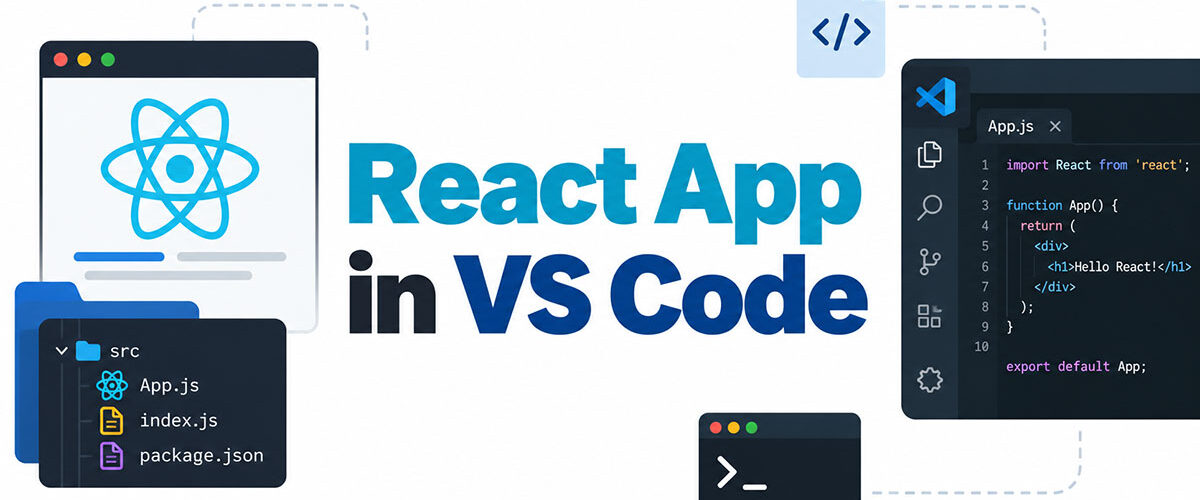
Open the project folder in VS Code, run npm install in the integrated terminal, then start the dev server. That last command is npm run dev on Vite and Next.js, and npm start on Create React App.
The app loads from a local port afterward. Vite uses 5173, while Next.js and Create React App both use 3000.
Tutorials keep teaching Create React App, which the React team deprecated for new apps on February 14, 2025 (React blog, 2025). That’s why you’ll see both commands in the wild. A fresh Vite project defines dev, build and preview scripts and no start script, so npm start fails on it (Vite docs, 2026).
What do you need installed before running a React app in VS Code?
Node.js, which ships with npm, and VS Code itself. To confirm the Node.js side, type node -v and npm -v in the integrated terminal.
Once both print a version, you’re two commands away from a running app: npm install, then npm run dev (or npm start on older Create React App projects).
The minimum Node.js version depends on the tool you run.
- Vite needs Node.js 20.19+ or 22.12+, per the Vite 8.3.4 docs checked in October 2026.
- Next.js asks for 20.9 at minimum, per the Next.js 16.4.0 installation docs.
- Create React App says Node 14 or higher, though that line sits on a Getting Started page last edited in April 2022.
Those floors look lower than they are. The Node.js release table marks v20 as end-of-life as of October 2026, while v22 (Jod) and v24 (Krypton) sit in LTS and v26 is the Current release.
Install an LTS build of 24 or 22 and every tool above is satisfied.
nvm switches Node.js versions per project, which helps when an older repo pins a version. On macOS it sometimes complains about the npm prefix option inside VS Code’s terminal, and the nvm README says to make sure your ~/.npmrc file contains no prefix setting.
Yarn and pnpm work too. They run the same scripts with different verbs (yarn dev, pnpm dev).
One failure shows up right after a fresh install, when the terminal says npm is not recognized. The terminal was opened before the PATH changed, so close VS Code completely and reopen it.
Which starter should you use to create a React project?

For a plain client-side app, Vite. Once you need routing or server rendering, a framework such as Next.js. Skip Create React App for anything new.
The React team’s rule of thumb, from its February 2025 deprecation post, is simple: if the app needs routing, choose a framework.
| Starter | Create command | Start command and port | Status in October 2026 |
|---|---|---|---|
| Vite | npm create vite@latest | npm run dev, port 5173 | Build tool for client-side apps |
| Next.js | npx create-next-app@latest | npm run dev, port 3000 | Framework with file-system routing |
| Create React App | npx create-react-app my-app | npm start, port 3000 | Deprecated, maintenance mode |
Vite
According to the Vite 8.3.4 docs, the scaffolder has four React templates: react, react-ts, react-compiler and react-compiler-ts.
Plain react or react-ts covers most projects. To skip the prompts, pass the template by name, and remember npm 7+ needs the extra double dash: npm create vite@latest my-app -- --template react.
Some tutorials show a Vite app on localhost:3000. That’s the Create React App and Next.js port. Vite’s own docs give 5173, so trust the URL the terminal prints.
Create React App
The React team deprecated Create React App for new apps on February 14, 2025, citing the absence of active maintainers.
The tool stays in maintenance mode, and the React team said it published a new version to work with React 19. Its documentation site now opens with a deprecation banner that links to react.dev, and a fresh install prints a one-time deprecation warning.
An existing project keeps running with npm start on localhost:3000, and the docs say the page reloads when you save edits.
New setups are where it hurts. Issues on the Create React App repository report hard npm dependency-resolution errors (ERESOLVE) during project creation once React 19 shipped.
Next.js
Next.js is the framework route.
Running npx create-next-app@latest my-app --yes accepts the recommended defaults: TypeScript, Tailwind CSS, ESLint, the App Router and Turbopack as the default bundler (Next.js docs, version 16.4.0).
The catch is that routes come from folder structure under app/, so you learn a convention before you see a page.
How to run a React app in VS Code step by step

There’s no Run button for a React app. The project’s own dev server does the work, and you launch it from the VS Code integrated terminal.
- Open the project folder with File > Open Folder, or run
code .from a shell inside the project. On macOS, run “Shell Command: Install ‘code’ command in PATH” from the Command Palette once before that works (VS Code docs). - Open the integrated terminal with Ctrl+
`(backtick, the same combination on Windows, macOS and Linux) or Terminal > New Terminal. It starts at the root of the folder you opened, which is the working directory the next commands need. - Install dependencies with
npm install. - Start the dev server with
npm run devfor Vite and Next.js, ornpm startfor Create React App. - Read the local URL the terminal prints, then hold Ctrl (Cmd on macOS) and click it. VS Code’s October 2026 docs say localhost links open in its integrated browser by default. Set
workbench.browser.openLocalhostLinkstofalseto use your system browser instead. - Edit a component and save. Vite applies Hot Module Replacement, and Create React App reloads the page.
- Press Ctrl+C in the terminal to stop the server.
Why the port may not be the one you expect
Vite moves to the next free port when 5173 is taken, so your app may live on 5174 without any error. The Vite server options docs describe this fallback.
Set server.strictPort to true in the Vite config and the server exits instead. To pick a port yourself, pass a flag through npm: npm run dev -- --port 5174.
How to run an existing React project in VS Code

Scaffolding is already done here. Clone the repository or unzip the download, open the folder in VS Code, trust it, run npm install, then start whichever script package.json defines.
Trust comes first. VS Code opens an unfamiliar folder in Restricted Mode, and its Workspace Trust docs list the integrated terminal, tasks and debugging as blocked there until you trust the folder.
Trust only repositories you recognize.
Open package.json and read the scripts block. The development script is usually dev (Vite, Next.js) or start (Create React App), but custom names exist.
The lockfile tells you which package manager the authors used. package-lock.json means npm, yarn.lock means Yarn, pnpm-lock.yaml means pnpm. Mix them and you end up with a second lockfile.
When package.json sits in a subfolder (a client directory in a monorepo, say), right-click that folder in the Explorer and choose Open in Integrated Terminal. And if the README lists required variables, create the .env file before you start anything.
npm install or npm ci?
npm install resolves from package.json, can update the lockfile, and works without one.
npm ci needs a package-lock.json. It deletes any existing node_modules first, exits with an error when the lock and package.json disagree, and never writes to either file (npm docs, v11).
For a project you only want to run, npm ci reproduces the exact tree the authors locked. Reach for npm install when no lockfile exists or you plan to add packages.
A project written for an older Node.js can fail at install or at start. Check the README or an .nvmrc file, then run nvm use before trying again.
How to debug a React app in VS Code

Start the dev server, add a browser configuration to launch.json that points at its URL, set a breakpoint, and press F5. VS Code opens the page with its built-in debugger attached.
The quickest route skips the file. Run Debug: Open Link from the Command Palette and paste the dev server URL.
VS Code opens Edge when it is your default browser and looks for a Chrome installation otherwise (VS Code docs).
- Keep the dev server running in the integrated terminal and note the URL it printed.
- Open Run and Debug with Ctrl+Shift+D (Cmd+Shift+D on macOS), then create a
launch.jsonfile. Writing.vscode/launch.jsonby hand works the same way. - Add a browser configuration, filling in the fields described below the steps.
- Click the gutter beside a line inside a component to set a breakpoint.
- Press F5. A browser window opens at the URL, and execution stops when the code reaches the breakpoint.
- Step through with the debug toolbar and read values in the Variables panel. Source map problems show up in the Debug Console.
For the configuration itself, type is chrome or msedge. The VS Code docs write their example with msedge and say to swap in chrome for Chrome.
request takes launch to start a fresh browser instance, or attach to connect to one already running.
The url is the address the dev server printed, port included. webRoot defaults to the workspace folder and drives source map resolution, so set it only when the app lives in a subfolder.
Launch or attach?
Launch makes VS Code start the browser itself, so nothing needs preparing. It’s the right default for a React dev server.
Attach takes more work. Start the browser yourself with --remote-debugging-port=9222 and a separate --user-data-dir, then use a configuration with request set to attach and port set to 9222.
Leave out the --user-data-dir flag and the command opens a window in the browser that is already running, without debug mode. The debugger then has nothing to connect to.
There’s also an editor-browser type, which debugs inside a VS Code browser tab with no external browser installed. Add it to launch.json by hand, because the Run and Debug auto-detection does not offer it yet (VS Code docs, October 2026).
Debugging a Next.js app
Next.js runs code in two places, the browser and a Node.js server process, so a single configuration won’t cover it.
- A
chromeconfiguration withurlset to localhost:3000 handles the client side. - For the server, use a
node-terminalconfiguration that runsnpm run dev -- --inspect. - If you’d rather have everything in one place, a single
nodeconfiguration can carry aserverReadyActionthat opens a browser once the server is up.
The Next.js debugging guide (version 16.4.0, updated August 2026) ships all of these, and its sample output shows the inspector listening on port 9229.
In a monorepo, add a cwd property to the server-side and full-stack entries. The guide’s example is ${workspaceFolder}/apps/web.
Why a breakpoint fires twice, or never
A breakpoint that hits twice for one render is usually Strict Mode, not a bug.
In development, Strict Mode calls component function bodies a second time and runs one extra setup-and-cleanup cycle for every Effect, according to the React reference. Production builds skip all of it, and React recommends wrapping the whole app, so expect the doubled hits.
A breakpoint that never binds usually means the url or webRoot is wrong, or the debugger could not load a source map. The Debug Console names the map that failed and the reason.
Why does a React app fail to start in VS Code?
Most startup failures trace back to Node.js missing from the terminal’s PATH, a script name the project doesn’t define, a port something else already holds, dependencies that were never installed, or a PowerShell policy that blocks npm.
| Symptom | Cause | Fix |
|---|---|---|
| npm is not recognized | Node.js absent from PATH in that terminal | Reinstall Node.js, open a fresh terminal, run node -v |
| Missing script: “start” or “dev” | Script not in package.json, or terminal in the wrong folder | Run npm run to list scripts, then change to the folder holding package.json |
| Port already in use | Another process or a leftover dev server holds it | Stop the owner or pass another port |
| Cannot find module, or vite and react-scripts not found | node_modules missing or incomplete | Run npm install (or npm ci) |
| Running scripts is disabled | PowerShell execution policy | Switch the terminal to Command Prompt, or relax the policy for your user |
The missing-script error is almost always a mismatch between the command and the tool. A scaffolded Vite project defines dev, build and preview, with no start.
Next.js is the odd one. It does define start, but that script launches the production server and expects a finished build, so it’s the wrong choice for development.
Port already in use
The terminal says so plainly, and the culprit is often a dev server left running in another terminal tab. Close that tab with its trash can icon or press Ctrl+C in it.
If that isn’t it, find the owner with netstat -ano | findstr :3000 on Windows or lsof -i :3000 on macOS and Linux. Stop the process ID that comes back.
Create React App tries port 3000 and prompts for the next free one. Set the PORT environment variable to choose your own (Create React App docs). Next.js takes next dev -p 4000, or npm run dev -- -p 4000 through npm.
The Next.js CLI docs also allow PORT=4000 next dev, but that is Unix shell syntax, and PORT cannot live in a .env file because the HTTP server boots before any other code loads. On Windows, stick with the -p flag.
When PowerShell blocks npm
Microsoft’s about_Execution_Policies page contradicts itself on the Windows client default. Its Default entry says RemoteSigned for Windows clients and servers, while its Undefined entry says that when no scope sets a policy, the effective policy is Restricted for Windows clients and RemoteSigned for Windows Server. The PowerShell 7.4 and 7.6 versions of the page carry the same wording.
Skip the argument and run Get-ExecutionPolicy -List to see what your machine uses.
The easy way out is Command Prompt. Pick it from the dropdown beside the new-terminal button, where VS Code lists PowerShell, Command Prompt, Git Bash and WSL when they are installed.
If you’d rather stay in PowerShell, run Set-ExecutionPolicy -ExecutionPolicy RemoteSigned -Scope CurrentUser, the scoped form in Microsoft’s documentation. Without -Scope, the change targets LocalMachine and needs an administrator shell.
Which VS Code extensions help with React?

None are required. VS Code runs a React project with Node.js and the terminal alone, and extensions only add linting, formatting and snippets.
ESLint (dbaeumer.vscode-eslint) flags problems in JSX while you type. It loads the ESLint library installed in your workspace folder, so the eslint package has to be in the project, and it asks for approval before loading that library.
Prettier (esbenp.prettier-vscode) formats JSX on save. It bundles Prettier 3.x and needs editor.defaultFormatter set to its ID. Once a .prettierrc file exists, it ignores your VS Code settings.
For snippets there’s ES JS Snippets (r5n.es-js-snippets), which gives you component and hook shortcuts such as rafce. It continues the older ES7+ React/Redux/React-Native snippets extension (dsznajder.es7-react-js-snippets), whose Marketplace deprecation is still pending, so uninstall the old one to avoid duplicate snippets.
Version 5 of the snippets extension no longer adds an import React line by default, which projects on React 17 or later do not need. Its importReactOnTop option turns that line on for projects that use the legacy JSX transform, per the extension’s README.
React Developer Tools is the one people mix up. It’s a browser extension for Chrome, Firefox and Edge that adds Components and Profiler panels, not a VS Code extension.
Safari has no extension, so the React docs point to the react-devtools npm package, which connects through a script tag on localhost:8097. With it installed, console output from Strict Mode’s second render appears dimmed.
FAQ About Running a React App in VS Code
Do I need to restart the dev server after editing code?
No. Dev servers apply saved edits on their own, through Hot Module Reloading in next dev and page reloads on save in Create React App.
Restart only after changing environment variables or config files, because the server reads those at startup.
How do I stop the dev server?
Press Ctrl+C in the terminal that is running it, on macOS as well as Windows (not Cmd+C).
That releases the port, so the next start does not collide with a leftover process.
Does the process differ on Windows and Mac?
Barely. The npm commands and default ports are identical on Windows, macOS and Linux.
The differences sit in shortcuts, where the Command Palette is Cmd+Shift+P on macOS instead of Ctrl+Shift+P, and in shell-specific syntax such as setting a variable inline before a command.
Can Live Server run a React app?
Not as the dev server. The Live Server extension launches a local server with live reload for static and dynamic pages, but it does not replace the Vite or Next.js dev server that compiles JSX and bundles modules.
It can serve a folder of files that were already built.
Is Code Runner useful for React?
No. Code Runner executes the active file or a selected snippet and prints the output.
It never starts a dev server or renders a page, so a component file run through it produces no app.
From Dev Server to Deployable Build
A React app that already runs in VS Code reaches production through its build script, which bundles the project into static files. Vite and Create React App use npm run build, and Next.js uses next build.
Create React App writes its output to a build folder, Vite to dist.
Run the build script and check the result with the preview script. Then deploy the output folder.
The order matters because the dev server and the production bundle are different outputs, so only the preview exercises what users will load.
Vite’s default production bundle targets Chrome 111, Edge 111, Firefox 114 and Safari 16.4 or newer, and it adds no polyfills. A deployment under a nested path also needs the base option set at build time (Vite docs, version 8.3.4).
Those defaults were checked on October 13, 2026, and Vite fixes them per major release, so a new major can move them.

- How to Run a React App in VS Code Step by Step - October 23, 2026
- How Software Teams Write SOPs for Releases and Deployments - October 22, 2026
- Notepad++ Android Options: Apps That Come Close - October 21, 2026


