
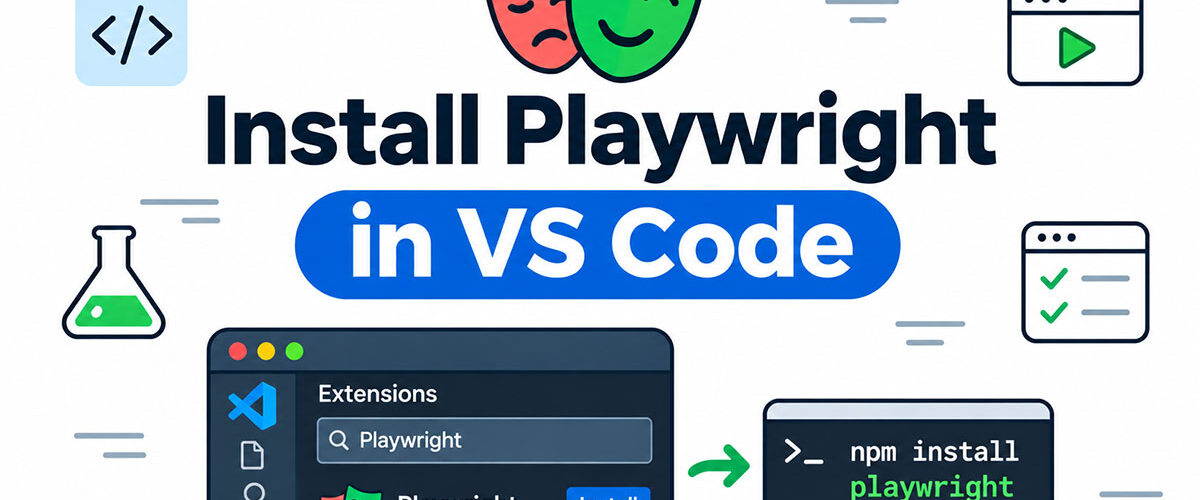
To install Playwright in VS Code, add the Playwright Test for VS Code extension, then run Test: Install Playwright from the Command Palette and tick the browsers to download.
The extension on its own doesn’t put a test runner into the project. The @playwright/test package, a playwright.config file, an example test and the browser binaries all arrive through that command, or through npm init playwright@latest in the integrated terminal.
Microsoft makes Playwright, an end-to-end test framework that runs tests in Chromium, Firefox and WebKit on Windows, macOS and Linux (Playwright documentation, 2026). Before you start you’ll want a supported Node.js release and a project folder.
What do you need before installing Playwright in VS Code?
A supported Node.js release, Visual Studio Code, and an empty folder for the project. That’s about it.
Setup fills that folder with the @playwright/test runner, browser binaries, a playwright.config file and an example test file. The VS Code extension then runs those tests from the editor.
Node.js has to be the latest 22.x, 24.x or 26.x release (playwright.dev, October 2026). Install Visual Studio Code before you add the extension, and open a new, empty directory with File, Open Folder.
On the operating system side, Playwright supports Windows 11 or later, Windows Server 2019 or later, WSL, macOS 14 or later, Debian 12 or 13, and Ubuntu 22.04, 24.04 or 26.04.
Check the installed versions in the integrated terminal with node --version and npm --version.
The Node.js requirement keeps shifting. Version 1.54 removed Node.js 16 and deprecated Node.js 18 (Playwright release notes), and mirrors of earlier docs still list 20.x, 22.x and 24.x.
The VS Code guide only asks for an LTS build. Pick the newest LTS release that appears on the live install page.
macOS is where it gets awkward. The install page lists macOS 14 as supported, but the 1.59 release notes removed macOS 14 support for WebKit, so WebKit tests there need a newer macOS or an older Playwright version.
Linux has its own cutoffs. Ubuntu 20.04 lost support in 1.63 and Debian 11 in 1.62.
Should you install Playwright with the VS Code extension or the terminal?

Use the extension if you work mostly in VS Code and want one guided path. Use the terminal when the project already exists, you prefer Yarn or pnpm, or the setup has to be scripted.
| Factor | Extension route | Terminal route |
|---|---|---|
| Starting point | Extensions view, then the Test: Install Playwright command | npm init playwright@latest in the integrated terminal |
| Package managers | None named in the VS Code guide | npm, Yarn and pnpm documented |
| Editor tools afterward | Test Explorer, Show Browser, Pick locator, Record new | None until the extension is added |
| Best for | Editor-first setup on a new project | Existing projects and scripted installs |
The two routes aren’t really rivals. The extension is a runner for the @playwright/test package, and that package has to exist either way, so a project often ends up with both.
The extension has 3,117,111 installs on the Visual Studio Marketplace (October 2026), which makes it the mainstream editor integration.
It does have limits. It needs Playwright v1.38 or newer, according to its Marketplace listing, and Python, Java and .NET each have a separate VS Code guide on playwright.dev. The steps here follow the Node.js version.
How to install Playwright with the VS Code extension

Install the Playwright Test for VS Code extension, run Test: Install Playwright from the Command Palette, and tick the browsers you want.
- Open the empty project folder in VS Code with File, Open Folder.
- Open the Extensions view (Ctrl+Shift+X or Cmd+Shift+X), search for Playwright, and install the official extension from Microsoft (ID
ms-playwright.playwright). - Open the Command Palette (Ctrl+Shift+P or Cmd+Shift+P) and run Test: Install Playwright.
- Pick the browsers to download: Chromium, Firefox, WebKit, or any mix.
- Tick the GitHub Actions workflow option if you want a CI file. Leave it off otherwise.
- Click the Testing icon in the Activity Bar to open Test Explorer.
You don’t need Chrome, Firefox or Safari installed on the machine. Playwright downloads its own browser binaries.
The browser selection can be changed later in playwright.config.ts (Playwright VS Code guide).
How to install Playwright from the integrated terminal
Run npm init playwright@latest in an open project folder and answer the prompts. Yarn and pnpm users get the same thing from yarn create playwright and pnpm create playwright.
- Open the project folder in VS Code, then choose Terminal, New Terminal.
- Run
npm init playwright@latest. - Choose TypeScript or JavaScript. TypeScript is the default.
- Name the tests folder. The default is
tests, ore2eiftestsalready exists. - Decide on the GitHub Actions workflow, which the docs recommend for CI.
- Keep browser installation on (the default is yes) and let the download finish.
On an existing project, the same command adds Playwright to your current package.json, and re-running it doesn’t overwrite existing tests, per the install page.
You can also go manual. npm install -D @playwright/test followed by npx playwright install gets you the runner and the browsers, but not the config file or the example test.
One thing trips people up. npm install playwright installs the library package that many guides use for scripts, while Playwright documents the library and the test runner in separate guides. This setup targets the runner.
Which browsers and language should you choose during setup?
Start with Chromium and TypeScript. Add Firefox and WebKit once your app has to work in them, and pick JavaScript only if your team has no TypeScript habits.
Browser binaries
Playwright downloads its own build of each browser, and none of them is the copy already on your desktop.
Chromium is an open source build that runs ahead of Chrome and Edge, so it catches breakage early. Firefox tracks the recent Firefox Stable build, though branded Firefox isn’t supported because Playwright relies on patches. WebKit comes from the latest WebKit main branch, often before Safari receives the same changes.
All of them together take 648 MB in the macOS example from Playwright’s browsers guide (281 MB Chromium, 187 MB Firefox, 180 MB WebKit).
One browser is enough to confirm the setup works. The VS Code extension selects the first project by default, and in the default config that is Chromium.
If you skipped a browser, add it later with npx playwright install firefox or npx playwright install webkit. Naming the browser installs only that one.
Skip --only-shell on a development machine. Show Browser runs headed, and headed mode needs the regular Chromium build, not the headless shell.
TypeScript or JavaScript
Pick TypeScript.
Playwright runs it out of the box, and VS Code gives you autocomplete on the page and expect APIs without extra tooling.
The catch is that Playwright transforms TypeScript to JavaScript without checking types, so tests run even with non-critical compilation errors. The docs recommend running npx tsc -p tsconfig.json --noEmit alongside it.
Playwright also reads only 9 tsconfig options: allowJs, baseUrl, paths, jsx, jsxFactory, jsxFragmentFactory, jsxImportSource, references and extends (Playwright TypeScript guide).
Choosing JavaScript changes the file extensions. The generated config and the starter test come out as .js instead of .ts.
What files does the installation create?
You get a config file, a package.json with a lock file, and one starter spec file in the tests folder. A GitHub Actions workflow file appears only if you ticked that option.
| File | What it holds | Edit it when |
|---|---|---|
| playwright.config.ts | Target browsers, timeouts, retries, projects, reporters | You add a browser or change a timeout |
| package.json | @playwright/test as a dev dependency, plus a lock file | You update the Playwright version |
| tests/example.spec.ts | Two minimal starter tests | You replace them with real tests |
| .github/workflows/playwright.yml | The CI workflow (only if ticked) | You change branches or add steps |
The lock file is package-lock.json, yarn.lock or pnpm-lock.yaml, depending on the package manager.
The starter spec contains two tests that both open playwright.dev. One asserts on the page title. The other clicks the Get started link and checks for an Installation heading. Both need internet access to pass.
The browser binaries stay outside the project. Playwright downloads them into a cache folder that depends on the OS.
%USERPROFILE%\AppData\Local\ms-playwrighton Windows~/Library/Caches/ms-playwrighton macOS~/.cache/ms-playwrighton Linux
Setting PLAYWRIGHT_BROWSERS_PATH=0 before the install places them in node_modules/playwright-core/.local-browsers instead.
The workflow file triggers on push and pull\_request to main or master. It runs npm ci, installs browsers with --with-deps, runs the tests, and uploads the HTML report with 30 days of retention (Playwright CI docs).
It sets no job-level timeout-minutes. Add globalTimeout to playwright.config.ts if a hung run would burn CI minutes.
How to verify the installation works
A green checkmark next to the example test in Test Explorer, or a passing summary from npx playwright test, confirms the setup.
In VS Code, open Test Explorer and click the green play icon next to example.spec.ts. The icon turns into a green checkmark on a pass or a red X on a failure, with the run time next to the test name. The Test Results panel opens at the bottom with a count of tests run, passed, failed and skipped. Tick Show Browser in the Playwright sidebar if you’d rather watch the run in a real window.
The terminal has a few commands worth knowing.
npx playwright testruns headless and in parallel across the configured browsersnpx playwright test --headedopens the browser windowsnpx playwright test --project=chromiumlimits the run to one browsernpx playwright --versionprints the installed version
The HTML report opens by itself only when a test fails. After a clean run, open it with npx playwright show-report.
If one browser project fails while the others pass, check that browser’s binary and OS support before touching the test code. A network block looks different, because the example tests hit playwright.dev and fail in every project at once.
Why does the Playwright installation fail in VS Code, and how to fix it?

Most failures come down to mismatched browser binaries, missing Linux libraries, blocked or stalled downloads, an unsupported Node.js release, or the wrong project folder.
Each Playwright release pins its own browser builds. Version 1.64 ships Chromium 156.0.8078.4, Firefox 157.0 and WebKit 27.2 (Playwright release notes, October 2026), so updating the package can break a working setup until npx playwright install runs again.
| Symptom | Cause | Fix |
|---|---|---|
| Tests fail at launch, browser missing | Browser build does not match the installed Playwright version | Run npx playwright install |
| Browser won’t start on Linux | System libraries missing | Run npx playwright install-deps, or npx playwright install --with-deps chromium |
| Download stalls partway | Idle timeout of 30 seconds by default | Set PLAYWRIGHT_DOWNLOAD_CONNECTION_TIMEOUT=120000 before installing |
| Download blocked | Proxy blocks Microsoft’s CDN | Set HTTPS_PROXY before the install, or point PLAYWRIGHT_DOWNLOAD_HOST at an internal host |
| Error: self signed certificate in certificate chain | Proxy re-signs traffic with a custom CA | Set NODE_EXTRA_CA_CERTS to the root certificate before installing |
| Test Explorer shows no tests, or the wrong ones | Opened folder lacks the config, or several config files exist | Open the project root, then pick the config with the gear icon in the Playwright sidebar |
Linux behind a proxy has a permissions catch. Run sudo HTTPS_PROXY=https://192.0.2.1 npx playwright install-deps with your own proxy address. Without an explicit root run, Playwright escalates on its own and doesn’t pass HTTPS_PROXY to the system package manager.
Before changing anything, run npx playwright install --list. Since version 1.53 it prints every installed browser with its version and location, so you can see which build is missing.
An unsupported Node.js release is easy to miss. Update it, then re-run the install command.
FAQ About Playwright Installation in VS Code
Can I use Yarn or pnpm instead of npm?
Yes. The installer exists as yarn create playwright and pnpm create playwright, and tests then run with yarn playwright test or pnpm exec playwright test.
The lock file changes to yarn.lock or pnpm-lock.yaml, and the rest of the scaffold stays the same.
Does Playwright install the same way for Python, Java or .NET?
No. Each language has its own installation guide and VS Code guide on playwright.dev.
The npm commands in this article apply only to the Node.js version, so follow the guide for your language.
How do I update Playwright and its browsers after installing?
Update the package, then download the matching browsers. Run npm install -D @playwright/test@latest followed by npx playwright install --with-deps.
Check the result with npx playwright –version.
How can I record a test or pick a locator from VS Code?
Click Record new in the Playwright sidebar and interact with the browser window that opens. Playwright writes the test code as you go.
Record at cursor adds actions inside an existing test. Pick locator copies the best locator for any element you click to the clipboard.
What is the right order to uninstall Playwright?
Remove the browsers first, then the package. Run npx playwright uninstall while the package still exists, then run npm uninstall @playwright/test.
Add the –all flag to the first command to clear browsers from other Playwright installations too. The extension is removed separately from the Extensions view.
Is Playwright installed globally or per project?
Per project. The @playwright/test package lands in each project’s package.json as a dev dependency.
The browser binaries sit in one shared cache folder, and Playwright deletes a browser version once no installation needs it. Projects can run different Playwright versions side by side.
Keeping a Playwright Installation in VS Code Reproducible
Commit package.json and the lock file so the Playwright version is fixed. Pair every version bump with a browser install, since browser builds track the package version. If you want CI, the GitHub Actions workflow rebuilds both from the repository on every push and pull request.
Pinning has a cost. A frozen version stops tracking new browsers, and Playwright’s Chromium runs a few weeks ahead of the Chrome and Edge releases, so a pin delays that early warning (Playwright browsers guide).
Playwright 1.64 was the release checked on October 13, 2026. A later release that changes the supported Node.js versions or the browser download step changes this sequence.

- How to Install Playwright in VS Code and Run Your First Test - November 27, 2026
- Top 10 Supply Chain Software Development Companies in 2026 – Best Partners for WMS and TMS Projects - November 27, 2026
- Best AI Presentation API for Developers in 2026: 6 Options Compared - November 26, 2026


