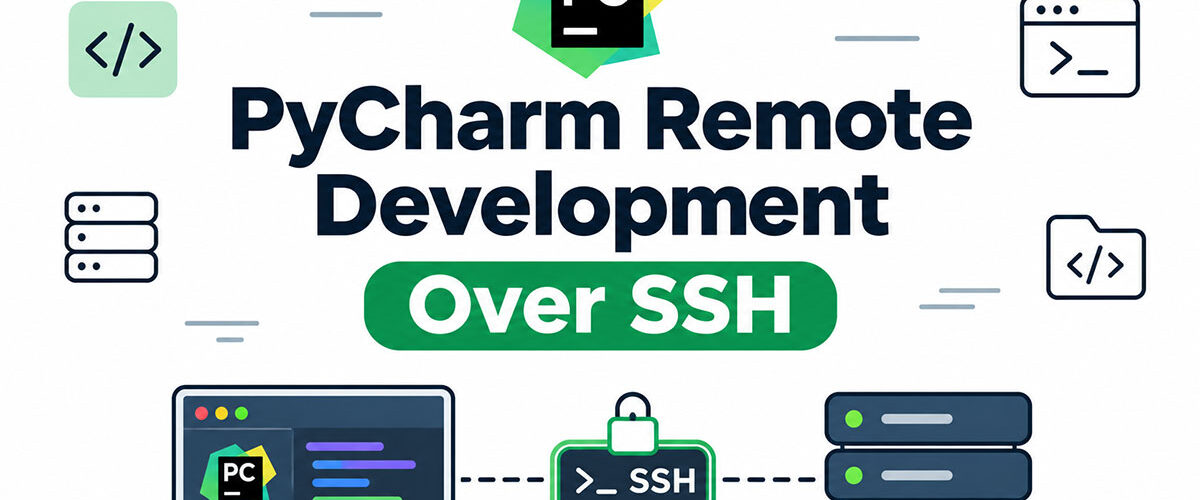
With PyCharm remote development, the heavy parts of the IDE run on a Linux host and your own machine only shows the interface. A headless PyCharm backend sits on the server while a thin client handles the window you look at. Indexing, code analysis, builds, runs, and debugging all execute on the server.
Older tutorials still teach the remote interpreter approach, and the two are not the same thing. A remote interpreter keeps the IDE and a project copy on your laptop and syncs files to the server. This workflow keeps the source code on the host only, according to JetBrains support.
JetBrains’ FAQ (2026) lists the feature as available with a Pro subscription only, and Gateway connections accept only Linux servers as backends.
What is PyCharm remote development and how does it work?

The editor on your screen is a client. The IDE doing the real work is a headless PyCharm backend on a remote host, and it handles indexing, code analysis, builds, runs, debugging, and tests.
JetBrains describes the host as a physical or virtual machine that stores the source code and runs the backend IDE (PyCharm 2026.2 Help).
The docs pitch it for developing against a different operating system than your laptop runs, and for using hardware bigger than the local machine offers. Some teams mainly want the third benefit, keeping source code off the laptop entirely.
Backend, client, and launcher
The backend is headless PyCharm on the host. It stores the project and does the indexing and analysis. What you see locally is JetBrains Client, a thin application that shows the editor and tool windows. JetBrains Gateway sits in front of both, connecting over SSH, downloading the backend, starting it, and opening the client.
Gateway is not the only door in. The PyCharm welcome screen (through the Remote Development Gateway plugin) and the JetBrains Toolbox App open the same connection, and Toolbox runs on Linux, macOS, and Windows.
The client version always matches the backend version, so the client is downloaded to fit whatever backend you pick.
What it is not
It is not SSH X forwarding. No IDE window is streamed from the server, because the client renders locally.
It is also not a local project copy synced to a server. That is the remote interpreter workflow, compared next.
PyCharm remote development vs remote interpreter: which one to pick
If the code already lives on the server and the server should do the heavy work, remote development fits. A remote interpreter makes more sense when the IDE and a project copy stay on your laptop and only execution moves.
| Aspect | Remote development | Remote interpreter (SSH) |
|---|---|---|
| Source code | On the host only | Local copy, synced to the host |
| Indexing and analysis | Backend on the host | IDE on your machine |
| Code execution | On the host | On the host, over an SSH session |
| File sync | None needed | Deployment upload, automatic or manual |
| Best fit | Large projects, code that stays on the server | Hosts too small for the backend |
The rows follow JetBrains’ overview page, the SSH interpreter page, and a support-team reply stating that remote interpreters assume a local project copy while remote development does not require one.
Why the two get mixed up
Both run your Python on the server, so they feel identical on first contact. One user on a JetBrains support forum thread asked whether an SSH interpreter on a GCP instance already counted as remote development.
The staff answer drew the line fairly clearly. With an interpreter on the host, execution happens there and nothing more. With remote development the source code stays on the host too, and the heavy IDE work moves with it.
A decision rule that holds up
Remote development is the pick when the host meets the backend’s hardware requirements, the project is big enough that local indexing drags, and the source code shouldn’t sit on a laptop. Latency to the host needs to be low as well.
A remote interpreter wins if the host can’t run a backend. It also wins when only execution has to happen there, or when your own machine handles the project fine.
JetBrains points Raspberry Pi users to remote interpreters and remote debugging, since the backend does not support single-board computers.
If the host qualifies, remote development is the better default because there is no sync step and no stale files. For a weak host or a shaky link, the interpreter wins.
What PyCharm remote development requires

The host has to be Linux AMD64 with an SSH server and the sftp subsystem. You need a PyCharm Pro subscription, and the connection needs enough bandwidth and low latency. The figures below come straight from JetBrains documentation.
- 2 or more cores recommended (PyCharm 2026.2 Help, updated 17 April 2026)
- 4 GB of RAM or more, same page
- 5 GB of disk or more, same page
- At least 20 Mbps of bandwidth (JetBrains Rider Help)
- No more than 200 ms of latency, same page
Remote host
The host runs the backend, so it carries the load. JetBrains asks for a recent Linux AMD64 distribution, such as Ubuntu 16.04+ or RHEL/CentOS 7+, along with a compatible SSH server. The sftp subsystem has to be switched on because the backend deployment uses it, and the system must be glibc-based (Alpine does not qualify).
The PyCharm page also recommends swap, even on cloud instances, and local SSD storage. The IDE’s load average indicator tells you when the host needs more CPU or RAM.
JetBrains’ Rider requirements page lists the same minimums: 2 or more cores, 4 GB of RAM, and 5 GB of disk.
Treat 4 GB as enough for a small script repository, and add RAM for a real codebase. The Memory reading in the backend control center shows when the host runs short.
Network
The JetBrains Rider requirements page asks for at least 20 Mbps between client and server and a latency of 200 ms or less. The current PyCharm requirements page does not list network figures, so read those numbers as the closest published thresholds rather than a PyCharm-specific rule.
The backend also needs a free port on the host, in addition to the SSH port.
Edition and license
Remote development needs a PyCharm Pro subscription. JetBrains’ FAQ states that both Remote Development and JetBrains Gateway are available with Pro only.
Since PyCharm 2025.1, Community and Professional ship as one unified product, and a fresh install includes a free Pro trial. After the trial you either buy Pro or stay on the free core features, which leave remote development out.
Guides that still talk about Community versus Professional predate that merge, and Community 2025.2 was the last standalone release.
The license is checked on your local machine, the same way as for the desktop IDE. JetBrains’ licensing page adds that no license information is passed to or saved on the server.
How to set up PyCharm remote development over SSH

The steps below follow the PyCharm 2026.2 Help.
- Prepare the host. Confirm a Linux AMD64 system, a running SSH server, the sftp subsystem, and free disk space for the backend.
- Open the wizard. On the PyCharm welcome screen choose Remote Development (or File | Remote Development), with the Remote Development Gateway plugin active. Standalone Gateway and the Toolbox App work as entry points too.
- Add the SSH connection. Under SSH Connection click New Connection and enter host, port (22 by default), and username. Pick a password, a key pair (OpenSSH or PuTTY), or the ~/.ssh/config option, then click Check Connection and Continue.
- Choose where the backend comes from. The default fetches it from JetBrains servers. The alternatives are a company download link or an uploaded .tar.gz installer.
- Set the paths. Enter the project path on the host. The backend lands in ~/.cache/JetBrains/RemoteDev/dist unless you set a custom install path (available since PyCharm 2022.1).
- Click Start IDE and Connect. Gateway downloads and launches the backend, then opens JetBrains Client with your project.
If the host already has an entry in your ~/.ssh/config, choose the parse option and skip retyping the details.
Backend download and firewalls
With the default download option, the host itself has to reach these JetBrains addresses:
- code-with-me.jetbrains.com
- download.jetbrains.com
- download-cf.jetbrains.com
- cache-redirector.jetbrains.com
On a locked-down server, use the company download link or upload the installer yourself.
Starting from the remote host
If PyCharm is already installed on the server, you can start the backend there and connect from your machine. This is the server-to-client flow, and it suits setups with custom orchestration. The command looks like this:
remote-dev-server.sh run /path_to_project/ --ssh-link-host host_server_address --ssh-link-user remote_side_user --ssh-link-port ssh_connection_port
Running it prints a join link, an HTTP link, and a Gateway link. Paste any of them into the Connect to Running IDE field in Gateway, or open the HTTP and Gateway links in a browser.
The join link holds a local address and port, so it needs a route to the host, such as an ssh -L tunnel.
Already have a backend unpacked on the server? Since build 221.5481, running remote-dev-server.sh registerBackendLocationForGateway from its bin directory makes Gateway list it with the available builds.
Connecting through WSL, Dev Containers, and cloud providers
Beyond a plain SSH host, PyCharm remote development connects to WSL2, to Dev Containers on a remote Docker host, and to managed environments such as GitHub Codespaces, Google Cloud Workstations, Coder, and Amazon CodeCatalyst (PyCharm 2026.2 Help). Each route changes where the backend IDE lives and who maintains the machine.
WSL2
Gateway can launch the backend directly inside WSL2, so a Windows laptop gets a Linux backend without a separate server. It needs Windows 10 or 11 with Ubuntu 20.04 under WSL2, at least 200 GB of free space, 8 GB of RAM, and 4 CPUs. On top of that come the latest EAP builds of both Gateway and the backend IDE.
That last part is the catch. The Gateway page (updated 14 August 2026) still asks for early-access builds, so check your build channel before planning around this route.
There is a shortcut. The Advanced Settings option “Open WSL projects natively as local projects (without Remote Development)” skips the backend deployment and opens a regular local project.
Dev Containers
A Dev Container runs the backend inside a Docker container on the remote server, shaped by a devcontainer.json file. Docker has to be installed on that server, plus Java 17 or higher when the project sits in the remote file system.
The project source can be a devcontainer.json path on the host, or a Git repository where PyCharm finds the file automatically or by path. Plugins and a fixed backend IDE name go into the customizations section under jetbrains, and your local .gitconfig values (user.name, user.email, pull.rebase, aliases) are copied in.
The flow starts at Remote Development on the welcome screen, moves to Dev Containers and Create Dev Containers, and ends with Build Container and Continue.
Cloud environments
Gateway also reaches Google Cloud Workstations, Amazon CodeCatalyst, Coder, JetBrains CodeCanvas, and GitHub Codespaces.
Setup differs per provider. Google Cloud needs the Cloud Workstations plugin and an existing workstation, CodeCatalyst goes through the AWS Toolkit plugin with an AWS Builder ID, and Coder asks for a workspace URL and a session token.
Provider naming is not settled in JetBrains’ own docs. The 2026.2 overview lists Ona, while the Gateway page and the FAQ still describe Gitpod.
A plain EC2 instance is just an SSH host. Open inbound SSH in its security group first, a step the JetBrains troubleshooting page calls out for AWS.
A plain SSH host is the simplest place to start. Dev Containers earn their place once the environment has to be reproducible, and a managed provider only makes sense if a platform team already runs one for you.
Working with Python environments, run configurations, and debugging on the host
Once the client connects, the backend treats the host as its local machine, so interpreters, run configurations, and the debugger all act on the host’s own Python. JetBrains says a remote project opens in JetBrains Client the way it would in a local IDE, with editing, running, debugging, and deploying available.
On first open, PyCharm suggests adding the project SDK. Set it under File | Project Structure, and PyCharm downloads the configured SDK to the remote server and reuses it in later sessions.
Environments on the host
PyCharm 2026.2 Help lists these environment types for Python interpreters, and the backend creates them on the host:
- virtualenv
- Conda
- Pipenv
- Poetry
- uv
- hatch
Keep one manager per project. Packages then install next to the data and hardware the code needs.
Run, debug, and ports
Run and debug configurations execute on the host, and the Run tool window lists the ports an application listens on. To forward one, click the port and choose Forward Port, or Forward Port and open in browser.
A script can open a link on your side by running idea openUrlOnClient http://localhost:$port in the remote terminal (Alt+F12). Reverse forwarding lives in the Ports tab of the backend control center, where Local to Remote entries are handy for a database sitting on your laptop.
Forwarded ports are saved per project in forwardedPorts.xml and reload when you reopen the project (PyCharm 2026.2 Help, security model page).
JetBrains warns that reverse forwarding carries risk, so use it only with servers you trust.
Jupyter notebooks
A JetBrains support reply places remote Jupyter support at PyCharm 2025.3. Cells run on the remote machine, and each notebook attaches to one kernel, meaning one remote Python environment, which the kernel selector in the notebook toolbar switches.
The same reply says the feature targets SSH hosts, remote dev containers, and WSL.
Older third-party tutorials report notebooks failing under remote development. Match the advice to the build you run before trusting it.
Why is PyCharm remote development slow or failing to connect?
Slowness usually comes down to an undersized host or a congested link, and sometimes a backend heap that’s too small for the project. Failed connections have more causes: a blocked SSH port, disabled TCP forwarding, a full disk, or JetBrains download addresses the machine can’t reach.
Slow indexing and typing
Click the backend name on the toolbar to open the control center, then go to the Performance tab. Ping is the round-trip time between JetBrains Client and the host over the RD protocol. CPU load shows how busy the host processors are, Memory covers RAM state (a reached limit means adding RAM or ending processes), and Disk shows the space used on the host.
If memory looks fine and the backend still struggles, raise the heap. Open Help | Edit Custom VM Options (On Host), edit pycharm64.vmoptions, raise the -Xmx value, and restart the backend.
The control center’s Settings tab does the same through a Maximum heap size field. JetBrains notes that default deploy settings can be unsuitable for average or big projects, so a bigger heap on a large codebase is routine.
Connection fails during setup
| Symptom | Cause | Fix |
|---|---|---|
| SSH connection fails | Firewall, non-standard port, wrong key, AWS security group | Open inbound SSH, check sshd port and credentials |
| Credentials correct, Gateway still fails | TCP forwarding off in sshd\_config | Turn on AllowTcpForwarding |
| Installer upload fails | Disk below 4x the archive size, not a .tar.gz, or a Community archive | Free space or set a custom install path |
| Upload dies with exit code 139 (SIGSEGV) | SELinux on RHEL, CentOS, or Rocky Linux | Read syslog, disable SELinux, retry |
| Backend IDE stuck | Interactive shell or config errors, or too few resources | Use a default shell config, raise -Xmx |
The rows come from the JetBrains troubleshooting page. One support thread traced a failed connection to a full /tmp directory on the host, and deleting files there fixed it.
JetBrains pages disagree on the network rule. The page on connecting from PyCharm asks the host to reach four JetBrains addresses, while the FAQ (27 March 2026) lists six and says the local computer alone can be enough.
Fully offline mode exists for networks that block those addresses.
Dropped sessions and leftover backends
If the host reboots, the client cannot reconnect on its own. JetBrains support says to connect again manually and points to an open tracker issue, GTW-5551, for reconnecting without that step.
Closing the project locally does not close it on the host. Stop the backend from the Recent SSH projects page in Gateway with Stop IDE Backend, or it keeps running.
When remote development does not fit
Shared web hosting, non-Linux hosts reached through Gateway, a server several people need to open at once, and any system outside the documented requirements all make a poor match. In those cases a remote interpreter, or no IDE backend at all, is the honest answer.
Hosts and setups that will not work
- JetBrains rules out shared web hosting because of limits on third-party software and per-account CPU use, and because the backend needs a free port besides SSH.
- Windows and macOS servers cannot be reached through Gateway SSH, which supports Linux backends only, though the Toolbox App also supports macOS and Windows servers (FAQ, 27 March 2026).
- One server cannot be opened from different computers at once, so a teammate joins through a Code With Me link instead.
- A host below the requirements may still work, but JetBrains will not support problems on it.
For a one-off script on a server, skip the backend. SSH and a terminal editor cost less than deploying an IDE.
Plugins and per-project connections
Plugins behave differently from a local IDE. They install per project, and the Plugins settings page marks where each one lives: on the host, on the client, or on both.
In JetBrains Client the install works as usual. On a manually configured server, run bin/remote-dev-server.sh installPlugins with the project path and the plugin ID from JetBrains Marketplace.
Third-party plugins need consent. The backend disables one that has not been approved, and the --give-consent-to-use-third-party-plugins option on installPlugins approves it.
Each connection is bound to one project, so a second project means a second connection. The same host and IDE version share one process, while a different host or version launches a separate session.
PyCharm Remote Development FAQ
How does it compare with VS Code Remote – SSH?
Both run a server component on the host and a client on your machine, with no source code needed on your laptop. The practical gap is host reach. VS Code Server runs on Linux, Windows, macOS, and Raspberry Pi OS hosts from 1 GB of RAM (Microsoft, 2026), while PyCharm through Gateway needs a Linux host for a full IDE backend.
Is the connection between JetBrains Client and the backend encrypted?
It is. JetBrains says traffic is end-to-end encrypted with TLS 1.3 even inside an SSH tunnel.
The connection is direct, and no JetBrains relay servers are involved (FAQ about remote development, 2026).
Can I move files between my laptop and the remote host?
Both directions work. Copy and paste or drag and drop sends local files into the open remote project.
To pull a file down, right-click it in the Project tool window and choose Download File to Local Machine.
How do I remove an old backend IDE version from the host?
Open the options menu next to the server name on the Gateway welcome screen and select Manage IDE Backends. Click the close icon beside the version you want gone, then confirm with Yes.
Where does the backend store my passwords and tokens?
By default the backend uses a KeePass file on the host’s disk, so credentials survive IDE restarts.
The in-memory option (MEMORY\_ONLY in the settings files) keeps them only inside the running IDE and clears them on restart, which JetBrains calls the safer choice. Both are set through files in $HOME/.config/JetBrains/CredentialStore.
Does PyCharm remote development use JetBrains Projector?
In part, yes. JetBrains’ FAQ says JetBrains Client and the Projector technology display the remote GUI locally.
The editor itself runs on the RD protocol from JetBrains Rider, which JetBrains credits for making typing feel instant.
Do my local keyboard shortcuts work during a remote session?
Mostly. Shortcuts set in JetBrains Client apply both locally and remotely during a session.
Shortcuts for configuring settings in the backend’s own main window follow Linux conventions, because the host runs Linux.
Switching From a Remote Interpreter Without Losing Work
Moving a project from a remote interpreter to PyCharm remote development makes the host the only copy of the source, so the order of the move matters more than the clicks. Do it in this sequence:
- Copy the newest local changes to the host.
- Switch off Deployment auto-upload.
- Open the host folder through Gateway and recheck run configurations.
The upload comes first because the local copy stops being authoritative. Auto-upload comes second because every later local save pushes an old file to the server.
The trade-off is availability. Editing stops whenever the host or the link is down, since no local copy exists.
As verified on 14 October 2026, JetBrains still describes the feature as under active development on the PyCharm 2026.2 troubleshooting page. Recheck the requirements before each major release.

- PyCharm Remote Development Over SSH: Setup Guide - November 23, 2026
- How Custom Software and Server Control Panel Tools Work Together - November 22, 2026
- Notepad++ Online: Can You Use It in a Browser? - November 21, 2026