
A healthy SQL Server database forms the backbone of daily operations in a modern day organization. However, any instance of database corruption can bring the functioning of a business to a standstill. It can cause severe risk to an organization’s finances, reputation, and operational continuity. Resolving this issue requires immediate action, which is possible through several manual and automated repair methods.
While doing manual resolution of the error, there is a strong possibility of data loss, such as when using the DBCC CHECKDB command with the REPAIR_ALLOW_DATA_LOSS option. Although options like REPAIR_REBUILD can be feasible options to restore data without data loss. But they have a very limited scope.
Moreover, if corruption affects a specific page of the SQL Server database, you can restore it by using a healthy backup without data loss. This will also save you from restoring the entire database, which could be a time-consuming and error-prone process. Page-level restoration is another viable method to fix this situation. Alternatively, a third-party SQL recovery software can also help your cause. Let’s delve deeper and find out more about this topic.
Methods to Repair Corrupt SQL Database without Data Loss
Repairing a corrupt SQL database without loss of data is possible through multiple ways. Here are some of the common ones:
1. Restore the Database from a Known Good Backup
Recovery from a valid backup is one of the foremost methods to ensure minimal to no data loss. To serve this task, you should have any of the following recent backups of your database:
- Full backup: Creates a backup of the complete database
- Differential backup: Captures changes since the recent full backup
- Transaction log backup: Used to record all the sequential transaction history
These backups can help you to restore the database to a specific point in time while preventing data loss. Let us proceed with the database restore using a backup file through SQL Server Management Studio (SSMS):
- Launch SSMS
- Connect to the SQL Server instance where you have saved your database
- Under Object Explorer in the left panel, click Server Name to expand the Server tree
- Click Databases to expand the database tree
- Right-click the database you want to restore
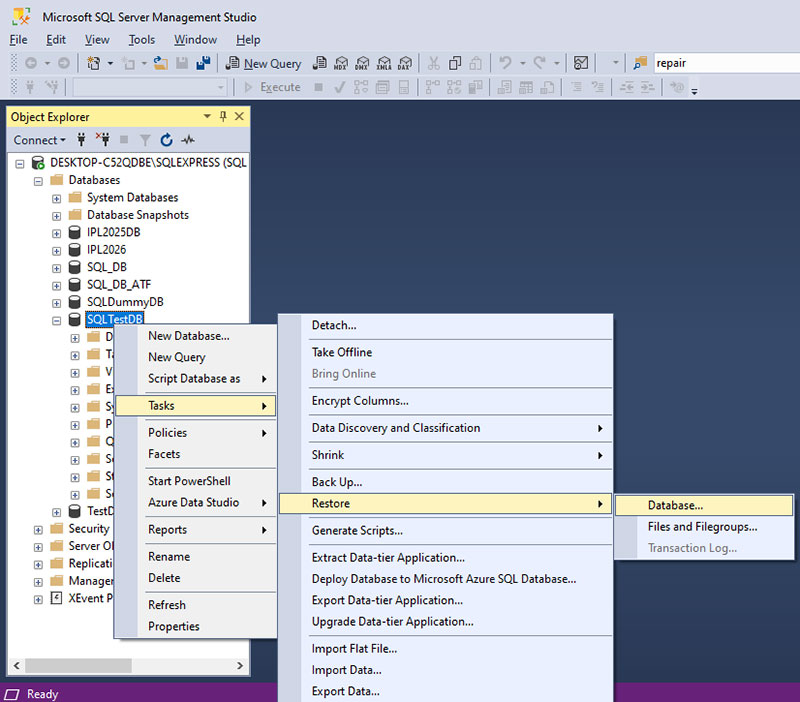
- Navigate to Tasks > Restore > Database
- On the General page, look for the Source section and select the Database option
- From the dropdown list, choose the database you wish to restore
- The Destination field will be auto-filled. You may modify the Timeline manually by clicking the Timeline button, if required
- In the Backup Sets to Restore section under Restore Plan, check the type of backup through which you want to restore the database
- In the screenshot below, you can see the Full and Differential backups.
- In the left panel, click the Options page under Select a Page
- Choose any of the following options as per your requirement
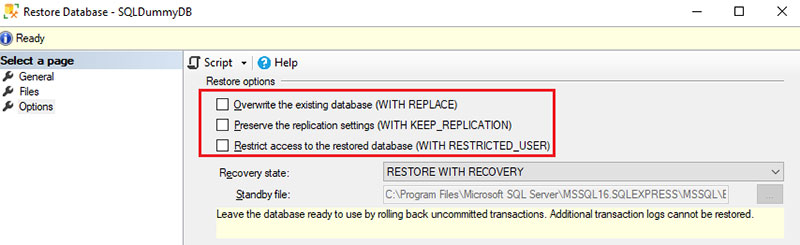
- Overwrite the existing database (WITH REPLACE): Replaces the existing database files
- Preserve the replication settings: Retains the original replication settings
- Restore access to the restored database: Resumes user access after database recovery
- Next, click the dropdown list next to Recovery State
- Choose any of the following options:

- RESTORE WITH RECOVERY: Rolls back uncommitted transactions
- RESTORE WITH NORECOVERY: Ready for more backups
- RESTORE WITH STANDBY: Database enters read-only mode
- Click the OK button and wait for the message, ‘The restore of database completed successfully’ to pop up.
If, after completing this process, the SQL Server still halts a query and triggers high-level I/O error, it indicates the possibility of page-level corruption. The next section discusses how to fix this issue without data loss.
2. Page-Level Restore without causing loss of data
If corruption has affected only a few selected pages of your database, you can proceed with page restore. It will prevent you from restoring the complete database and can help avoid data loss. To perform this task, you would need to replace the damaged pages with their healthy copies from a valid backup. After this process, you can apply the subsequent backup to bring the page forward.
Before learning the steps, you should know the major prerequisites and restrictions of this method.
Limitations and prerequisites of page-level restore
- Recovery model: The database must use the Full or Bulk-logged recovery model.
- Filegroups: Page Restore only supports read/write filegroups
- Page limitation: You can restore only the standard data pages of the database
- Backup chain: The chain of log backups must be unbroken, and extend from the Full backup to the current log file
Page-level restore: The complete process
To restore individual pages, you can use the SSMS New Query window. The steps are as follows:
Step 1: Find the exact File ID and Page ID of the corrupted page
- You can find these IDs in the SQL Server Error log or event traces. You may also directly run a T-SQL query as given below. SELECT * FROM msdb..suspect_pages
- Alternatively, you may also use the following DBCC CHECKDB command to check the pages, index and tables for corruptions: DBCC CHECKDB (SQLTestDB);
Here SQLTestDB is the name of the database.
- Another command to detect corrupt database pages uses the TRACEON option, as given below:
DBCC TRACEON (3604)
DBCC PAGE(‘SQLTestDB’,1,368,2) WITH TABLERESULTS
Step 2: Start the page restore
This method applies to the databases created with a bulk-logged or full recovery system. If you are using SSMS, make sure to have the Enterprise Edition. The page option will not be visible in the Standard Edition. The steps are as follows:
- Open SSMS and connect to your SQL Server instance
- From the Object Explorer in the left panel of the SSMS window, navigate to Tasks > Restore > Page
- In the resulting Page Restore Window, check the selected database along with the backup set, backup file, and other details.
- Click the option labeled – Check Database Pages to find the corrupt pages
- After the completion of the process, you can see the page grid
- Click the Add or Remove button to add or delete the pages from this grid
- Click OK to restore the pages listed in the grid
This method will be quick to restore individual pages. In case of multiple pages, experts recommend not using this method. This is because it will take considerable time and may not restore the transactional log, allocation pages, and Page 0 of the database.
You may also carry out Page Restore using T-SQL Queries. Please refer to the Microsoft page for a detailed insight. It is less likely to cause data loss, as it follows a zero-data-loss recovery strategy. All you need is to have an unbroken chain of transaction log backups up to the point of failure.
However, the Page-Level restoration method can have several drawbacks:
- Time-consuming
- Complicated
- Prone to error
- Would require in-depth technical knowledge
To remedy this situation, you can use a third-party MS SQL Repair tool
3. Using an Online SQL Repair Service to Repair corrupt SQL Server database
If your SQL Server database is corrupted and backups are unavailable or damaged, an online MSSQL database repair service can help repair the database without installing desktop software. Stellar offers a free online SQL repair service that lets you upload a corrupt MDF file, repair it online, and download the repaired database. It supports MDF files up to 5 GB and helps recover database objects and records affected by corruption.
The online tool is useful for situations such as:
- Corrupt or inaccessible SQL Server MDF files
- Database corruption caused by unexpected shutdowns or system failures
- Recovering tables, records, and other database objects from a corrupt MDF file
- Repairing a database when a valid backup is unavailable
Since the repair process runs online, you can use the service through a web browser without installing dedicated SQL repair software on your computer.
Conclusion
An SQL Server database can become corrupt due to multiple reasons, and when it does, an immediate resolution becomes crucial. The goals should be to perform the restore without data loss. This negates the use of the DBCC CHECKDB command with the option REPAIR_ALLOW_DATA_LOSS, as it causes significant loss of data.
One method for recovery without data loss could be to restore the database from a backup, whether a full, differential, or transaction log backup, whichever is applicable. If the corruption has affected only individual pages, you may opt for page-level restoration through SSMS Enterprise GUI or through T-SQL queries. However, these methods involve cumbersome queries, which may be time-consuming and cause errors.
A better and more viable solution would be to use MSSQL repair tools. They are a feasible alternative in this context.

- How Software Teams Write SOPs for Releases and Deployments - October 22, 2026
- Notepad++ Android Options: Apps That Come Close - October 21, 2026
- Data Management Services: A Practical Guide for Growing Companies - October 21, 2026