Your phone dies by 3 PM. Again.
Hidden apps drain power while you sleep, work, or scroll. Battery life disappears faster than Android’s estimates predict, leaving you hunting for chargers mid-day.
Learning how to find out which apps are draining battery Android solves this. You’ll identify power-hungry apps in under 3 minutes using built-in battery usage data, no third-party software required.
This guide reveals exact menu paths for checking battery consumption, interpreting foreground vs background usage, and spotting abnormal power drain patterns across Android 9 through Android 14.
Six straightforward steps separate guesswork from facts.
How to Find Out Which Apps Are Draining Battery on Android
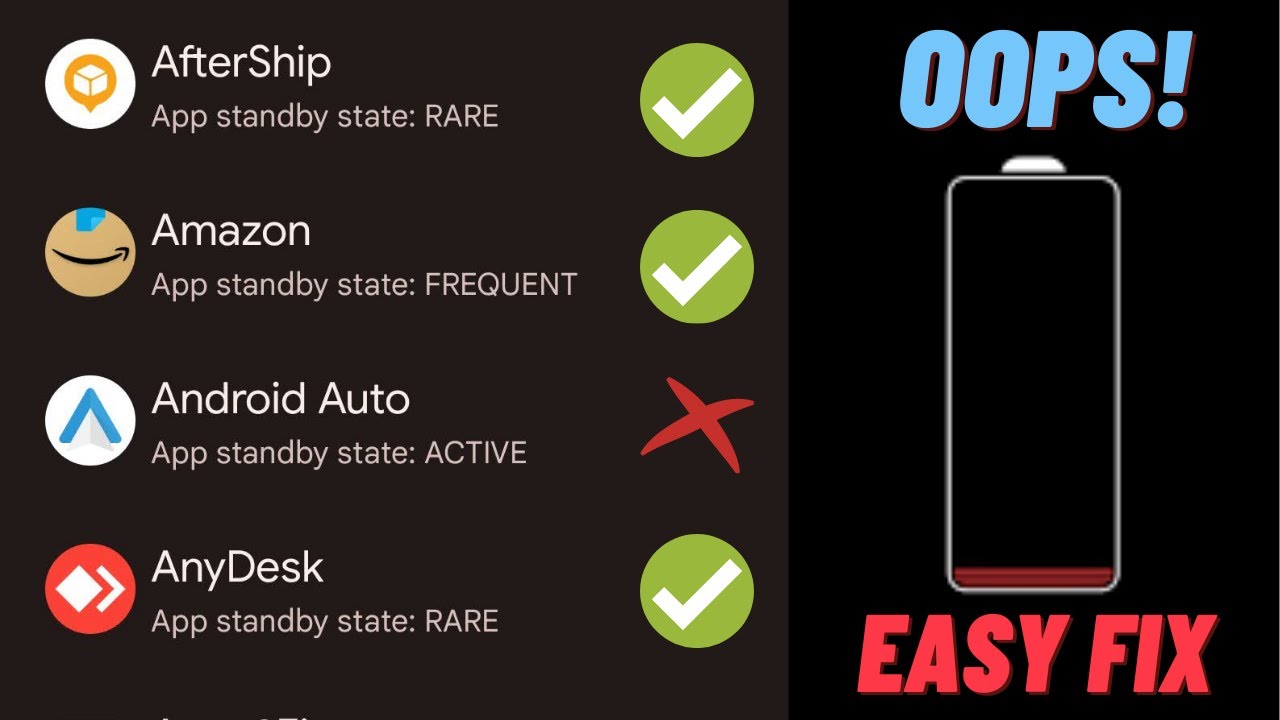
Finding out which apps are draining battery on Android is the process of accessing battery usage data through Android’s Settings app to identify applications consuming excessive power.
Users need this when battery life decreases unexpectedly, standby time drops significantly, or the device temperature rises during normal use.
This guide covers 6 steps requiring 3 minutes and Android 9 or later.
Prerequisites
Android version: Android 9, Android 10, Android 11, Android 12, Android 13, or Android 14
Access level: Device owner or administrator permissions
Time estimate: 3 minutes
Required permissions: Battery usage statistics (enabled by default)
Step 1: How Do You Access Battery Usage Settings on Android?
Open Settings app, tap Battery, view battery percentage and current consumption rate for all active processes including foreground usage and background activity.
Action
1. Settings > Battery: Tap Settings icon (gear symbol) on home screen or app drawer.
2. Battery menu: Scroll to Battery option, tap to open battery settings screen.
3. Expected result: Battery screen displays current battery percentage, estimated time remaining, and battery health status.
Purpose
Battery settings provide access to power consumption data collected by Android’s system since last full charge.
Step 2: Where Do You Find App Battery Consumption Data?
Tap Battery Usage or App Battery Usage to display ranked list showing battery percentage consumed by each application during selected time period.
Action
1. Battery > Battery Usage: Tap “Battery usage” or three-dot menu (⋮) then “Battery usage” depending on Android version.
2. Time range selection: Select “Last 24 hours” or “Last 7 days” from dropdown menu at top of screen.
3. App list display: View apps ranked by battery consumption percentage, Screen, Android System, Google Play Services at top typically.
Purpose
App battery consumption data reveals which applications use most power during specific time frames, separating screen usage from app-specific drain.
Step 3: How Do You Identify High Battery Drain Apps?
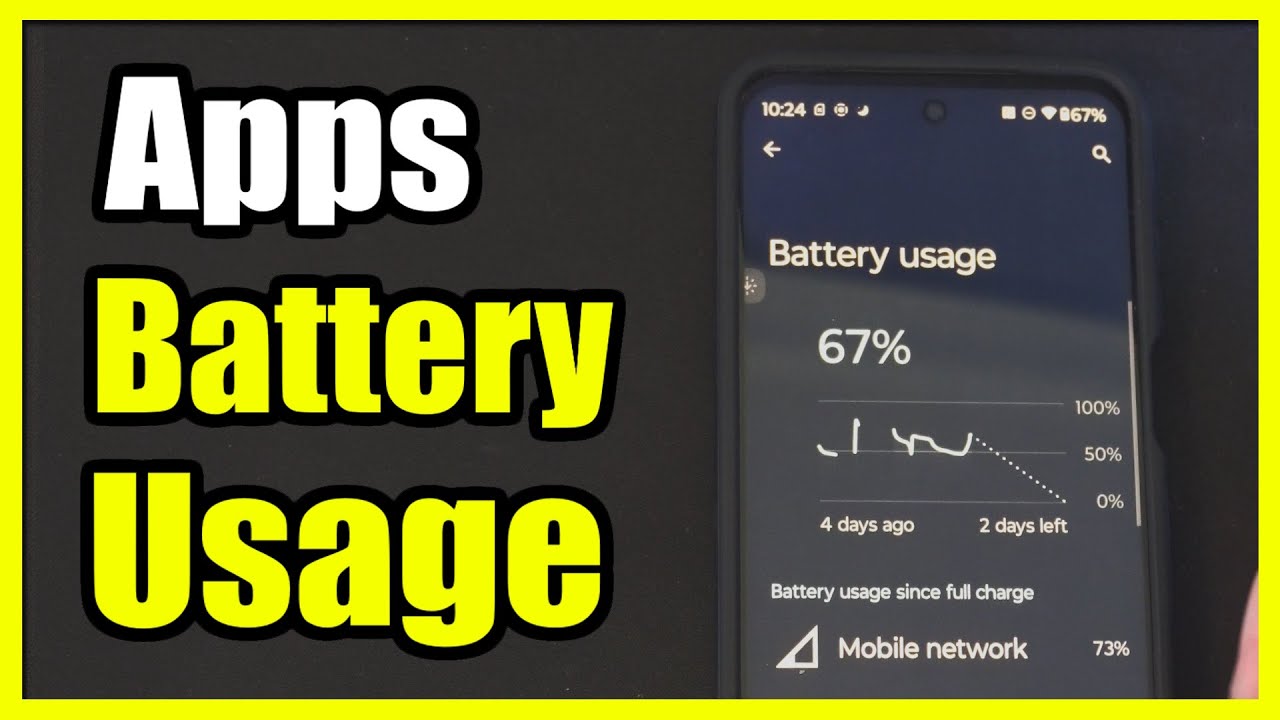
Review battery usage list for apps consuming over 10% battery, check background vs foreground usage ratio, identify apps running when device is idle.
Action
1. Sort by percentage: Apps already sorted by battery consumption, highest percentage at top of list.
2. Check consumption threshold: Apps using 10-15% or more indicate high drain, Screen usage 20-30% normal for active use.
3. Tap individual apps: Tap any app to see detailed breakdown showing background usage, foreground usage, and specific battery consumption time.
Purpose
Identifying high drain apps separates normal power consumption from abnormal battery depletion caused by background processes, location services, or CPU-intensive operations.
Step 4: What Do Battery Statistics Tell You About App Behavior?
Battery statistics show foreground usage (active screen time), background usage (when app runs while screen off), and total mAh consumed per application.
Action
1. Foreground vs background: Check percentage split, apps with 80%+ background usage drain battery unnecessarily.
2. Usage duration: Review “Active” time showing how long app ran, compare to your actual usage time.
3. Battery consumption indicators: Look for wake locks (keeping device awake), GPS usage, network activity, CPU time in app details.
Purpose
Battery behavior analysis reveals whether apps drain power through legitimate use or excessive background activity requiring battery optimization settings.
Step 5: How Do You Check Background Battery Usage?

Access Background Battery Usage through Battery settings or App Info to see which applications consume power when not actively used.
Action
1. Battery > Battery Usage > Three-dot menu: Tap “Show full device usage” or “Show system” to reveal Android System and system apps.
2. Individual app settings: Settings > Apps > [App name] > Battery > Background usage to see specific background consumption.
3. Background restriction options: “Unrestricted” allows full background access, “Optimized” limits background activity, “Restricted” prevents background usage entirely.
Purpose
Background battery monitoring identifies apps that run continuously, preventing doze mode activation and reducing standby time through wake locks or partial wake locks.
Step 6: Where Do You Access Detailed Battery Usage Per App?
Tap any application in battery usage list to view detailed power consumption breakdown including screen time, background time, and resource usage.
Action
1. Battery Usage > [App name]: Tap specific app from battery usage list.
2. Detailed statistics screen: View total battery used, background usage percentage, foreground usage percentage, time active since last charge.
3. Usage graph: Check timeline graph showing when app consumed battery throughout selected time period (last 24 hours, last 7 days).
Purpose
Detailed app battery data pinpoints exact times when applications drain power, revealing patterns like overnight battery drain or specific app triggers.
Verification
Charge device to 100%, use normally for 24 hours, check battery usage data matches actual app usage patterns.
Expected battery percentage ranges: Screen 20-35%, Android System 5-10%, individual apps under 15% each for moderate use.
Normal consumption indicators: Battery drops 1-3% per hour during standby, 8-15% per hour during active screen time, less than 5% overnight (8 hours) with airplane mode off.
Abnormal consumption indicators: Single app using 30%+ battery, overnight drain exceeds 15%, device warm when idle, battery percentage drops rapidly during standby.
Troubleshooting
Issue: Battery usage data not showing
Solution: Settings > Apps > Show system apps > Battery > Storage > Clear cache, restart device, wait 2 hours for battery statistics to rebuild.
Settings > Battery > Battery Usage requires minimum 1 hour of usage data collection before displaying app consumption.
Issue: Recent battery stats missing
Solution: Battery stats reset after device reboot or full shutdown, charge to minimum 20% for accurate data collection.
Developer Options > Running services shows real-time app activity when battery usage data unavailable.
Issue: Unable to access battery settings
Solution: Settings search bar, type “battery” to find battery settings on modified Android interfaces (Samsung One UI, Xiaomi MIUI, OnePlus OxygenOS).
Manufacturer-specific battery apps (Samsung Device Care, Xiaomi Security) provide alternative access to battery diagnostics data.
Alternative Method: Using Third-Party Battery Monitoring Apps
Method A (Built-in Android Settings)
Time: 2-3 minutes
Complexity: Low, requires no additional software installation
Best for: Quick battery drain identification, checking last 24 hours usage, standard Android devices
Method B (Third-Party Battery Apps)
Time: 5-10 minutes including app installation and setup
Complexity: Medium, requires granting additional permissions, understanding advanced metrics
Best for: Detailed historical data, wake lock analysis, comparing battery performance across weeks, identifying partial wake locks
Choose Method A when identifying obvious battery drain apps quickly.
Choose Method B when battery health degrades despite addressing high-usage apps, investigating complex battery issues, tracking discharge rate patterns over time.
Third-Party Apps Comparison
AccuBattery: Provides battery capacity measurement, charging cycle tracking, screen-on vs screen-off consumption, wake lock detection.
GSam Battery Monitor: Shows detailed app-level statistics, CPU usage per app, sensor usage (GPS, accelerometer), network activity breakdown.
Battery Historian: Developer tool requiring ADB access, generates detailed battery usage graphs, identifies exact wake lock sources, shows battery voltage and temperature.
Next Steps
After identifying battery-draining apps, apply battery optimization through Settings > Apps > [App name] > Battery > Optimize battery usage.
Restrict background activity for high-drain apps: Settings > Apps > [App name] > Mobile data & Wi-Fi > Background data (toggle off).
Enable Adaptive Battery: Settings > Battery > Adaptive Battery limits rarely-used apps automatically, reducing background battery drain by 20-30%.
Activate Battery Saver mode: Settings > Battery > Battery Saver reduces performance, limits background processes, disables location services when battery drops below 15%.
Force-stop apps consuming excessive resources: Settings > Apps > [App name] > Force stop prevents app from running until manually opened.
Clear app cache for misbehaving applications that drain battery due to corrupted temporary data.
Uninstall unnecessary apps that consistently consume 10%+ battery despite optimization attempts.
Monitor Google Play Services battery usage separately, update to latest version if consuming over 15% battery consistently.
Check location permissions: Settings > Location > App location permissions, disable “Allow all the time” for apps not requiring constant GPS access.
Review notification settings to reduce screen wake events causing battery drain throughout day.
FAQ on How To Find Out Which Apps Are Draining Battery Android
Which app drains the most battery on Android?
Screen consumes 20-35% typically, followed by Google Play Services at 5-15%.
Social media apps (Facebook, Instagram, TikTok) drain 10-20% each due to background sync, video playback, and location tracking. Gaming apps consume 15-30% during active use through GPU and CPU usage.
How do I stop apps from draining my battery?
Settings > Apps > [App name] > Battery > Restrict background usage limits power consumption when app not active.
Enable Adaptive Battery (Settings > Battery > Adaptive Battery) to automatically restrict rarely-used apps. Force-stop high-drain apps or uninstall unnecessary applications consuming over 10% battery consistently.
Why is my battery draining so fast on Android?
Background apps, location services running continuously, poor cellular signal, and screen brightness above 70% cause rapid battery depletion.
Old battery health (below 80% capacity), outdated Android version, or apps with wake locks prevent doze mode activation. Check Settings > Battery > Battery Usage for specific drain sources.
Do apps drain battery when not in use?
Yes. Apps use background processes for notifications, data sync, location updates, and automatic updates even when closed.
Background battery usage appears in Settings > Apps > [App name] > Battery showing percentage consumed while screen off. Apps with 80%+ background usage drain power unnecessarily overnight and during standby.
How do I check battery health on Android?
Dial ##4636## > Battery information displays health status (Good, Fair, Poor) and battery capacity.
Third-party apps like AccuBattery measure actual mAh capacity versus design capacity. Battery health below 80% indicates degraded battery requiring replacement for normal battery life.
What percentage of battery drain is normal overnight?
1-5% battery drain overnight (8 hours) is normal with Wi-Fi enabled, airplane mode off, and background sync active.
Drain exceeding 10% indicates apps preventing doze mode, wake locks keeping device active, or Google Play Services issues. Check Battery Usage screen for apps active during sleep hours.
Should I close apps to save battery on Android?
No. Closing apps frequently wastes more battery through restart processes and reloading data into memory.
Android manages background apps automatically through app standby and doze mode. Only force-stop apps showing abnormal battery consumption or misbehaving with excessive CPU usage in battery statistics.
Does clearing cache help battery life?
Clearing cache helps temporarily when apps malfunction due to corrupted data causing excessive CPU usage or wake locks.
Settings > Apps > [App name] > Storage > Clear cache removes temporary files. Regular cache clearing provides minimal battery benefit since apps rebuild cache during normal operation, sometimes using more power.
What is battery optimization on Android?
Battery optimization restricts background activity, delays notifications, and limits location access for selected apps when device is idle.
Settings > Battery > Battery optimization applies restrictions automatically to most apps except system services and messaging apps. Optimized apps cannot run freely in background, reducing power consumption by 15-25% daily.
How often should I check battery usage stats?
Weekly checks identify gradual battery drain increases from app updates or new installations consuming excessive background power.
Check daily when experiencing sudden battery life decrease, device warmth during standby, or battery percentage dropping 5%+ per hour. Battery usage data resets after device reboot requiring 2-4 hours data collection.
Conclusion
Knowing how to find out which apps are draining battery Android transforms daily battery performance from unpredictable to manageable.
The built-in battery settings reveal precise power consumption data within minutes. No guesswork, no third-party apps required for basic battery diagnostics.
Check battery usage weekly. Address apps exceeding 10-15% consumption through background restrictions or optimization settings.
Enable Adaptive Battery and Battery Saver for automatic power management across all installed applications. These features reduce discharge rate by 20-30% without manual intervention.
Screen time, location services, and background sync drive most battery drain. Monitor them consistently.
Your Android device now runs longer between charges. Battery efficiency improves when you control which apps consume power and when they access system resources.

- Notepad++ Android Options: Apps That Come Close - October 21, 2026
- Data Management Services: A Practical Guide for Growing Companies - October 21, 2026
- MongoDB Cheat Sheet - October 20, 2026